
You do not need to be a Linux expert to look after an ERPNext server. You need a small set of commands you understand well, and the discipline to use them the same way every time. This article covers the ones an ERPNext administrator reaches for in a normal week on Ubuntu.
Know what is running on the box
A production ERPNext server is a few cooperating services:
- nginx receives web traffic and passes it to the application.
- gunicorn runs the Frappe web application, started by supervisor.
- Background workers and the scheduler run queued jobs, emails and scheduled tasks, also under supervisor.
- MariaDB stores your data.
- Redis holds cache and job queues.
Everything ERPNext-specific lives in a "bench" folder owned by an ordinary user, often called frappe. That user runs bench commands. Root is only for system tasks.
Log in and switch to the right user
Connect with SSH using your own named account, then switch to the bench user:
ssh yourname@your-server
sudo -i -u frappe
cd ~/frappe-bench
Your bench folder may have a different name. Running bench commands as root creates files the application cannot later read, so always switch user first.
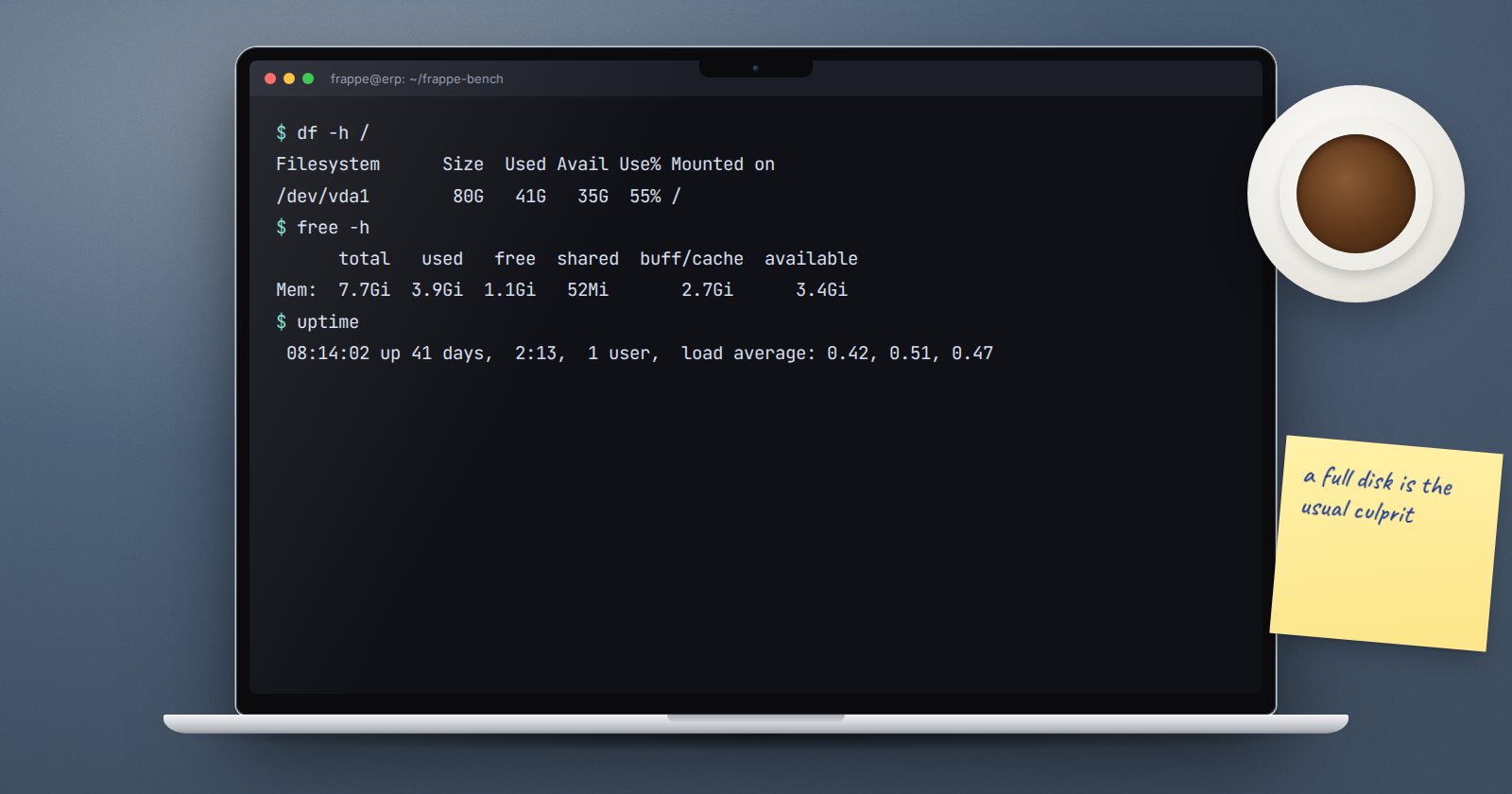
Check disk, memory and load
Most "ERPNext is down" calls start with a full disk or an exhausted server. Three commands answer that quickly:
df -h          # free space per disk
free -h        # memory and swap in use
uptime         # how long it has run and the load averages
To see what is eating disk space inside the bench:
du -sh sites/*/private/backups logs
top shows live processes. Press q to leave it.
Check the services
sudo supervisorctl status
sudo systemctl status nginx
sudo systemctl status mariadb
Every supervisor process should say RUNNING. A process stuck on FATAL or restarting over and over points you to its log.
Read the logs
Bench writes its logs into the logs folder. The web and worker error logs are the first places to look:
tail -n 50 logs/web.error.log
tail -f logs/worker.error.log
tail -f follows the file live; stop it with Ctrl+C. For system services, use the journal:
sudo journalctl -u nginx --since "1 hour ago"
Keep Ubuntu patched
Operating system security updates matter as much as ERPNext updates:
sudo apt update
sudo apt upgrade
Read the list of packages before you confirm. If the file /var/run/reboot-required exists afterwards, the server needs a reboot. Plan it outside working hours and tell users first, because ERPNext will be offline while the machine restarts.
Habits that prevent damage
- Never run
benchcommands withsudounless the command itself asks for superuser rights. - Before deleting anything with
rm, runlson the same path and read the output. Linux has no recycle bin. - Keep a written log of what you changed and when. The next person on call will need it.
- Take a backup before any change you are not sure about.
Weekly checklist
- [ ]
df -hshows comfortable free space on every disk - [ ]
free -hshows memory is not exhausted - [ ]
sudo supervisorctl statusshows every process running - [ ] No new repeating errors in
logs/web.error.logorlogs/worker.error.log - [ ]
sudo apt updaterun and security updates applied - [ ] Reboot scheduled if
/var/run/reboot-requiredexists
If you are starting from zero, our Linux for ERPNext: Foundations course walks through each of these commands on a real server, step by step.
