
Taxes in ERPNext are driven by templates rather than typed on every invoice. Set them up once, correctly, and invoices calculate tax the same way every time. Set them up loosely, and someone will eventually edit tax lines by hand on a live invoice. This article covers the moving parts. It does not give any country's tax rates; take those from your tax authority.
The tax account comes first
Create a ledger account for each tax you collect or pay, under the right liability or asset group, with Account Type set to Tax. The account has a Tax Rate field. If you fill it, ERPNext copies that rate into a tax row as soon as you pick the account, which saves typing and avoids mistakes.
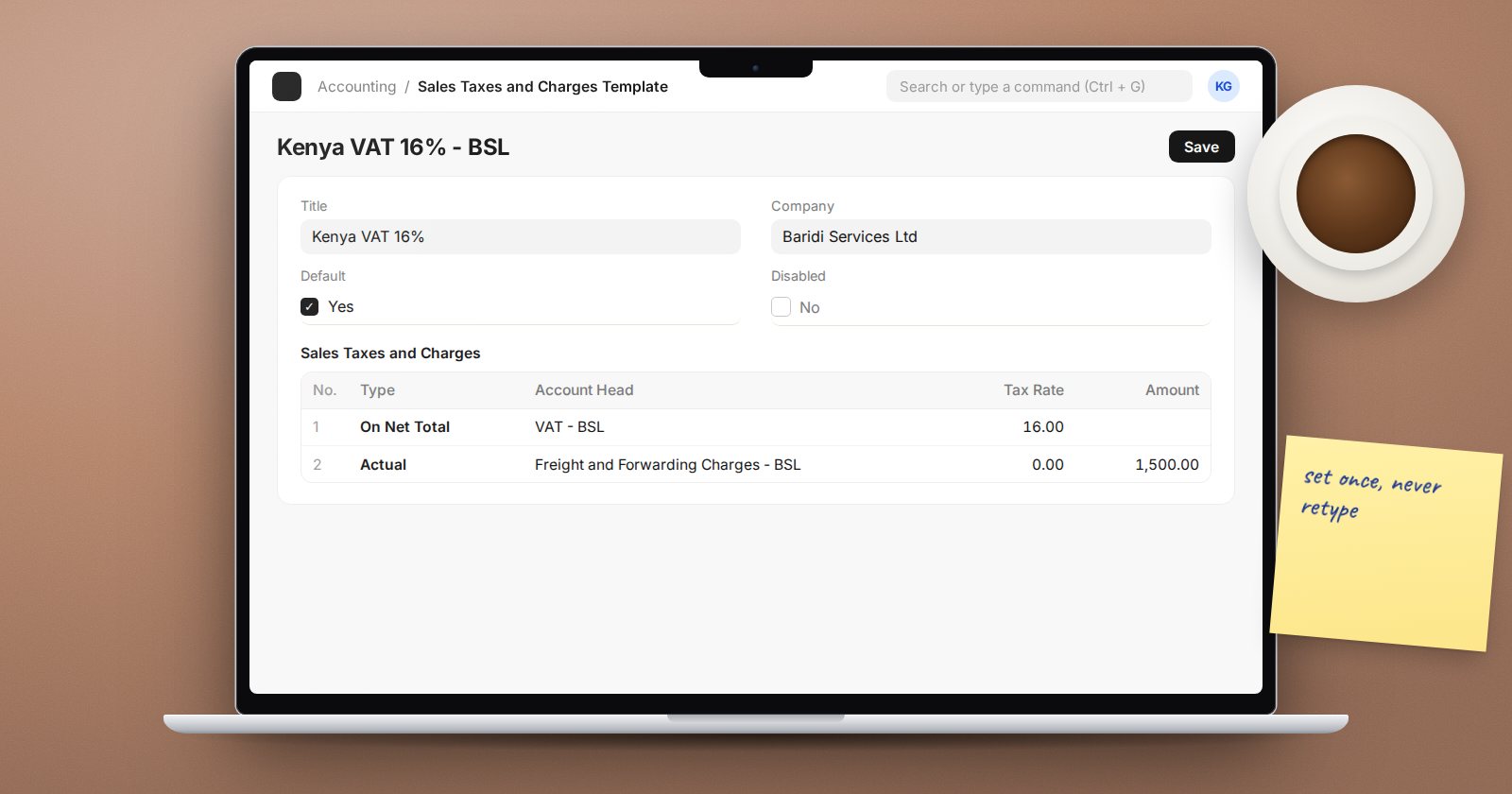
Sales Taxes and Charges Template
A Sales Taxes and Charges Template has a Title, a Company, an optional Tax Category, a Default checkbox and a table of tax rows. Each row has:
- Type - how the tax is calculated: On Net Total, Actual (a fixed amount), On Previous Row Amount, On Previous Row Total, or On Item Quantity. ERPNext asks you to choose this before the account.
- Account Head - the tax account. For sales templates the list shows accounts of type Tax, Chargeable or Expense Account.
- Tax Rate.
- Is this Tax included in Basic Rate? - tick this if your selling prices already include tax. ERPNext then works backwards to the net amount.
Mark one template as Default so new sales documents pick it up automatically.
Purchase Taxes and Charges Template
The purchase version adds two fields that matter:
- Consider Tax or Charge for - Total, Valuation, or Valuation and Total. A recoverable input tax should be Total only. A non-recoverable charge, such as freight you want in stock cost, should include Valuation.
- Add or Deduct - for charges that reduce the amount payable.
Item Tax Template for the exceptions
Not every item is taxed at the standard rate. An Item Tax Template overrides the rate for specific tax accounts on specific items. Each row names a tax account and a rate. A newer Not Applicable checkbox lets you say the tax does not apply at all, which the form notes is different from a zero rate. Use it to separate exempt items from zero-rated ones if your tax rules treat them differently.
Attach the template on the Item, in its Taxes table, where each row can also carry a Tax Category, a Valid From date and minimum and maximum net rate limits. Item Groups can carry the same table for whole categories of items.
In Accounts Settings, "Automatically add Taxes and Charges from Item Tax Template" is on by default, so tax rows needed by an item's template are added to the invoice for you.
Tax Rule chooses the template
If different customers need different templates, a Tax Rule selects the template automatically. Rules can match on Customer, Customer Group, Item, Item Group, billing or shipping location, Tax Category and a date range, with a Priority to break ties. A common pattern is a Tax Category such as "Export" on the customer and a rule that maps that category to an export template.
Test before you trust
- Create one invoice per scenario: standard item, exempt item, zero-rated item, export customer and tax-inclusive price.
- On each draft, check the tax rows and use Preview > Accounting Ledger to confirm the tax account and amount.
- Run the Sales Register for your test dates and confirm the tax columns match your expectations.
Common mistakes
- Tax accounts with the wrong Account Type, so they do not appear in the template.
- Old templates left enabled after a rate change, so staff can still pick them.
- Editing tax rows on individual invoices instead of fixing the template.
- Using Valuation on recoverable purchase tax, which inflates stock cost.
Try it
Build one sales template, one Item Tax Template for an exempt item, and a Tax Rule for an export Tax Category. Raise three test invoices and compare the ledger previews.
Tax setup for sales and purchases is part of the Accounting Essentials course.
