
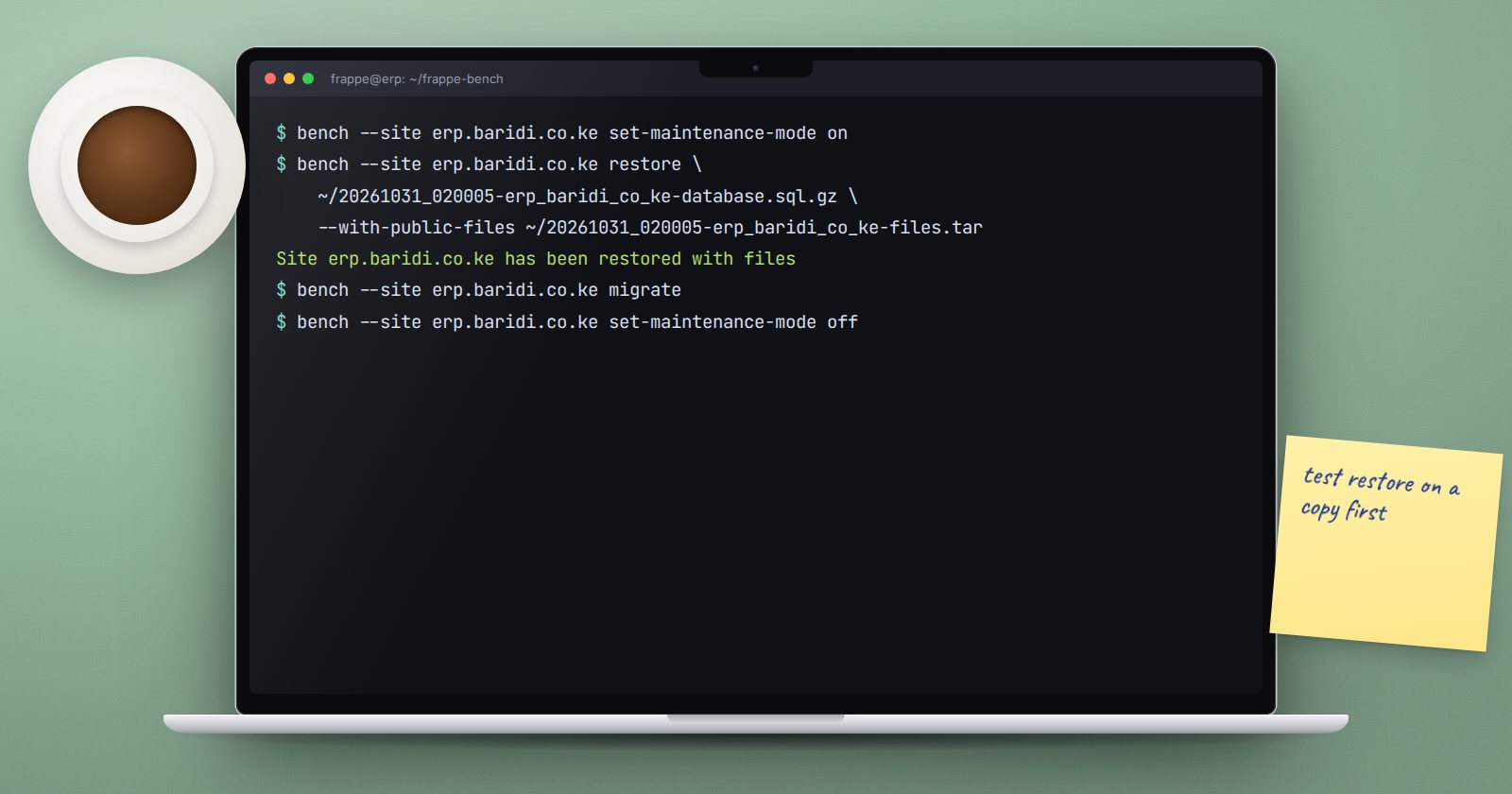
A backup is only worth something if you can restore it under pressure. The best time to learn the restore steps is on a quiet afternoon with a test server, not during an outage. This is the sequence for restoring an ERPNext site with bench.
Gather the pieces first
For a full restore you need, from the same backup run:
- the database file, ending
-database.sql.gz - the public files archive, ending
-files.taror.tgz - the private files archive, ending
-private-files.taror.tgz - the site config backup, which holds
backup_encryption_keyif backups were encrypted - the MariaDB root password for the server you restore onto
Check the time stamps match. Restoring a database from Monday with attachments from Friday gives you documents that point at missing files.
Practise on a separate server
Restore to a test server first whenever you can, even in an emergency. It lets you confirm the backup is good before you touch production. The test server should run the same apps, at the same or a newer version, as the source.
Warning before you continue
bench restore replaces the target site's database with the backup. Anything entered on that site since the backup was taken is lost. Before restoring over an existing site, take a fresh backup of it, even if you think its data is broken. You may need something from it later.
Put the site in a safe state
bench --site erp.example.com set-maintenance-mode on
bench --site erp.example.com scheduler pause
This stops users and scheduled jobs from writing while you work.
Run the restore
bench --site erp.example.com restore \
  /path/to/20260101_020000-erp_example_com-database.sql.gz \
  --with-public-files /path/to/20260101_020000-erp_example_com-files.tar \
  --with-private-files /path/to/20260101_020000-erp_example_com-private-files.tar
Bench prompts for the MariaDB root password. For encrypted backups, add --encryption-key with the key from the original site's configuration; without it the restore cannot decrypt the files.
If the backup came from a newer Frappe version than the code on this server, bench warns you and asks whether to continue. Do not. Upgrade the code to match first. --force skips these checks and is not recommended.
Bring the schema up to date
If the target bench runs a newer version than the backup, run:
bench --site erp.example.com migrate
Stop a test copy from talking to the world
A restored copy contains real email accounts, scheduled reports and integrations. On a test server, mute it before turning the scheduler back on:
bench --site erp.example.com set-config mute_emails 1
Also review any API integrations, payment or SMS settings so a test copy never sends real messages or transactions.
Bring it back online
bench --site erp.example.com scheduler resume
bench --site erp.example.com set-maintenance-mode off
bench restart
Prove it worked
Do not stop at "the command finished". Check:
- You can log in with a normal user account.
- The most recent invoices and stock entries you expect are there.
- A few attachments open, from different months.
- Key reports, such as the trial balance, run and look sensible.
bench --site erp.example.com doctorshows workers and scheduler healthy.
Write down the date, the backup file used, how long it took and any problems. That record becomes your recovery procedure.
Restore checklist
- [ ] Database, both file archives and site config from the same run
- [ ] Encryption key available if backups are encrypted
- [ ] Fresh backup of the target site taken before restoring
- [ ] Maintenance mode on, scheduler paused
- [ ] Restore completed, migrate run if versions differ
- [ ] Emails muted on any test copy
- [ ] Login, recent data, attachments and reports checked
- [ ] Result and timing recorded
The Linux for ERPNext: Foundations course covers moving files between servers and working safely at the command line, both of which a restore depends on.
