
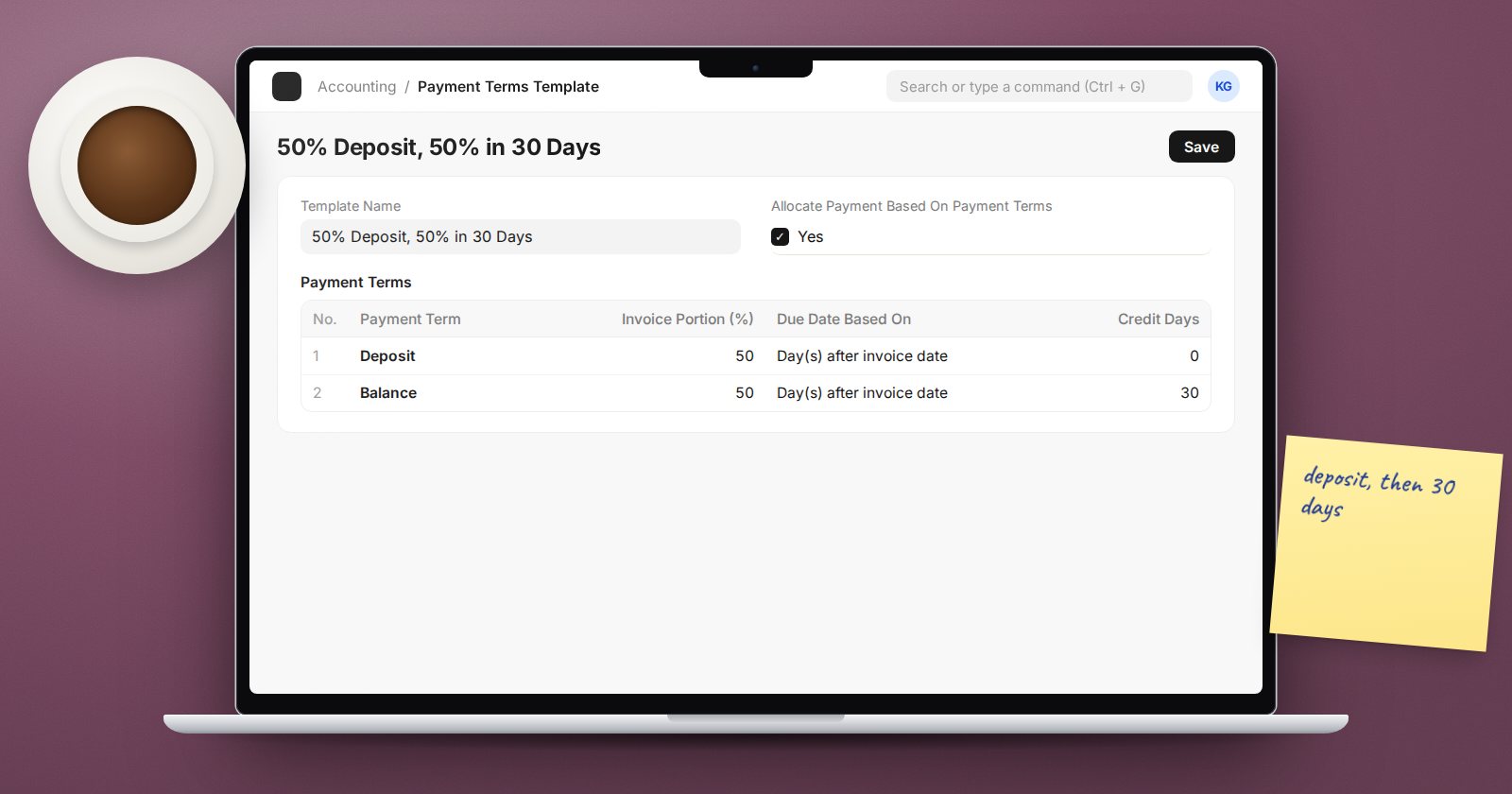
An invoice's due date drives the ageing report, dunning letters and credit control. In ERPNext, due dates come from Payment Terms, and getting them right once means every invoice gets them right after that. This is especially useful for deposits, stage payments and credit terms such as "end of month plus 30 days".
Payment Term: one instalment
A Payment Term describes a single instalment. Its fields are:
- Payment Term Name - for example "30 days" or "Deposit".
- Invoice Portion (%) - the share of the invoice due under this term.
- Due Date Based On - Day(s) after invoice date, Day(s) after the end of the invoice month, or Month(s) after the end of the invoice month.
- Credit Days or Credit Months, depending on the option above.
- Mode of Payment - optional.
- Discount Type, Discount, Discount Validity Based On and Discount Validity - for early payment discounts.
The "end of the invoice month" options cover common supplier terms that start counting from month-end rather than from the invoice date.
Payment Terms Template: the full arrangement
A Payment Terms Template combines terms. A simple one has a single row of 100 percent. A stage-payment template might be 40 percent deposit due on the invoice date, 40 percent after 30 days and 20 percent after 60 days. The portions must add up to 100.
The template has one option worth understanding: Allocate Payment Based On Payment Terms. When ticked, a payment against the invoice is split and allocated across the instalments according to the schedule amounts, rather than as one lump.
Where templates come from
ERPNext picks the template in this order of convenience:
- The Default Payment Terms Template on the Customer or Supplier.
- The Company's Default Payment Terms Template.
- The order or quotation, if Automatically fetch Payment Terms from Order/Quotation is ticked in Accounts Settings. It is off by default.
On the invoice, the Payment Terms Template field fills the Payment Schedule table with one row per instalment, each with its due date, portion and payment amount. You can still adjust the schedule on a draft invoice, which is useful for a one-off agreement. The field and table are hidden on POS invoices and returns.
To show the instalments to customers, tick Show Payment Schedule in print in Accounts Settings.
Early payment discounts
A Payment Term can offer a discount, such as 2 percent if paid within 10 days. When you create the payment from the invoice with Create > Payment and the payment date is within the discount period, ERPNext reduces the amount, shows the message "Discount of ... applied as per Payment Term", and adds a deduction row to the Company's Default Payment Discount Account. Set that account on the Company before you offer discounts.
If you charge tax on the invoice, Book tax loss on early payment discount in Accounts Settings splits the discount between income and tax. Agree the tax treatment with your tax adviser before switching it on.
Seeing terms in reports
On the Accounts Receivable report, tick Based On Payment Terms. Each instalment then appears as its own line with a Payment Term column, and ageing is calculated per instalment. Without it, an invoice with a deposit already overdue and a balance not yet due appears as a single line.
Common mistakes
- Typing the due date on each invoice instead of using a template, so ageing depends on who raised the invoice.
- A customer default template that contradicts the signed contract.
- Payment schedules edited after part payment, which makes the instalments hard to follow.
- Offering early payment discounts without a discount account set on the Company.
Try it
Create a template with a 50 percent deposit and 50 percent at 30 days after the end of the invoice month. Raise an invoice, look at the Payment Schedule, then run Accounts Receivable with and without Based On Payment Terms.
Invoicing, terms and getting paid are covered in the Accounting Essentials course.
