
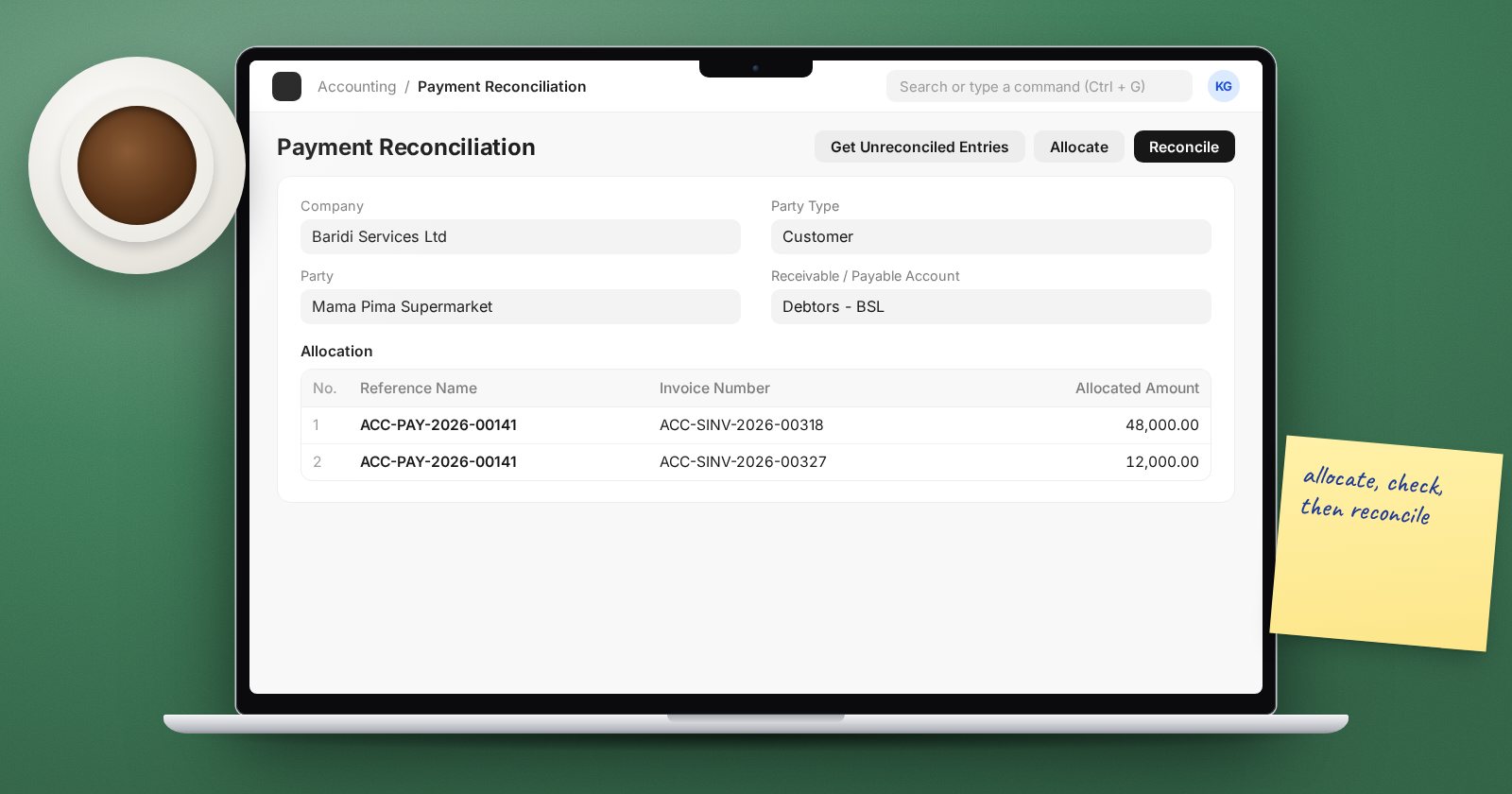
An open invoice and an unallocated payment for the same customer cancel each other out in the ledger, but not in the ageing report. Until they are linked, the invoice looks overdue and the payment looks like a credit. The Payment Reconciliation tool in ERPNext is how you link them after the fact.
When you need it
- A receipt was recorded without choosing invoices, so it sits as an unallocated amount.
- A credit note was raised against an invoice but kept its own outstanding balance.
- A journal entry credited a customer or debited a supplier without a reference to an invoice.
- An advance was received before the invoice was raised.
Running the tool
- Open Payment Reconciliation.
- Select the Company, Party Type and Party. The Receivable / Payable Account fills from the party's defaults; change it only if the party uses a non-standard account.
- Optionally narrow the search with the filters: invoice and payment date ranges, minimum and maximum amounts, Cost Center, Project, or the Filter on Invoice and Filter on Payment boxes for a specific document number.
- Click Get Unreconciled Entries.
ERPNext fills two tables: Invoices (open invoices and other debits) and Payments (Payment Entries, Journal Entries and return invoices with unallocated amounts).
Allocating
Select the rows you want to match in both tables and click Allocate. The Allocation table shows each pairing with the amount allocated and any unreconciled amount left over. Review it carefully. The default allocation follows the order of the rows, which may not match what the customer intended.
When the allocation is right, click Reconcile. The payments are linked to the invoices, outstanding amounts update, and invoice statuses change.
Exchange differences
If the invoice and the payment are in a foreign currency at different exchange rates, the allocation shows a Difference Amount and a Difference Account. On reconciling, ERPNext books the difference as an exchange gain or loss journal. Make sure the Company has an Exchange Gain / Loss Account set before you start.
Limits to watch
The Invoice Limit and Payment Limit fields default to 50 rows each. For a busy customer, older items may not appear. Raise the limit, or set it to zero to fetch everything, which the form notes will fetch all entries.
Undoing a reconciliation
If you allocate the wrong payment, do not cancel the payment itself. Use Unreconcile Payment: choose the voucher type and number, click Get Allocations, keep the allocations you want to undo, and submit. The payment becomes unallocated again and you can redo it correctly.
Doing it in bulk
For many parties at once, Process Payment Reconciliation runs the same matching in the background with the same filters, and shows a status such as Completed or Partially Reconciled. Accounts Settings also has an "Auto reconcile Payments" option, off by default, that schedules this work. Try both on a test copy before relying on them, because automatic matching follows rules that may not match your customers' remittances.
A month-end routine
- Run the Accounts Receivable report and look for customers showing both negative and positive lines.
- Reconcile each one in Payment Reconciliation.
- Repeat with Accounts Payable for suppliers.
- Rerun the reports and confirm the mixed lines are gone.
Try it
Record a receipt for a test customer without allocating it, raise a credit note against a second invoice and leave its own outstanding in place. Then open Payment Reconciliation and clear both against the open invoices. Finally, unreconcile one allocation and redo it.
Clearing receivables and payables properly is part of the closing routine in the Accounting Professional course.
