
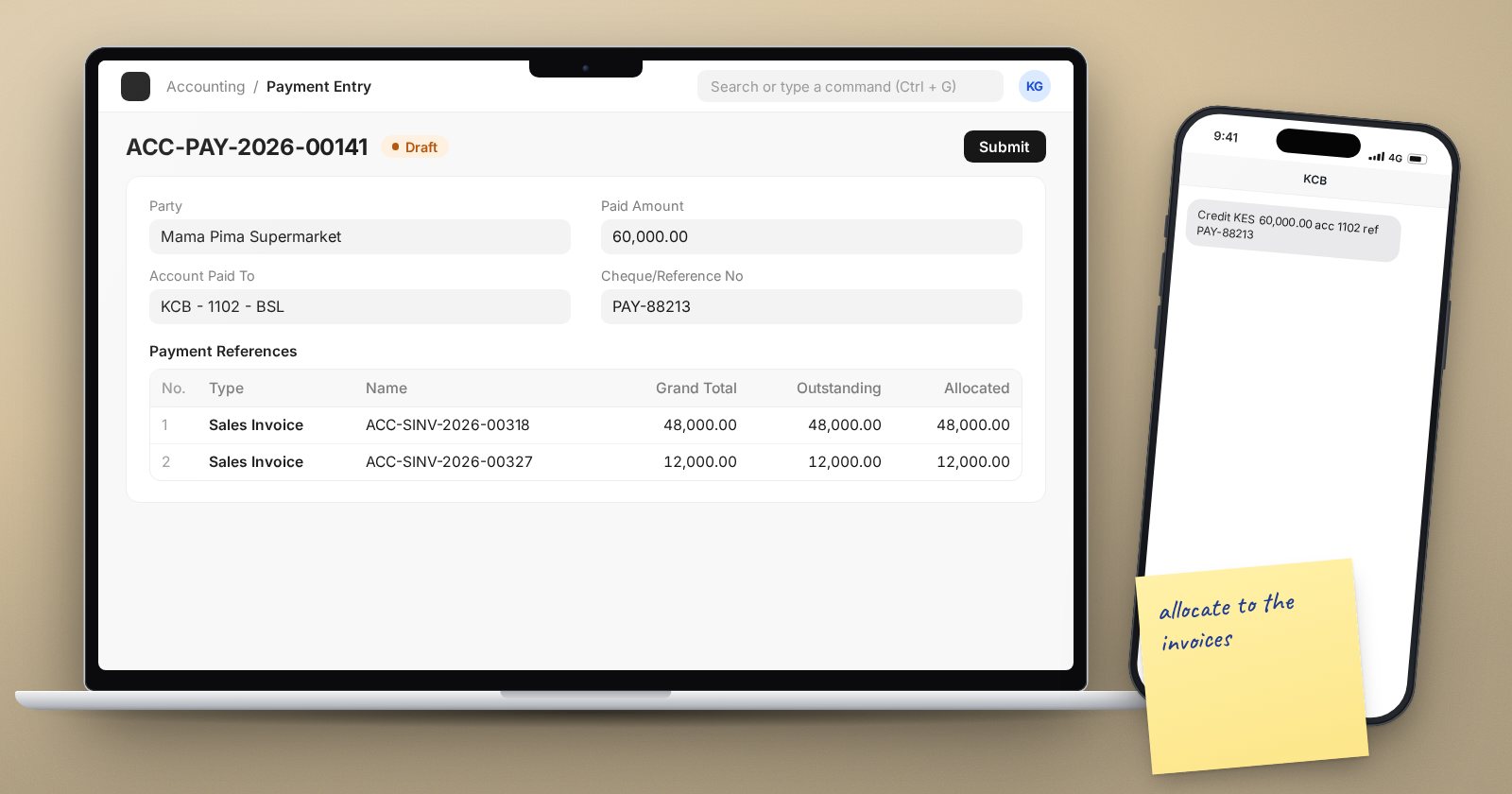
In ERPNext a customer receipt should almost always be a Payment Entry, not a journal. A Payment Entry knows about parties, invoices, payment terms and exchange rates, so the receivables ledger and the ageing report stay correct without extra work. Here is how to record one well.
Two ways to start
From the invoice. Open a submitted Sales Invoice and choose Create > Payment. ERPNext fills the customer, the outstanding amount and the invoice reference for you. This is the quickest route for a single invoice.
From a new Payment Entry. Use this when one receipt pays several invoices, or when you are recording a deposit before any invoice exists.
Filling in the form
- Payment Type - Receive for money coming in, Pay for money going out, Internal Transfer between your own accounts.
- Mode of Payment - choosing one that has a default account for your company fills the bank or cash account automatically. Modes of Payment have a Type of Cash, Bank, General or Phone, which suits mobile money.
- Party Type and Party - Customer and the customer's name.
- Account Paid To - the bank or cash account the money landed in. Check this against the bank statement, not memory.
- Paid Amount - the amount actually received.
- Cheque/Reference No and Cheque/Reference Date - ERPNext makes these mandatory when the account is a Bank type account. Use the bank's transaction reference, which makes bank reconciliation far easier.
Allocating to invoices
Click Get Outstanding Invoices. A dialog asks for filters, and this is the most common trap: the posting date filter defaults to the last 30 days. If the customer is paying an older invoice, widen the From Date or clear it, otherwise the invoice simply will not appear.
Leave Allocate Payment Amount ticked to let ERPNext spread the receipt across the listed invoices in the order shown. Then review the Payment References table. Each row shows the invoice's Grand Total, Outstanding and Allocated amounts. Adjust the allocations to match the customer's remittance advice, not just the default spread.
Unallocated amounts
If the receipt is larger than the invoices you allocated, the extra shows as Unallocated Amount. That is fine for a genuine deposit, and you can allocate it later with Payment Reconciliation or against a future invoice. It is not fine if you simply forgot to allocate. Unallocated receipts make the customer look like they owe more than they do on the ageing report.
Bank charges and short payments
Sometimes the bank deducts a fee, or the customer pays slightly less. The Payment Deductions or Loss table handles this. Add a row with the expense account, cost center and amount, and a short description. ERPNext then allocates the full invoice amount while the bank only receives the net.
If a Difference Amount appears and you are happy to write it off, the Write Off Difference Amount button adds a deduction row using the Company's Write Off Account. Use it carefully and only within an agreed tolerance.
Check before you submit
On a saved draft, Preview > Accounting Ledger shows the GL entries the payment will make. Confirm the debit is to the right bank account and the credit is to the customer's receivable account. After submitting, the invoice status moves to Paid or Partly Paid.
Common mistakes
- Posting receipts as Journal Entries without party and reference, which leaves invoices showing as unpaid.
- Recording the gross amount when the bank deducted charges, so the bank never reconciles.
- Picking the wrong bank account because several have similar names. Use account numbers.
- Creating a second payment for the same remittance. Search by reference number first.
Try it
Create two invoices for a test customer, one dated two months ago. Record one Payment Entry that pays both, less a small bank charge. Note what happens before and after you widen the date filter in Get Outstanding Invoices.
Receipts, payments and their allocations are covered step by step in the Accounting Essentials course.
