
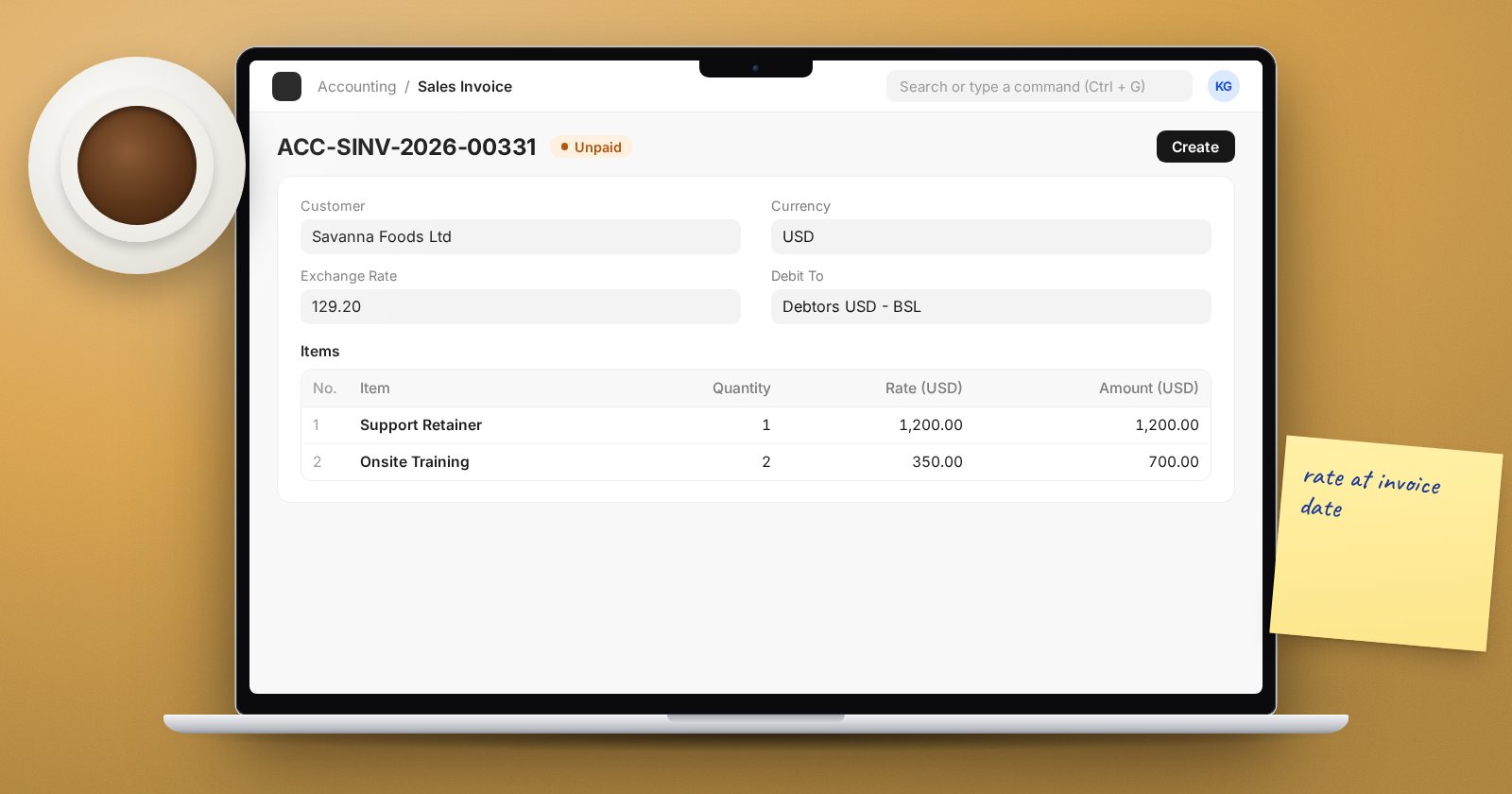
Selling or buying in another currency is routine for many East African businesses, and ERPNext handles it well once the setup is right. Most multi-currency problems trace back to one decision made early: which receivable or payable account the party uses, and in which currency.
Three currencies to keep apart
- Company currency - the currency your books are kept in, set on the Company.
- Account currency - each ledger account has its own Currency. It cannot be changed after entries are made in another currency.
- Transaction currency - the currency on the invoice, which ERPNext converts with the Exchange Rate field.
Set up the party correctly
On the Customer or Supplier, set the Billing Currency. Then decide on the party account:
- Separate receivable account in that currency. Create, for example, a USD receivable ledger with Account Type Receivable and Currency USD, and set it in the party's Accounts table for your company. The customer's balance is then held in USD, and you can revalue it at month-end.
- Company currency receivable account. The invoice is in USD, but the balance is held in your company currency. This is simpler, but you cannot see the customer's balance in USD in the ledger.
ERPNext enforces this. The billing currency must be either the company currency or the party account currency. If a party account's currency differs from the document currency, ERPNext stops the invoice unless Allow multi-currency invoices against single party account is ticked in Accounts Settings. Leave that off unless you have a clear reason.
Where the exchange rate comes from
When you create a foreign currency invoice, ERPNext looks for a Currency Exchange record for that currency pair, taking the latest one on or before the date. If none is found, it calls the service in Currency Exchange Settings. The service provider options include frankfurter.dev, exchangerate.host and Custom.
Two settings in Accounts Settings control stale rates. Allow Stale Exchange Rates is on by default; turn it off and set Stale Days if you want ERPNext to ignore rates older than a set number of days.
Whatever the source, the rate on the invoice is editable. If your policy is to use a specific bank or central bank rate, check and correct it before submitting.
Getting paid
Create the Payment Entry from the invoice. If the receipt lands in a company currency bank account, ERPNext asks for the exchange rate on the payment date. The difference between the invoice rate and the payment rate is a realised gain or loss.
When the payment is allocated against the invoice, ERPNext books that difference in a journal with the Entry Type Exchange Gain Or Loss, using the Company's Exchange Gain / Loss Account. On the Payment Entry, a View Exchange Gain/Loss Journals button shows those journals. In Accounts Settings, "Posting Date inheritance for exchange gain / loss" decides whether that journal takes the invoice, payment or reconciliation date; the default is Payment.
Reports that help
- General Ledger has a Currency filter for presentation and an "Add Columns in Transaction Currency" option.
- Accounts Receivable has an "In Party Currency" option to show balances in the customer's currency.
- Exchange Rate Revaluation handles unrealised gains and losses on open balances at month-end.
Common mistakes
- Creating the customer, raising one invoice, then changing the party account. Existing entries keep the old account and balances split across two.
- Foreign currency bank accounts created with the currency left blank, so they default to the company currency.
- Recording foreign receipts as journals without party and reference, so no realised gain or loss is calculated.
- Relying on an automatic rate feed for audited accounts without checking it.
Try it
In a test company, create a USD receivable account and a customer using it. Raise a USD invoice, add a Currency Exchange record at a new rate, and receive payment into a company currency bank. Find the Exchange Gain Or Loss journal and check its amount by hand.
Foreign currency setup, payments and revaluation are covered in the Accounting Professional course.
