
The worst way to learn that ERPNext has a problem is from a user who cannot post an invoice. Most outages give warning signs first: a disk filling up, background jobs piling up, a scheduler that stopped. A few regular checks catch them early.
Start with the System Health Report
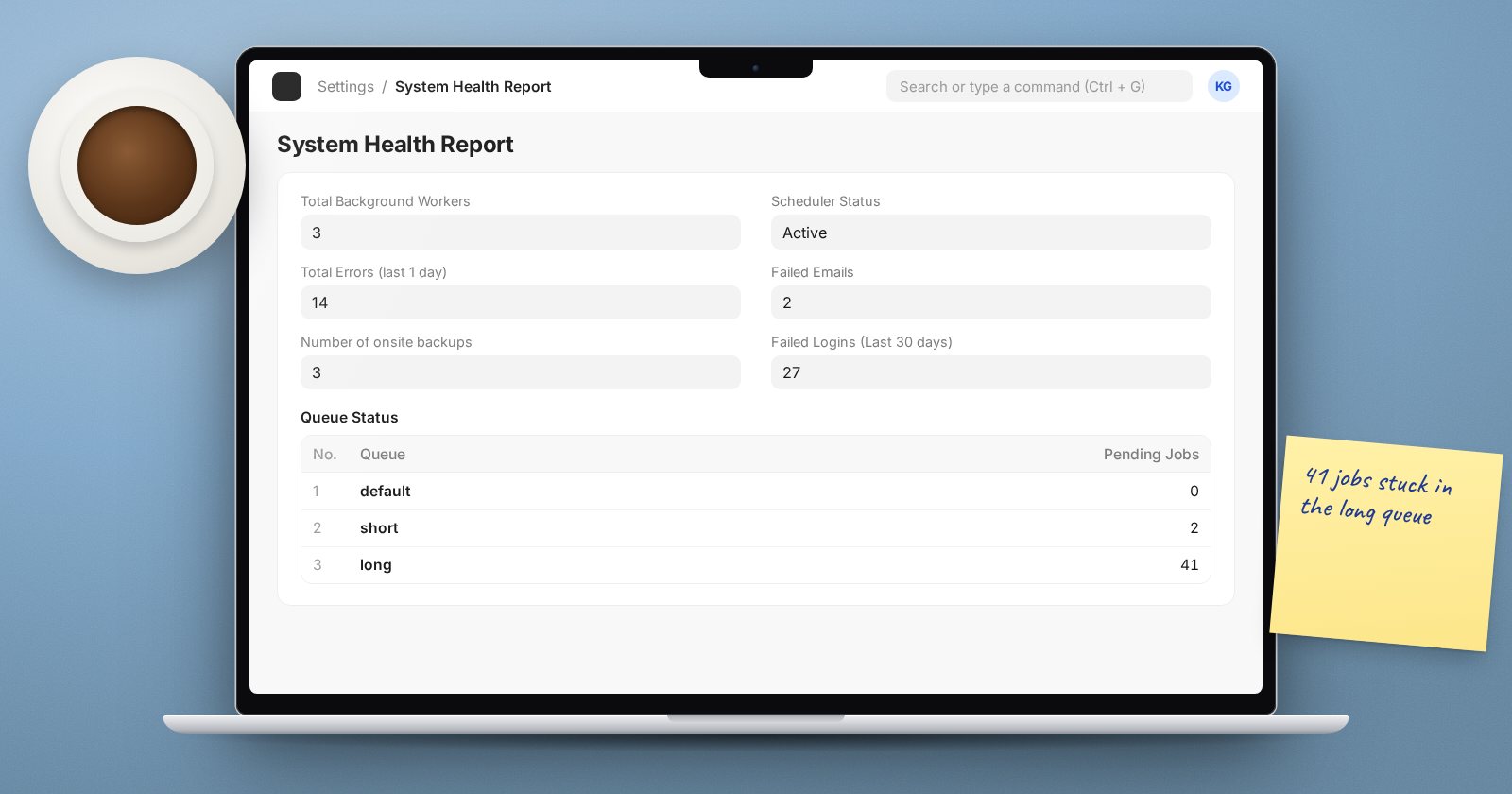
Frappe includes a System Health Report, available to users with the System Manager role. Search for it in the awesome bar. It gathers, in one screen:
- background workers and queue status
- scheduler status and failing scheduled jobs from the last 7 days
- the oldest job still waiting in the queue
- total errors in the last day, and the most common ones
- failed and pending outgoing emails
- database size, the largest tables and buffer pool size
- size of backups and files, and the number of onsite backups
- failed logins in the last 30 days and active sessions
Open it weekly, and every time someone reports that "something is slow" or "emails are not going out".
Check workers and jobs from the server
From the bench folder:
bench --site erp.example.com doctor
bench --site erp.example.com show-pending-jobs
doctor tells you whether the scheduler is enabled, paused or inactive, and how many workers are online. show-pending-jobs lists jobs waiting in each queue. A queue that keeps growing means workers are stuck or too few.
Watch the error logs
Inside ERPNext, the Error Log list collects server-side errors with full tracebacks, and Scheduled Job Log shows each scheduled job run and whether it failed. On the server, the bench logs folder holds the process logs:
tail -n 100 logs/worker.error.log
grep -c "Traceback" logs/web.error.log
A sudden jump in errors after an update or a configuration change tells you where to look.
Watch the machine itself
df -h
free -h
uptime
Disk space is the classic silent killer: when the disk fills, MariaDB stops writing and ERPNext fails in confusing ways. Set yourself a threshold, for example acting when any disk passes a level you agree on, rather than waiting for 100%.
Watch from outside
Internal checks cannot tell you the site is unreachable from the internet. Use an external uptime monitor that loads your login page every few minutes and alerts you by email or message when it fails. Also track your SSL certificate's expiry date.
Request logging, if you need detail
Frappe can log details of each request and background job to logs/monitor.json.log when monitor is enabled in the site configuration:
bench --site erp.example.com set-config monitor 1
This is useful when investigating slowness. The log grows over time, so include it in your housekeeping if you leave it on.
Make it a routine
Monitoring only works if someone looks. Assign the checks to named people, with a backup person for leave, and agree what counts as "act now".
Monitoring checklist
- [ ] System Health Report reviewed weekly
- [ ]
bench doctorshows scheduler active and workers online - [ ] No queue growing in
show-pending-jobs - [ ] Error Log and Scheduled Job Log reviewed for new failures
- [ ] Disk, memory and load checked against agreed thresholds
- [ ] External uptime monitor and SSL expiry alert in place
- [ ] Named owner and backup owner for these checks
The in-app side of this, including Error Log and scheduled jobs, is covered in our ERPNext Administration Without Code course.
