
Once a month's accounts are reported, they should stop changing. In ERPNext there are three tools that lock the past, and they behave quite differently. Using the wrong one either leaves the door open or locks out the people who need to post a legitimate adjustment.
1. Accounts Frozen Till Date
Where: on the Company, in the Accounts Closing tab. In earlier versions these fields lived in Accounts Settings; v16 moved them to the Company, and upgraded sites have their values copied across.
Fields: Accounts Frozen Till Date and Roles Allowed to Set and Edit Frozen Account Entries.
What it blocks: new accounting entries dated on or before the frozen date, with the message "You are not authorized to add or update entries before..." Users with the named role can still post. Note that the Administrator user is blocked too, even though it has every role. That is deliberate: a frozen period should not have a back door.
Best for: routine monthly locking. After sign-off, the finance manager moves the date forward to the last day of the month. If an auditor's adjustment is needed, a user with the allowed role posts it.
2. Accounting Period
Where: the Accounting Period list.
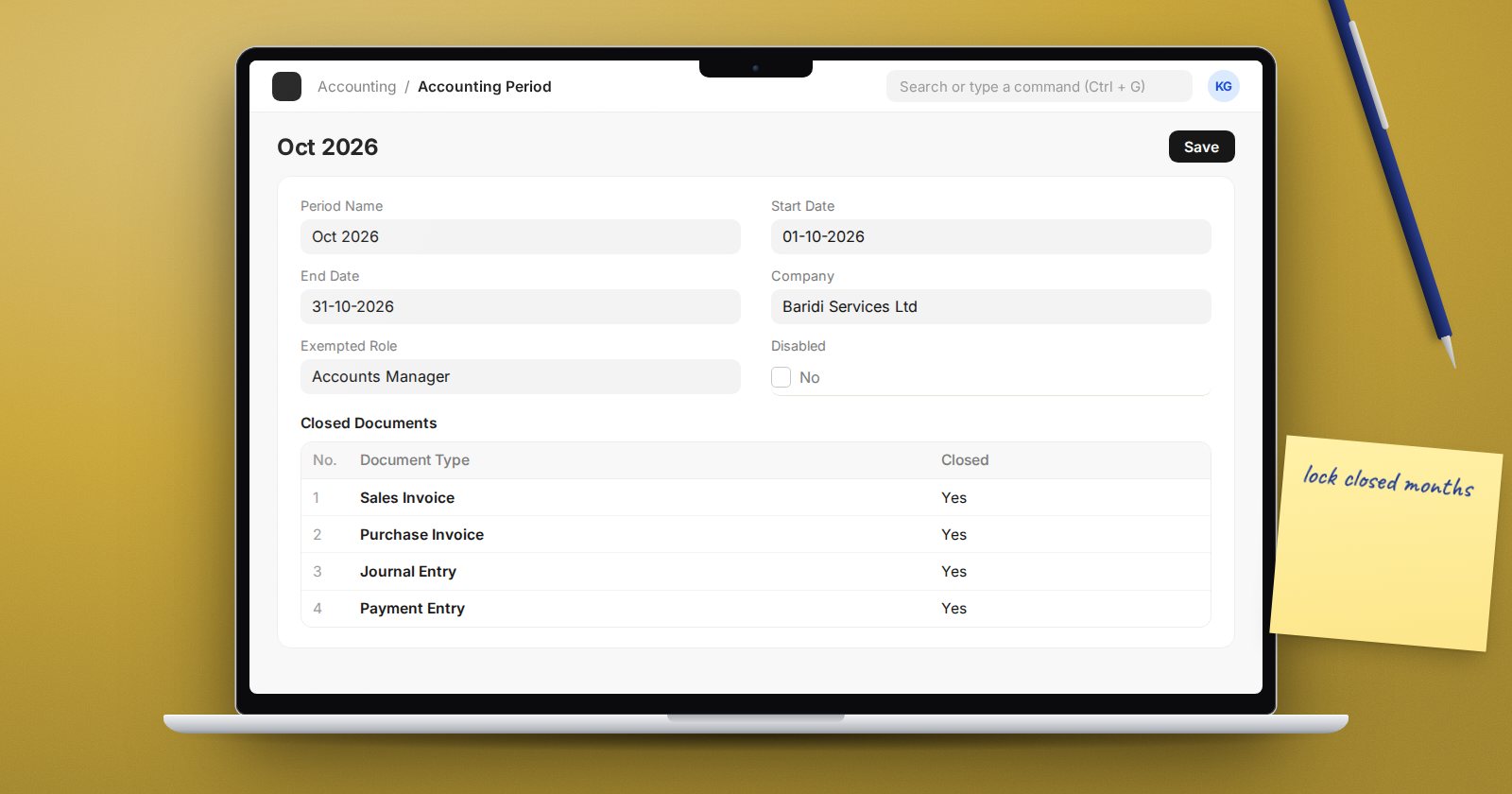
Fields: Period Name, Start Date, End Date, Company, Closed Documents and Exempted Role.
What it blocks: only the document types ticked as closed in the Closed Documents table, and only for dates inside the period. When you create a period, the table is filled with a standard list of transaction types, including Sales Invoice, Purchase Invoice, Journal Entry, Payment Entry, Stock Entry, Delivery Note, Purchase Receipt and others, each marked closed. Untick the ones you want to keep open. ERPNext checks both when the document is saved and when its ledger entries are posted, so users get the error early. Users with the Exempted Role are not blocked. A period can be switched off with Disabled.
Best for: partial locks. For example, close sales and purchase invoices for last month while still allowing journals for accruals, or close stock documents after a stock count while finance keeps working.
3. Period Closing Voucher
What it blocks: every accounting entry dated on or before its period end date, for all users, with "Books have been closed till the period ending on..." It also stops opening entries from being created once any closing voucher exists.
Best for: year-end. It also moves profit and loss balances into equity, so it is a closing entry first and a lock second. To post into a closed year you must cancel the voucher, which is visible and deliberate.
Account-level freeze
Separately, each Account has a Frozen setting. Set it to Yes and only users with the Company's allowed role can post to that account at all. This is useful for sensitive accounts such as share capital or retained earnings.
Which to use
| Need | Use |
|---|---|
| Lock last month after reporting | Accounts Frozen Till Date |
| Lock invoices but keep journals open | Accounting Period |
| Close the financial year | Period Closing Voucher |
| Protect a single sensitive account | Account Frozen = Yes |
Many teams combine them: a frozen date that moves monthly, an accounting period when operations close earlier than finance, and a Period Closing Voucher once a year.
Practical rules
- Give the override role to one or two people, not the whole finance team.
- Record every move of the frozen date, for example as a comment on the Company or in your close checklist.
- Test on a copy: try posting before the date with and without the role.
- Remember that users will see errors on dates they do not expect, such as a backdated supplier invoice. Agree a process for late invoices, such as posting them on the first open date.
Try it
On a test company, set Accounts Frozen Till Date to last month's end and try to post a journal dated inside it. Then create an Accounting Period for this month that closes only Sales Invoice, and confirm journals still post.
Period-end controls are part of the Accounting Professional course.
