
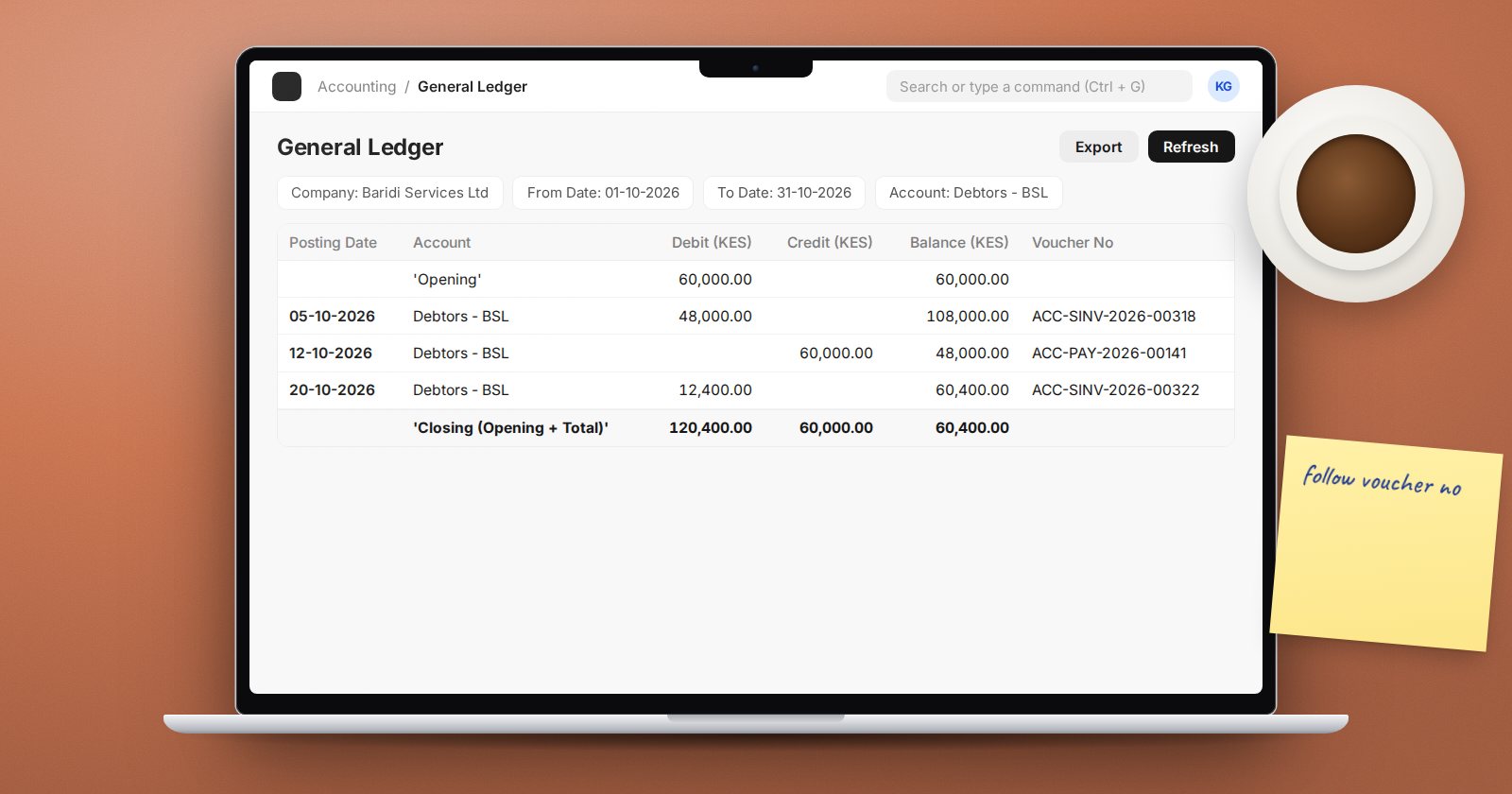
When a balance looks wrong, the General Ledger report is where you find out why. It lists every ledger line behind a balance, with the document that created it. Knowing its filters well turns a long investigation into a few minutes.
The core filters
- Company, From Date and To Date - the range defaults to the past month up to today.
- Account - one or more accounts. Leave it empty to see all accounts.
- Voucher No - every ledger line of a single document. This is the fastest way to see what one invoice or payment posted.
- Against Voucher No - lines that were posted against a document, such as all payments against an invoice.
- Party Type and Party - everything for one customer, supplier or employee.
- Cost Center and Project, plus any accounting dimensions you have created.
Categorize by
The Categorize by filter changes the shape of the report:
- Categorize by Voucher (Consolidated) - the default. Lines of the same voucher and account are combined.
- Categorize by Voucher - every line separately, grouped by voucher.
- Categorize by Account - a subtotal for each account, like a traditional ledger printout.
- Categorize by Party - a subtotal for each party.
- Blank - a plain list in date order.
Use Categorize by Account when you want to tick through an account month by month, and Categorize by Party when reviewing a customer's history.
Reading the result
The report starts with an Opening row, then the transactions, then Total and Closing (Opening + Total). Each line shows the posting date, account, debit, credit, running balance, voucher type and number, against account, party, cost center, project and remarks.
Click the voucher number to open the source document. If you need more of the remarks, Accounts Settings has a "General Ledger remarks length" setting, and the report has a Show Remarks option.
Options worth knowing
- Show Cancelled Entries - by default, cancelled documents are hidden. Tick this when investigating why something disappeared.
- Show Opening Entries - includes entries marked as opening.
- Disable Opening Balance Calculation - faster on large ledgers when you only care about movements.
- Currency - presents the report in another currency, and Add Columns in Transaction Currency shows the original currency amounts.
- Show Net Values in Party Account - nets debits and credits for party accounts.
- Ignore Exchange Rate Revaluation and Gain / Loss Journals and Ignore System Generated Credit / Debit Notes - remove system entries that can clutter a party review.
- Consider Accounting Dimensions - ticked by default.
From document to ledger and back
You do not always need to open the report directly. On a submitted Journal Entry or Payment Entry, the Ledger button opens the General Ledger filtered to that voucher. On a submitted Sales Invoice, the same view is under View > Accounting Ledger. On a draft invoice or payment, Preview > Accounting Ledger shows what will be posted before you submit.
Practical investigations
- "Why is this account balance wrong?" Filter the account for the period, Categorize by Voucher, and sort by amount to spot outliers.
- "What did this document post?" Filter by Voucher No.
- "Who paid this invoice?" Filter by Against Voucher No.
- "Why is this customer's balance different from their statement?" Filter by Party, Categorize by Voucher, and compare line by line.
- "What changed after we closed?" Run the closed period with Show Cancelled Entries ticked and look for recent cancellations.
Try it
Pick one sales invoice. Find its ledger lines with Voucher No, then its payments with Against Voucher No, then the customer's full history with Party and Categorize by Party. Export each view and compare.
Reading and using ledger reports is covered in the Accounting Essentials course.
