
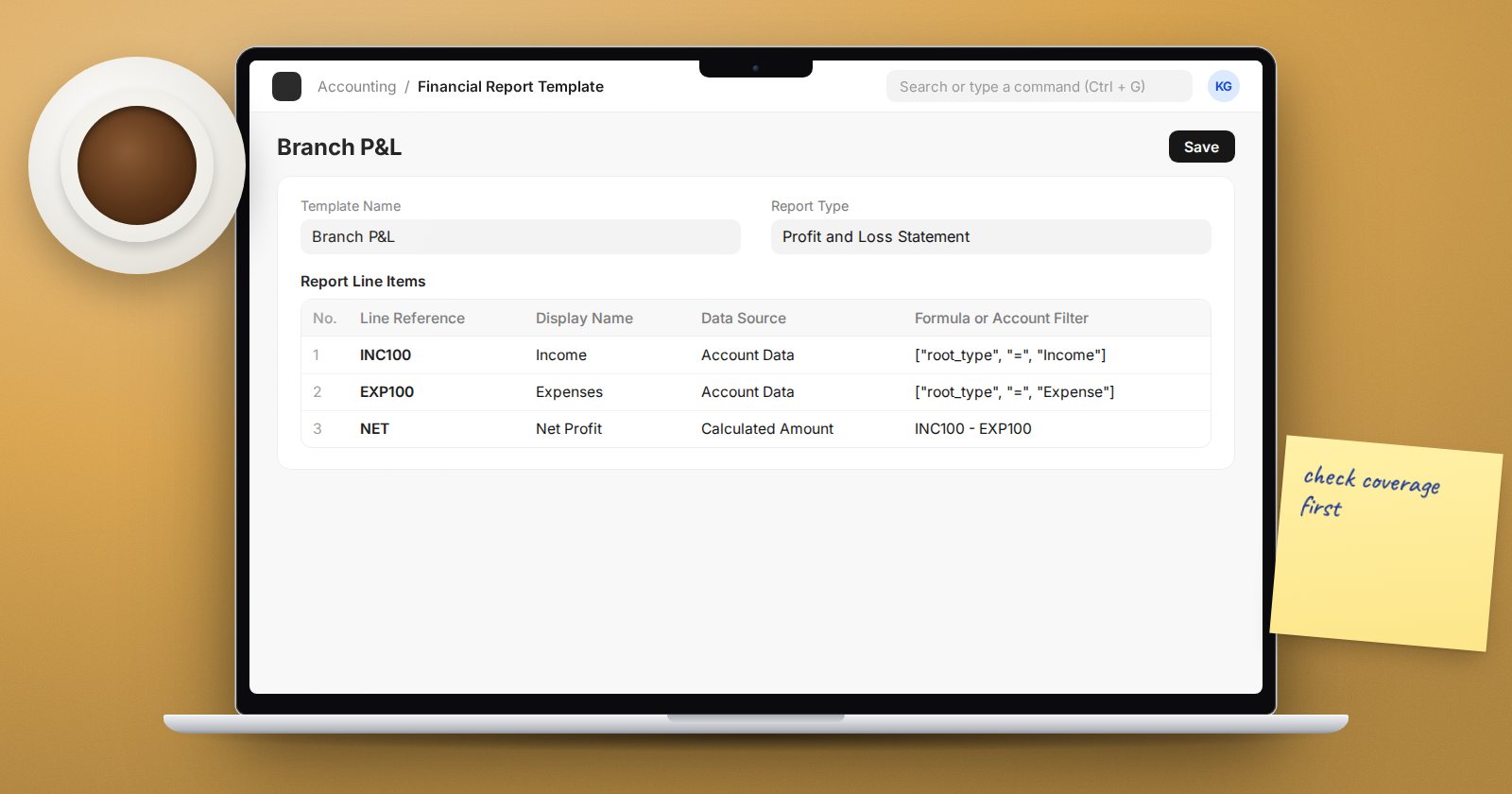
For years the ERPNext Balance Sheet and Profit and Loss Statement followed the shape of the chart of accounts, so changing the report meant changing the chart. Version 16 separates the two. A Financial Report Template describes the statement you want, line by line, and the standard reports can use it. This is one of the most useful v16 changes for accountants who prepare management or statutory accounts.
The building blocks
Account Category. Each account now has an Account Category field, described on the form as used with Financial Report Template. Categories such as Cash and Cash Equivalents or Cost of Goods Sold group accounts by meaning, independent of where they sit in the tree. ERPNext ships a standard set, and the standard charts of accounts assign them. On upgrade, existing accounts are mapped where their names match the standard charts.
Financial Report Template. A template has a Template Name, a Report Type (Profit and Loss Statement, Balance Sheet, Cash Flow or Custom Financial Statement) and a table of Report Line Items.
Report rows. Each row has:
- Line Reference - a short code such as REV100, used in formulas.
- Display Name - the text on the statement.
- Indent Level - 0 for main headings, higher numbers for detail.
- Data Source - Account Data, Calculated Amount, Custom API, Blank Line, Column Break or Section Break.
- Balance Type for account rows - Opening Balance, Closing Balance, or Period Movement.
- Formula or Account Filter - which accounts to include, or a formula like REV100 + COGS100.
- Presentation options: Bold Text, Italic Text, Hide If Zero, Reverse Sign, Hidden Line (Internal Use Only) and Include in Charts.
Start from a standard template
ERPNext includes ready templates, including Standard Profit and Loss (IFRS), Standard Balance Sheet (IFRS), Standard Cash Flow Statement (IFRS), horizontal columnar versions of the P&L and Balance Sheet, and a Financial Ratios Analysis. Open one to see how rows, categories and formulas work together. Duplicate it and edit your copy rather than changing the original.
Check coverage before you trust it
The template form has a View Account Coverage button. It shows which accounts are included by the rows and which are missed. Any account not covered will silently be left out of the statement, so this check matters. Accounts you added yourself, or renamed away from the standard names, often have no category yet. Set the category on those accounts, then check coverage again.
Running the report
On the Balance Sheet, Profit and Loss Statement and Cash Flow reports, choose your template in the Report Template filter. An Account Detail Level filter then lets you switch between Summary and Account Breakdown. The View Report button on the template opens the matching report directly.
For layouts that are neither a P&L nor a Balance Sheet, the Custom Financial Statement report requires a template and runs it.
A practical approach
- Agree the target layout with whoever signs the accounts, ideally from last year's approved statements.
- Make sure every account has the right Account Category.
- Duplicate the closest standard template and adjust rows and formulas.
- Use View Account Coverage until nothing is missed.
- Run the template and the default report side by side for the same period. Totals such as net profit and total assets must agree.
Try it
Duplicate the Standard Profit and Loss (IFRS) template. Split administrative expenses into two lines with account filters, add a subtotal with a Calculated Amount row, and compare net profit with the default report.
Building statements that management can actually read is covered in the Accounting Professional course.
