
Every ERPNext site that people reach over the internet must use HTTPS. Without it, passwords and business data travel in plain text. Bench can request a free certificate from Let's Encrypt and configure nginx for you. Here is how it works and what must be in place first.
Before you start
- Production setup is done. nginx must already be serving the site (see our production setup article).
- DNS points to the server. The domain's A record must resolve to this server's public IP address. Let's Encrypt checks this from the internet.
- Ports 80 and 443 are open in any firewall in front of the server.
- Certbot is installed. Bench calls it and stops with an error if it is missing.
- The site name matches the domain, or the domain has been added to the site as a custom domain.
- DNS multitenancy is on. Bench refuses to set up SSL without it. Turn it on with:
bench config dns_multitenant on
Issue the certificate
From the bench folder:
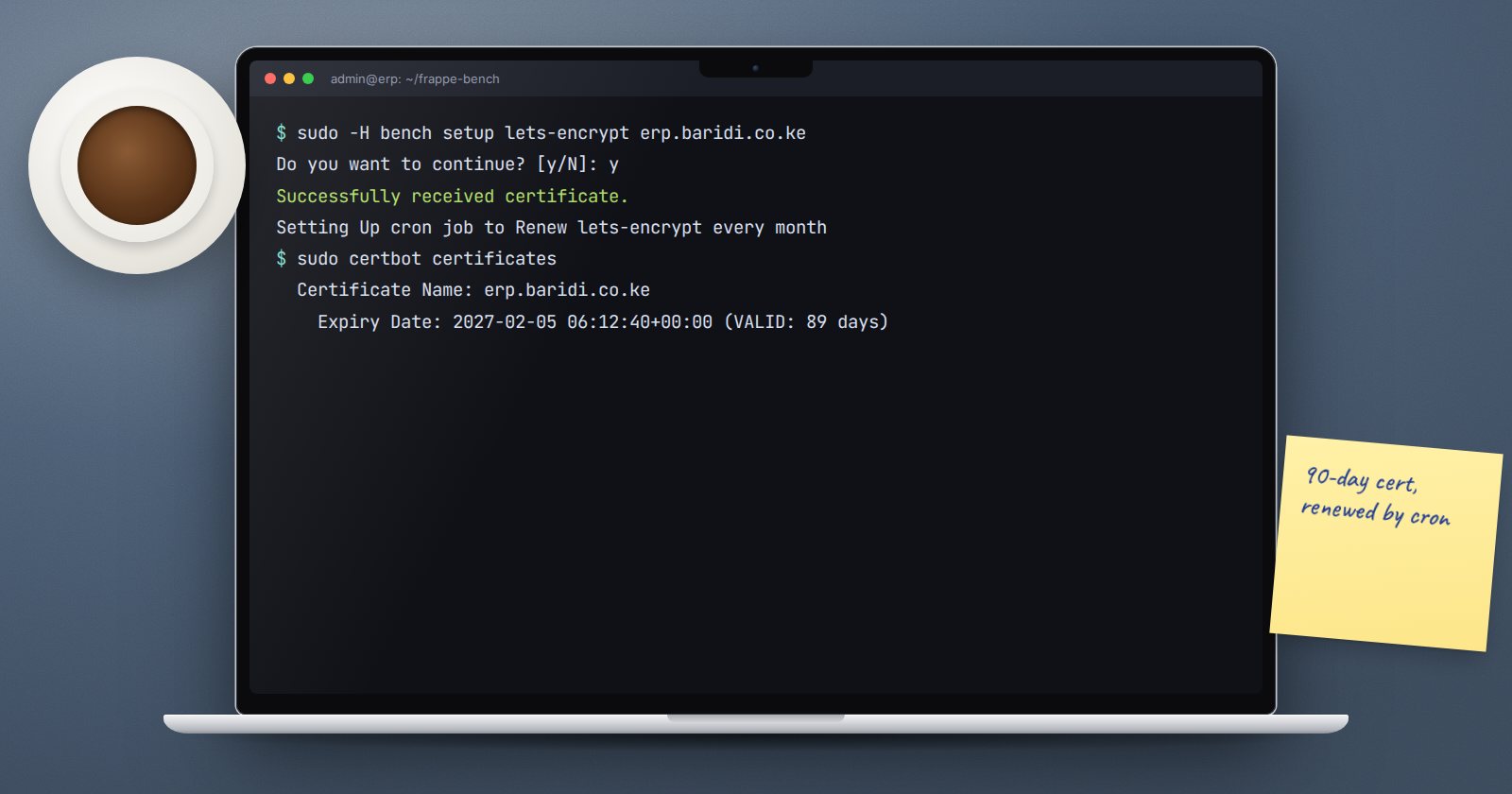
sudo -H bench setup lets-encrypt erp.example.com
The command asks for confirmation because it stops nginx briefly while certbot verifies the domain. Your sites are offline for that moment, so run it in a quiet period. When it finishes, it writes the certificate paths into the site configuration, regenerates the nginx configuration with HTTPS, and adds a scheduled renewal.
Extra domains on the same site
If customers reach one site through more than one domain, add the domain first and then request a certificate for it:
bench setup add-domain erp.example.co.ke --site erp.example.com
sudo -H bench setup lets-encrypt erp.example.com --custom-domain erp.example.co.ke
For a bench hosting many subdomains of one domain, bench setup wildcard-ssl exists, but it needs DNS-based verification and is a more advanced setup.
Using a certificate you bought
If your organisation buys certificates, bench can point a site at them:
bench set-ssl-certificate erp.example.com /etc/ssl/erp/fullchain.pem
bench set-ssl-key erp.example.com /etc/ssl/erp/privkey.pem
bench setup nginx
sudo systemctl reload nginx
Keep the private key readable only by root and the web server. Never email it or store it in a shared folder.
Make sure it renews
Let's Encrypt certificates are short-lived on purpose. Bench adds a root cron entry that runs certbot renew and reloads nginx, and sudo bench renew-lets-encrypt renews by hand. Do not assume renewal works; check it:
sudo certbot certificates
This lists each certificate and its expiry date. Put a reminder in your calendar to look at it each month. An expired certificate shows a full-page browser warning and stops users and integrations dead.
What the generated nginx configuration gives you
The nginx template bench uses for SSL sites limits protocols to TLS 1.2 and 1.3, and adds security headers including Strict-Transport-Security, X-Frame-Options and X-Content-Type-Options. You do not need to add these by hand.
Check it from outside
After setup, open the site in a browser and click the padlock to see the certificate and its expiry date. Then try the plain http:// address; it should redirect to https://. Test from a phone on mobile data too, not just from the office network.
SSL checklist
- [ ] DNS A record points to the server
- [ ] Ports 80 and 443 open
- [ ]
dns_multitenantturned on - [ ] Certificate issued and site loads over HTTPS
- [ ] HTTP redirects to HTTPS
- [ ]
sudo certbot certificatesshows a future expiry date - [ ] Monthly reminder set to check expiry
The Linux for ERPNext: Foundations course explains DNS, ports and services in plain language if any of these prerequisites are new to you.
