
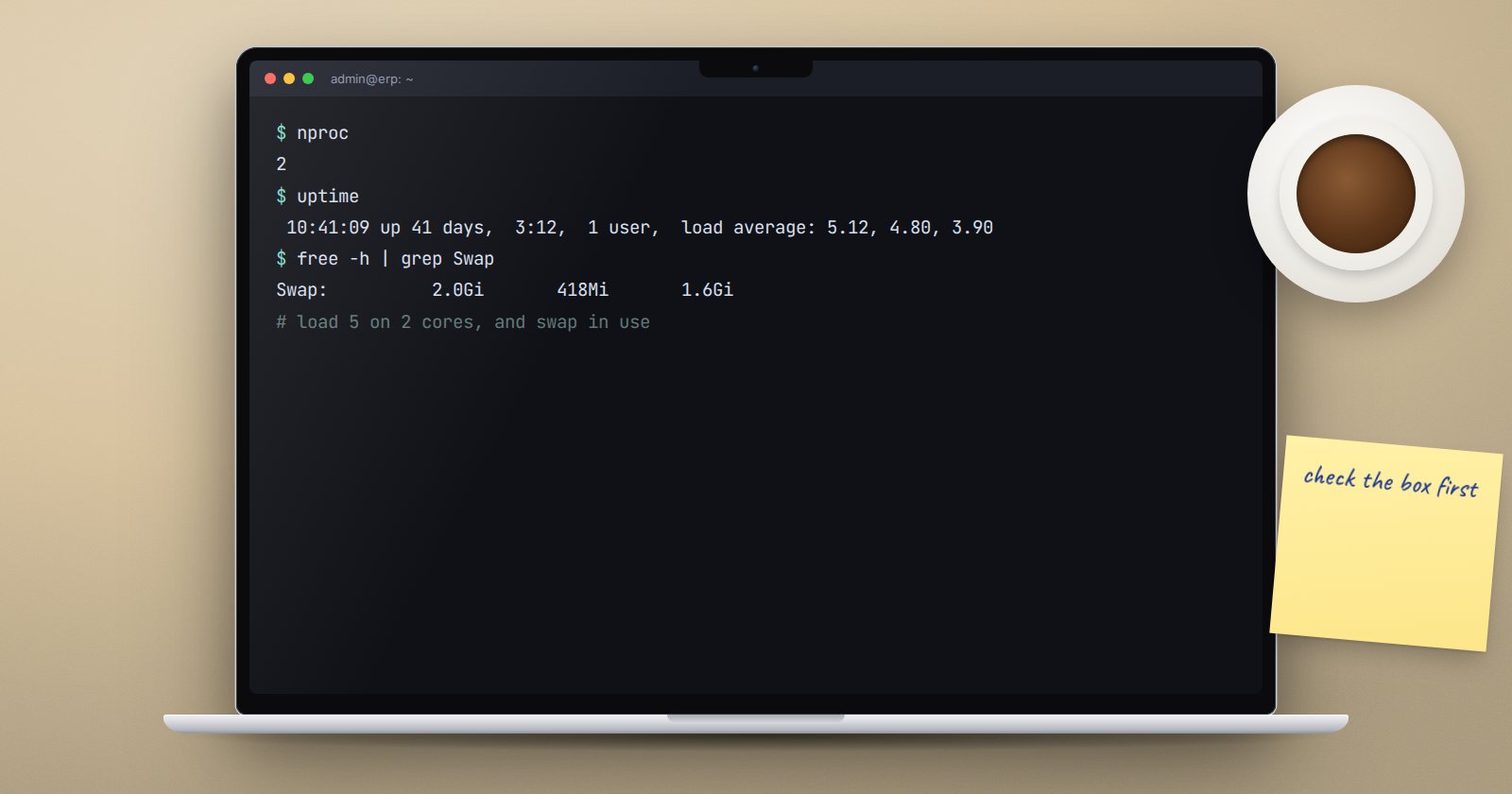
"ERPNext is slow" can mean a dozen different things. Before changing settings or buying a bigger server, work through the checks below in order. Most of the time the cause shows up in the first few.
1. Is the server short of resources?
uptime
free -h
df -h
top
Look for load averages well above the number of CPU cores, memory close to full with heavy swap use, or a disk near 100%. In top, see which processes use the most CPU: gunicorn, workers or MariaDB. That tells you which layer to look at next.
2. Is it slow for everyone, or one thing?
Ask the users exactly what is slow. A single report that takes minutes is a very different problem from every page loading slowly. If only one report or list is slow, the cause is usually that query, not the server.
3. Are background workers keeping up?
bench --site erp.example.com doctor
bench --site erp.example.com show-pending-jobs
If queues are growing, jobs wait, and users see "queued" for emails, imports and reports. Bench runs one worker process per queue by default. On a server with spare CPU and memory, you can raise this:
bench config set-common-config -c background_workers 2
bench setup supervisor
sudo supervisorctl reread
sudo supervisorctl update
More workers use more memory, so increase gradually and watch free -h.
4. Are there enough web workers?
When bench generates its configuration it sets gunicorn workers to CPU count times two plus one, stored as gunicorn_workers in sites/common_site_config.json. If you have since added CPUs to the server, that value does not change by itself. Update it and regenerate the supervisor configuration as above. If the server is short of memory, too many workers can make things worse, not better.
5. Does MariaDB have enough memory?
innodb_buffer_pool_size decides how much of the database MariaDB keeps in memory. The System Health Report shows the current value next to your database size. If the database is much larger than the buffer pool and the server has free memory, raising it often helps. Change it in the MariaDB configuration and restart MariaDB in a maintenance window.
6. Which tables are biggest?
The System Health Report lists storage use by table. For more detail on one table:
bench --site erp.example.com describe-database-table --doctype "GL Entry"
Very large log tables, such as an Error Log or Email Queue that was never cleared, make the database work harder. Set retention in Log Settings.
7. Find the slow request itself
Frappe has a built-in Recorder that captures the SQL queries behind each request. Start it from the Recorder page in the desk (or bench --site erp.example.com start-recording), reproduce the slow action, then stop it and look for the queries that take the longest or run hundreds of times. Turn it off when done; it adds overhead while running.
Fixes at this level, such as adding an index with bench add-database-index or rewriting a custom report, are developer work. Do them on staging first.
What not to do
- Do not restart services repeatedly hoping it helps; find the cause.
- Do not change several settings at once. Change one, measure, then decide.
- Do not tune on production without a backup and a way back.
Slowness checklist
- [ ] Resources checked: load, memory, swap, disk
- [ ] Exact slow action identified with users
- [ ] Queues and workers checked
- [ ] Web worker count matches current CPUs
- [ ] Buffer pool size compared with database size
- [ ] Largest tables reviewed, logs trimmed
- [ ] Recorder used to find slow queries
- [ ] One change at a time, measured
If you build or maintain custom apps, the ERPNext as a Platform course covers writing code that stays fast as data grows.
