
If your only ERPNext backups sit on the ERPNext server, you are protected against a bad data import and very little else. A failed disk, a lost cloud account, ransomware or a mistaken rm can take the backups down with the live system. Offsite copies close that gap.
Why on-server backups are not enough
Frappe stores backups in each site's private/backups folder. An hourly maintenance job then deletes older sets so only the newest ones remain, up to Number of Backups in System Settings (default 3). So even on a healthy server you hold only a short history. If corruption goes unnoticed for longer than that, every copy on the server already contains it.
In the Frappe v16 core we checked, there is no built-in screen for sending backups to Amazon S3, Dropbox or Google Drive. Getting copies off the server is a job you set up yourself.
The 3-2-1 idea
A widely used rule of thumb for backups:
- 3 copies of your data (live plus two backups)
- on 2 different kinds of storage
- with 1 copy in a different location
For a small ERPNext installation this can be as simple as the live server, its local backups, and a pulled copy on a separate machine or storage service in another location.
Pull, don't push
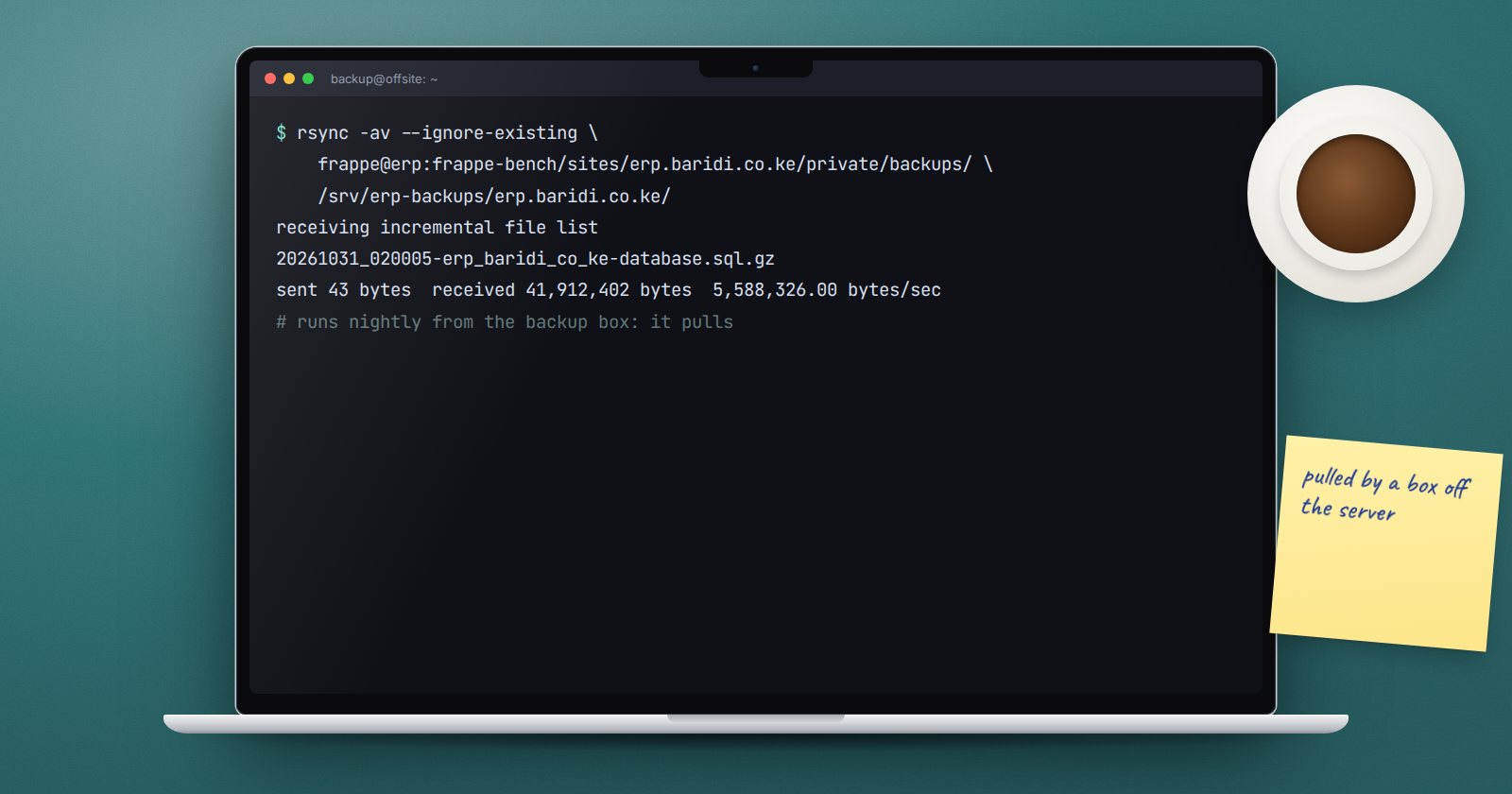
The safest pattern is for a separate backup machine to pull copies from the ERPNext server, using an SSH key that only the backup machine holds. If the ERPNext server is ever compromised, an attacker on it has no credentials to reach and delete the offsite copies. When the ERPNext server pushes to storage, its credentials can usually delete what it wrote.
On the backup machine, a nightly job might run:
rsync -av --ignore-existing \
  frappe@erp-server:/home/frappe/frappe-bench/sites/erp.example.com/private/backups/ \
  /srv/erp-backups/erp.example.com/
Adjust the user, host and paths to match your server. --ignore-existing copies only new files and never overwrites copies already pulled. Add it to the backup machine's crontab with crontab -e.
Keep a longer history offsite
Your offsite store is where you keep history: for example, every daily set for some weeks and one per month for longer. Decide the periods with whoever owns the data, then set a clean-up job on the backup machine. A common approach:
find /srv/erp-backups/erp.example.com -type f -mtime +60 -print
Run it with -print first and read the list. Only when the list is what you expect, replace -print with -delete. Warning: -delete removes files permanently; a wrong path here can wipe your backups.
Using cloud storage
If you prefer object storage, tools such as rclone can copy a backups folder to S3-compatible storage. Apply the same rule: use credentials that can add files but not delete them where the provider supports it, and turn on versioning or object locking if it is offered.
Protect the copies
- Offsite backups hold all your business data. Restrict who can log in to the backup machine.
- If you enable Encrypt Backups in System Settings, keep the encryption key in a separate, safe place. A backup you cannot decrypt is no backup.
- Watch disk space on the backup machine too.
Know that it is working
Set a simple daily check: does the newest offsite file have today's date? A short script that emails you when it does not is worth more than a perfect setup nobody watches. Then, each quarter, restore an offsite copy on a test server.
Offsite backup checklist
- [ ] Backups include files, not only the database
- [ ] A separate machine pulls copies daily
- [ ] The ERPNext server cannot delete offsite copies
- [ ] Offsite retention is written down and agreed
- [ ] Clean-up job tested with
-printbefore-delete - [ ] Encryption key stored apart from the backups
- [ ] Daily freshness check and quarterly test restore
To get comfortable with SSH keys, cron and rsync, see the Linux for ERPNext: Foundations course.
