
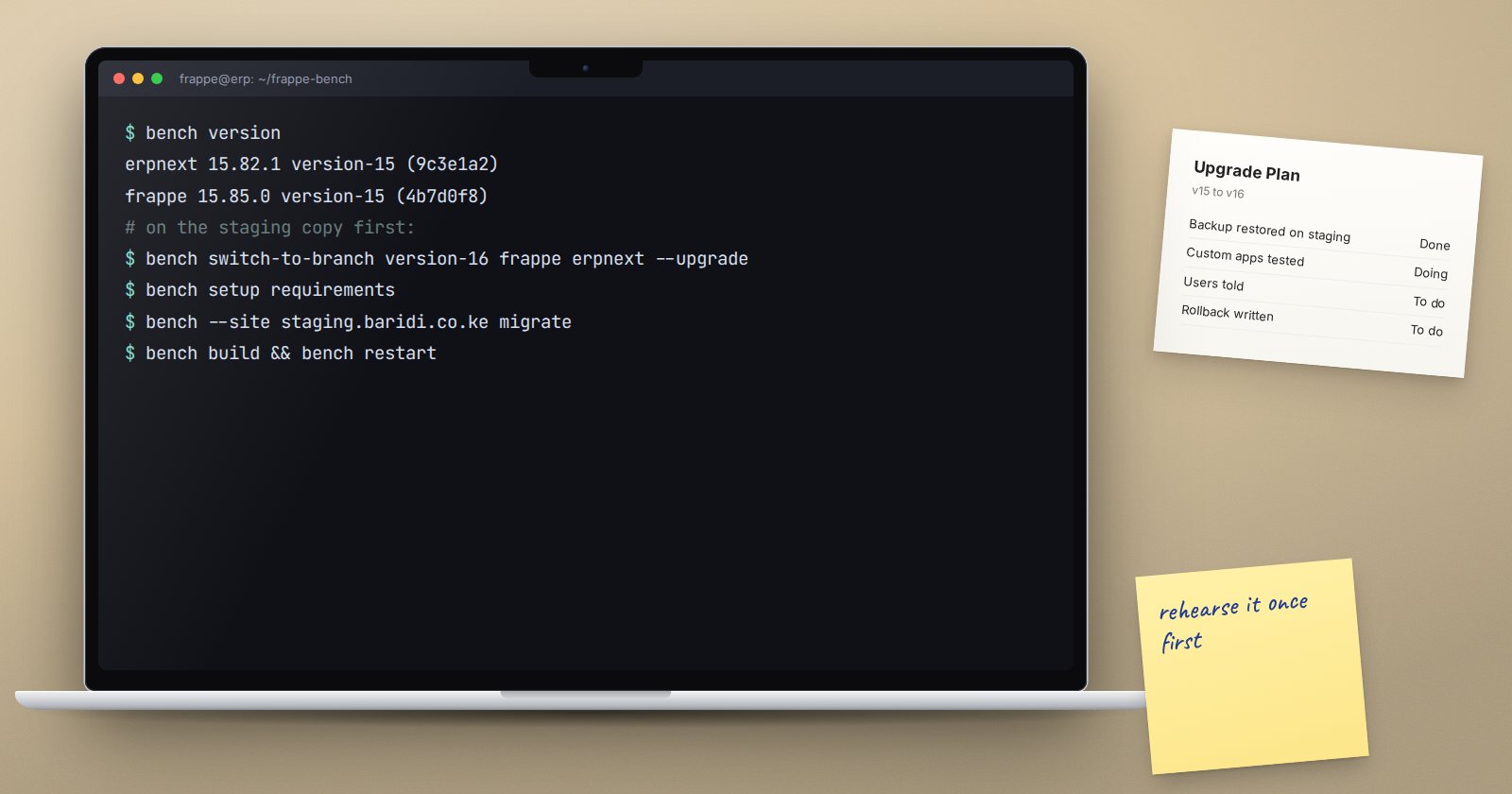
A major ERPNext upgrade, such as moving from version 15 to version 16, is a project, not a command. Patches change data, screens move, and system requirements change underneath you. Treat it the way you would treat a small implementation: plan, rehearse, then go live.
Read the requirements first
Major versions often need newer system software. In the Frappe v16 code installed for this article, the framework declares Python 3.14 and Node 24 or newer. Ubuntu's default Python may be older than that, so check what your server has before anything else:
python3 --version
node --version
Check the release notes for the target version as well, for the supported MariaDB and Redis versions. Bench has bench migrate-env for moving a bench's virtual environment to a different Python version.
Inventory what you run
List every app on the bench and every customisation:
bench version
For each app, confirm there is a branch that supports the new version. Custom apps written in-house need their own testing and often code changes. Also review Custom Fields, Client Scripts, Server Scripts and custom print formats; these are where upgrade surprises usually hide.
Rehearse on a copy
Build a separate server, or a separate bench, with the current version and a recent production backup restored on it, emails muted. Then run the upgrade there:
bench switch-to-branch version-16 frappe erpnext --upgrade
bench setup requirements
bench --site test.example.com migrate
bench build
bench restart
Include every other installed app in the switch-to-branch command, such as HRMS if you use it, so all apps move together. Record how long each step takes; that tells you how long production will be down.
Test like a user
On the rehearsal copy, have real users from each department work through their daily tasks:
- accounts: invoices, payments, journal entries, bank reconciliation, financial statements
- stock: receipts, deliveries, transfers, stock balance
- HR and payroll if used: a test payroll run
- every custom print format and report
Compare key balances, like the trial balance and stock value, before and after the upgrade. They must match. Log every issue, fix it on the copy, and repeat the rehearsal until it runs clean.
Plan the production run
- Choose a window with enough time for the steps you measured, plus a margin.
- Freeze configuration changes in the weeks before.
- Take a full backup with files and copy it off the server.
- Record current app versions and commits.
- Agree in advance on the point at which you will stop and roll back.
Rolling back after a major upgrade means restoring the backup onto the old version, because a database migrated to the new version cannot be restored onto older code. Bench warns when you try to restore a backup from a newer version than the code you are running.
After go-live
Keep extra support on hand for the first days. Users will find screens that moved. Watch error logs and the scheduler closely during the first week.
Upgrade checklist
- [ ] New Python, Node, MariaDB and Redis requirements confirmed
- [ ] Every app has a compatible branch
- [ ] Customisations listed and reviewed
- [ ] Full rehearsal on a copy, timings recorded
- [ ] Department users tested their daily work on the copy
- [ ] Key balances match before and after
- [ ] Production backup taken and stored offsite
- [ ] Rollback point agreed in advance
Running upgrades as projects, with sign-off from the business, is covered in our ERPNext Implementation Consultant course.
