
Many teams say "we have backups" without knowing what is inside them. When a restore day comes, they discover the attachments are missing, or the only copies were on the server that just failed. Before you trust your ERPNext backups, understand exactly what they contain.
The four files
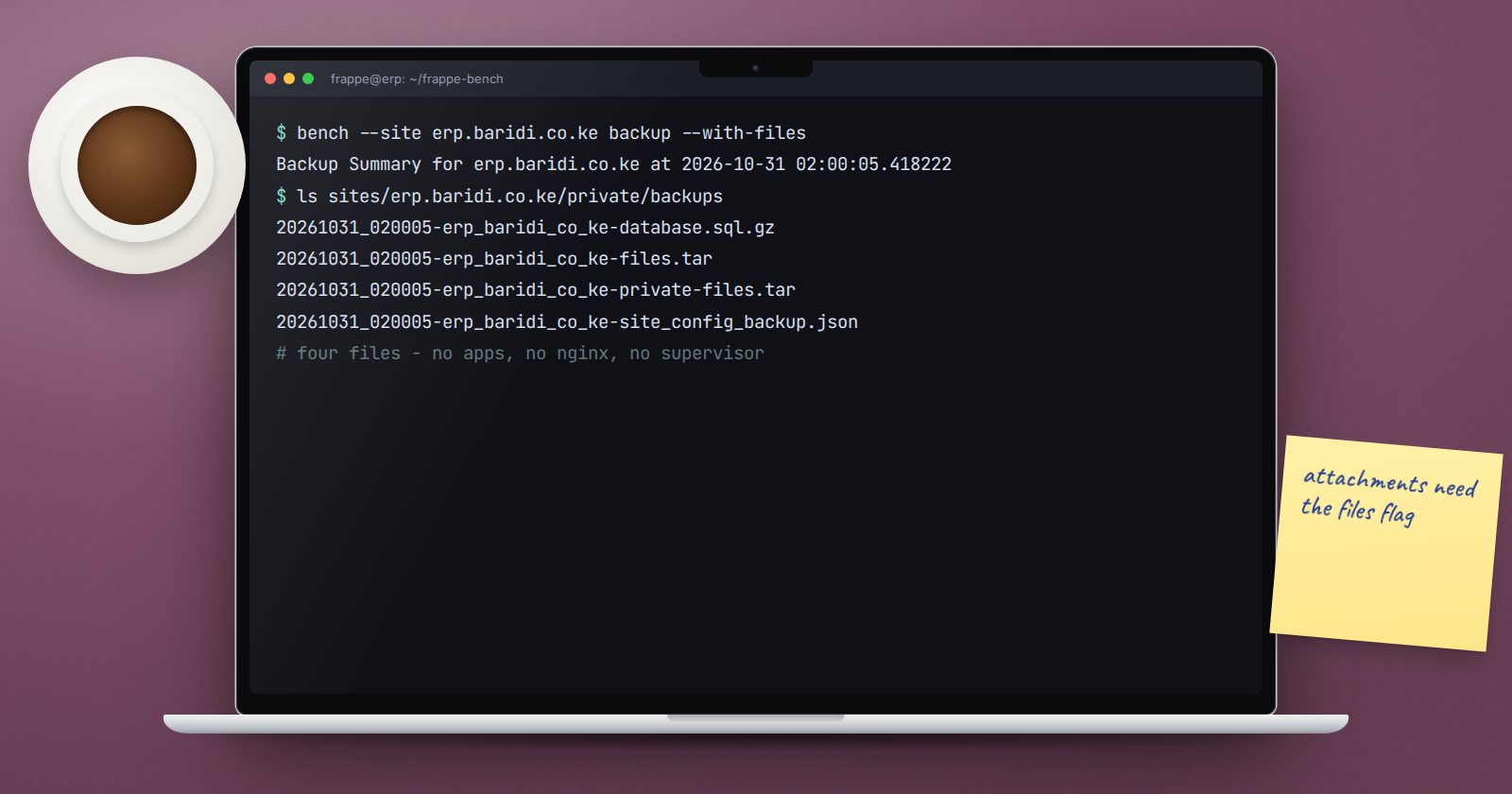
When you run:
bench --site erp.example.com backup --with-files
Frappe writes up to four files into sites/erp.example.com/private/backups, all starting with a date and time stamp:
...-database.sql.gz- a compressed dump of the whole site database: every transaction, master record, setting, user and permission....-files.tar- the public files folder, such as website images....-private-files.tar- the private files folder, which usually holds attachments: scanned invoices, contracts, employee documents....-site_config_backup.json- a copy of the site's configuration.
Without --with-files, you only get the database and configuration. That is the most common gap: the books restore, but every attached document is gone. Add --compress to get .tgz file archives instead of .tar.
How many are kept
Frappe cleans the backups folder automatically. An hourly maintenance job keeps the newest sets up to the Number of Backups value in System Settings (the default is 3) and deletes older ones. That is sensible for disk space, but it means the server never holds much history. If a problem goes unnoticed for a week, the backup from before it may already be gone. This is why offsite copies with their own retention matter.
Scheduled backups
On a production bench, bench setup backups adds a cron job that backs up all sites every six hours and appends output to logs/backup.log. Note that this job runs backup without --with-files, so it saves databases only. Schedule a separate files backup as well. Check what jobs exist:
crontab -l
Check its log too. A cron job that fails silently every night is worse than none, because it gives false comfort.
Encrypted backups
System Settings has an Encrypt Backups option. When on, the backup files are encrypted and get -enc in their names. The key is stored as backup_encryption_key in the site's site_config.json.
Warning: an encrypted backup is useless without that key. If the server is lost and the key only existed in its site_config.json, you cannot restore. Store the key separately, in a password manager or sealed record that the right people can reach.
What a site backup does not include
- Other sites on the same bench (unless you back up all sites).
- App code and custom app repositories. Those should live in Git.
- Bench-level configuration such as
sites/common_site_config.json, nginx and supervisor files. - SSL private keys and certificates.
- Server-level items like cron jobs, firewall rules and users.
Most of these can be recreated, but write down how. Your disaster recovery notes should cover rebuilding the server, not only restoring data.
The only proof is a restore
A backup file existing on disk proves nothing about whether it can be restored. Test-restore to a separate server on a schedule, log in, open recent invoices and attachments, and record the result.
Backup checklist
- [ ] Scheduled backups include files, not only the database
- [ ]
logs/backup.logshows recent successful runs - [ ] Copies leave the server every day
- [ ] Offsite retention is longer than the on-server limit
- [ ] Encryption key stored separately from the server, if encryption is on
- [ ] Custom apps are in Git
- [ ] A test restore was done and recorded this quarter
Backups touch both the server and the System Settings screen. Our ERPNext Administration Without Code course covers the settings side in detail.
