
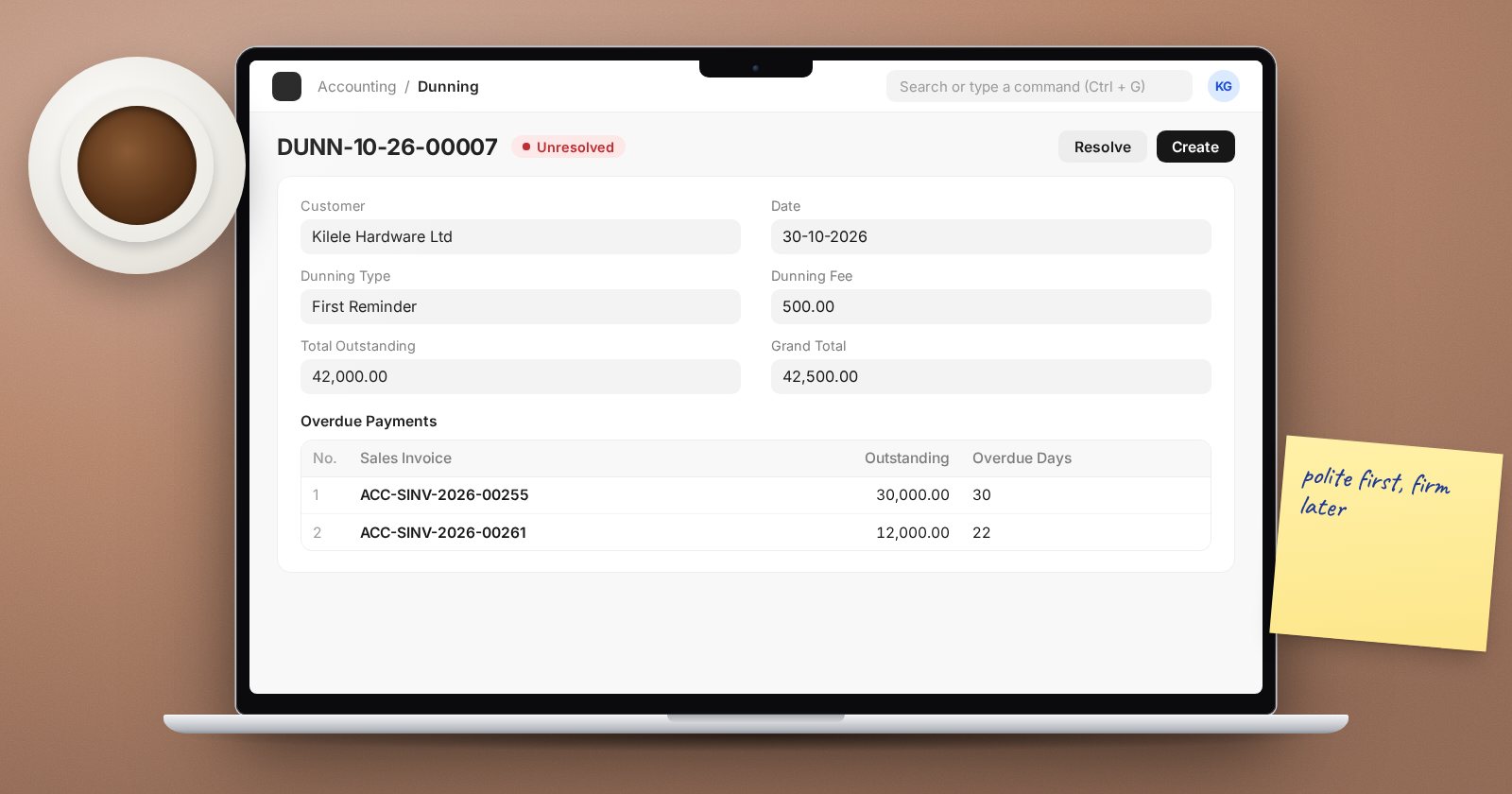
Most collections work is a sequence of polite, then firmer, reminders. ERPNext supports this with Dunning: a document that lists a customer's overdue instalments, prints as a reminder letter, can add a fee or interest, and resolves itself when the customer pays. It is underused, partly because it is easy to miss.
Step 1: Create Dunning Types
A Dunning Type is one level of reminder, such as First Reminder, Second Reminder and Final Notice. Each has:
- Dunning Fee - a fixed charge, if your terms allow one.
- Rate of Interest (%) Yearly - for interest on overdue amounts, if your terms allow it.
- Income Account and Cost Center - where any fee and interest will be booked.
- Is Default - the type used when none is chosen.
- The Dunning Letter text, with a Body Text and Closing Text per language.
The letter text is a template that can pull in fields from the document, and the help on the form shows an example. Write the wording once, have it approved, and every reminder will be consistent.
Only charge fees or interest that your contract terms and local law allow. When in doubt, leave both at zero and use Dunning purely for reminders.
Step 2: Create a Dunning
There are two ways:
- From the invoice. On a submitted Sales Invoice with an instalment past its due date, Create > Dunning appears.
- From the Dunning list. Create a new Dunning, choose the customer, and click Fetch Overdue Payments to pick from that customer's overdue invoices. Rows cannot be added by hand, only through this button.
The Overdue Payments table lists each instalment with its due date, outstanding amount, Overdue Days, Dunning Level and Interest. The dunning level counts how many earlier dunnings already exist for that instalment, so you can see at a glance whether this is the first or third reminder.
Interest, where a rate is set, is calculated on the outstanding amount for the overdue days at the yearly rate. The document totals the Total Outstanding, Total Interest, Dunning Fee, Dunning Amount and Grand Total.
Step 3: Send it
Submit the Dunning, then print it or email it from the form using your letter head. The Print Language field picks the matching letter text if you set up more than one language.
Submitting a Dunning does not post anything to the ledger. It is a letter with a calculation, not an invoice.
Step 4: Get paid and resolve
On a submitted Dunning, Create > Payment builds a Payment Entry that allocates the overdue invoices and, if there is a dunning amount, adds a deduction row crediting the Dunning's income account with the fee and interest. That is the point where the fee is booked.
The Status is Unresolved when submitted. When the linked invoices are paid, ERPNext changes it to Resolved automatically. You can also click Resolve by hand, for example after agreeing to waive a balance.
A simple collections routine
- Each week, run Accounts Receivable with Ageing Based On set to Due Date.
- Create dunnings for customers in the first overdue bucket using the first Dunning Type.
- Review Unresolved dunnings older than two weeks and escalate with the next type.
- Agree a cut-off when accounts go to a manager or legal follow-up.
You will find Dunning and Dunning Type in the Banking section of the accounting sidebar, or search for them in the awesome bar.
Try it
Create two Dunning Types, raise a test invoice with a due date in the past, create a Dunning from it, print it, then record payment from the Dunning and watch the status change.
Receivables and collections are covered in the Accounting Essentials course.
