
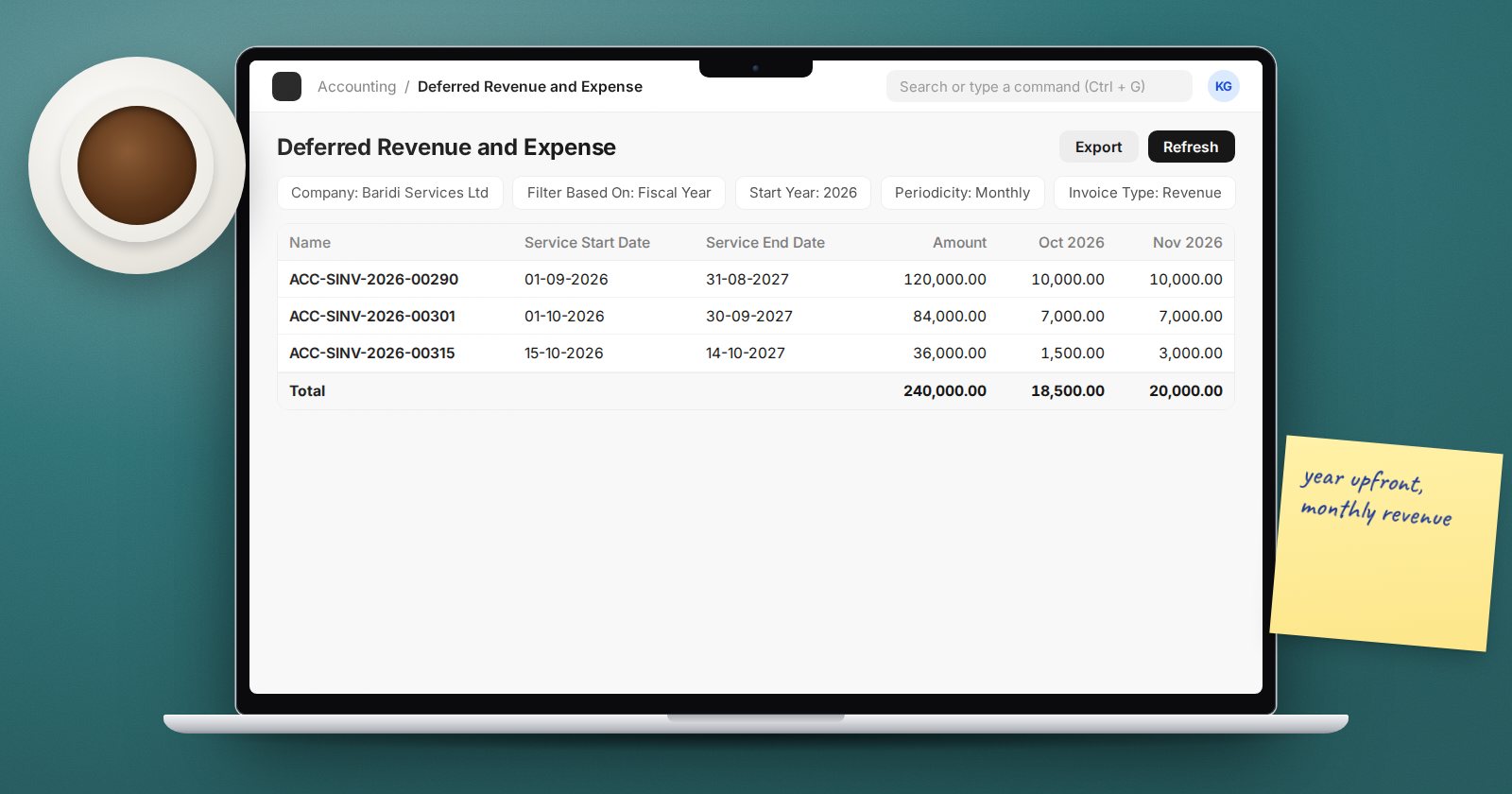
When a customer pays for a year of service upfront, the cash arrives today but the revenue belongs to the next twelve months. The same applies in reverse when you prepay insurance or a software licence. ERPNext can handle both automatically, so you do not have to post a recognition journal every month.
How it works in one paragraph
On the invoice, the amount for a deferred item is posted to a Deferred Revenue Account (a liability) instead of income, or to a Deferred Expense Account (an asset) instead of expense. Each month, ERPNext moves the share that belongs to that month from the deferred account to income or expense, based on the item's Service Start Date and Service End Date.
Set up once
- Create the accounts. A deferred revenue ledger under current liabilities and a deferred expense ledger under current assets.
- Company defaults. On the Company, set Default Deferred Revenue Account and Default Deferred Expense Account.
- Item. On each item that is billed in advance, tick Enable Deferred Revenue and set No of Months (Revenue). For prepaid purchases, tick Enable Deferred Expense and set No of Months (Expense). The Item Defaults table can hold item-specific deferred accounts if you need them.
Invoicing
When you add a deferred item to a Sales Invoice, the row shows Enable Deferred Revenue, Deferred Revenue Account, Service Start Date and Service End Date. The start date defaults to the transaction date and the end date is calculated from the item's number of months. Change the dates to match the actual contract period. Purchase invoices work the same way with the expense fields.
Submit the invoice and check the ledger: the credit should go to deferred revenue, not income.
The monthly recognition
ERPNext runs deferred accounting as a monthly background job. It only runs when Automatically process deferred Accounting entry is ticked in Accounts Settings, which is the default. Each run creates a Process Deferred Accounting document per company for Income and for Expense.
You can also create a Process Deferred Accounting by hand. Choose the Type (Income or Expense), the Service Start Date and Service End Date range to process, the Posting Date and optionally a single Account, then submit. This is useful if the scheduler was off or you need to catch up.
Accounts Settings has three more options in its deferred section:
- Book Deferred entries based on - Days (default) or Months. Days spreads the amount by the number of days in each period; Months gives each full month an equal share and prorates partial months.
- Book deferred entries via Journal Entry - creates journals with the Entry Type Deferred Revenue or Deferred Expense instead of posting directly.
- Submit Journal entries - only shown with the previous option, decides whether those journals are submitted automatically.
When a contract ends early
If a customer cancels part way, set the Service Stop Date on the invoice item. It can be set on a submitted invoice, must fall between the start and end dates, and cannot be changed once set, so enter it carefully. Recognition stops at that date, and you deal with the remaining balance through a credit note or as your policy requires.
Checking it at month-end
- Confirm a submitted Process Deferred Accounting exists for the month, for both types.
- Run the Deferred Revenue and Expense report to see what has been recognised and what remains.
- Compare the deferred revenue account balance in the Trial Balance with the report's unrecognised total.
Try it
Create a subscription item with twelve months of deferred revenue. Invoice it mid-month, then run Process Deferred Accounting by hand for the first month and check how much was recognised under Days and under Months.
Revenue recognition and month-end accruals are covered in the Accounting Professional course.
