
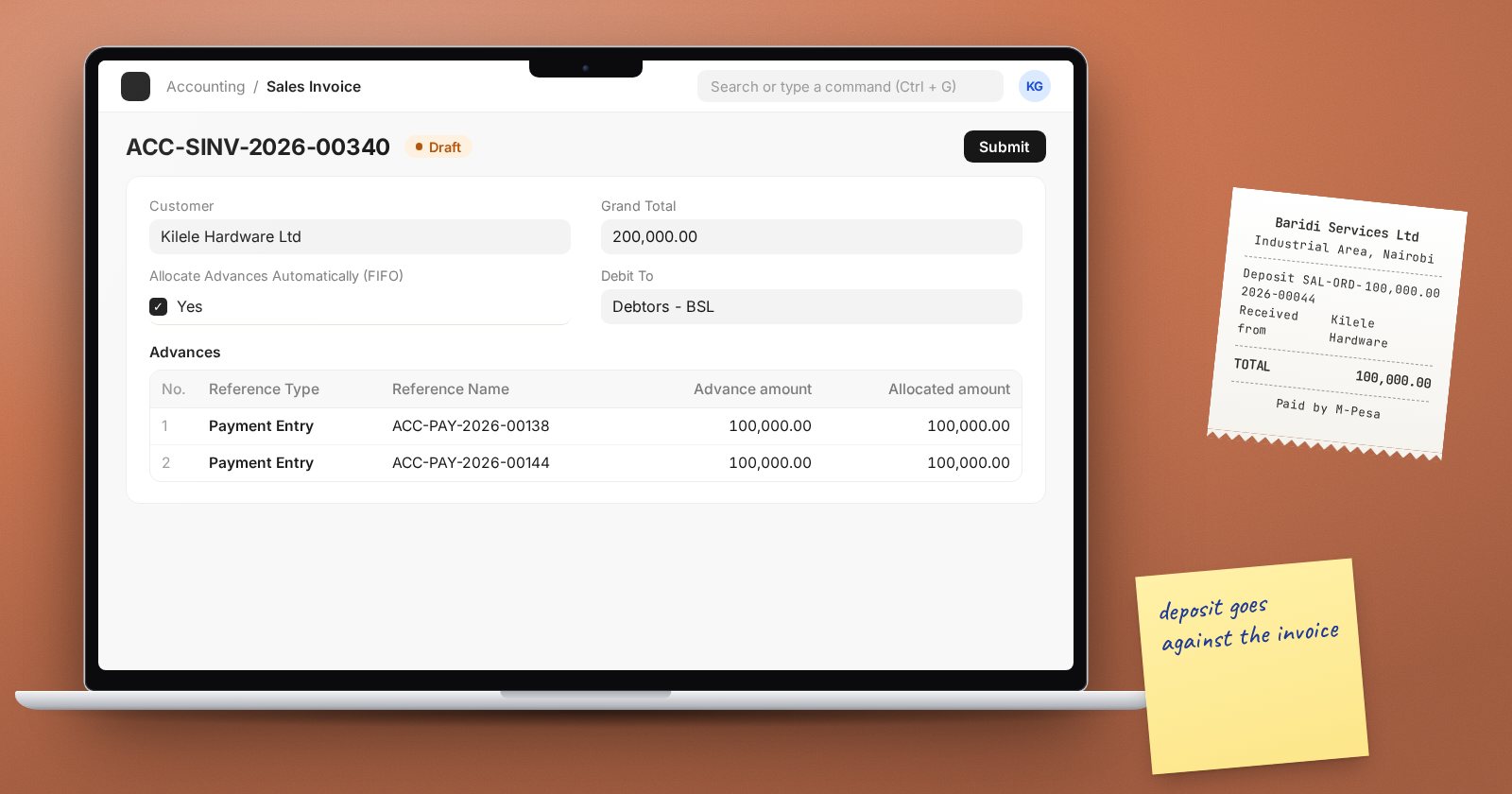
Deposits from customers and prepayments to suppliers are everyday events, but they are easy to record in a way that confuses the ledger later. In ERPNext an advance is simply a Payment Entry that is not yet allocated to an invoice. The question is how you link it to the invoice when the invoice arrives.
Recording the advance
There are two common ways.
Against an order. On a submitted Sales Order, choose Create > Payment. The Payment Entry is linked to the order. On a Purchase Order the same option records a supplier prepayment. This is the best option when a deposit relates to a specific order, because the link is kept and the order shows how much has been paid.
Without a reference. Create a Payment Entry for the party and leave the references empty. The whole amount becomes the Unallocated Amount. Use this for general deposits not tied to one order.
In both cases, record the bank reference and date as for any payment, so the bank reconciliation works.
Using the advance on the invoice
When you raise the Sales Invoice, look at the Advance Payments section:
- Get Advances Received fills the Advances table with the customer's unallocated payments. Set the allocated amount on each row.
- Allocate Advances Automatically (FIFO) does this for you, using the oldest advances first.
On a Purchase Invoice, the equivalents are Get Advances Paid and Set Advances and Allocate (FIFO), plus an Only Include Allocated Payments option that limits it to advances allocated against the linked orders.
When the invoice is submitted, the advance is allocated and the invoice outstanding falls by that amount.
If you forget, the advance can still be matched later with Payment Reconciliation.
Advances in separate accounts
By default, a customer advance is credited to the same receivable account as invoices, so a customer with only a deposit shows a credit balance in receivables. Many accountants prefer to show customer deposits as a liability and supplier prepayments as an asset until the invoice arrives.
ERPNext supports this on the Company with Book Advance Payments in Separate Party Account. The form explains that it records advances received in a liability account instead of the asset account, and advances paid in an asset account instead of the liability account. When ticked, set:
- Default Advance Received Account - a liability account for customer deposits.
- Default Advance Paid Account - an asset account for supplier prepayments.
Note the warning on both fields: only Payment Entries made against these advance accounts are supported, so journal-based advances will not work with this feature.
When the advance is later reconciled with an invoice, ERPNext posts an entry moving the amount from the advance account into the receivable or payable account. The Reconciliation Takes Effect On setting on the Company decides the date of that entry, with options Advance Payment Date, Oldest Of Invoice Or Advance (the default) and Reconciliation Date. Test each on a copy and agree the choice with your auditors, because it affects which month the movement appears in.
Switching this on mid-year changes how new advances are booked but not old ones, so it is best decided at go-live or at the start of a financial year.
When an order is cancelled
Accounts Settings has "Unlink Advance Payment on cancellation of order", ticked by default. Cancelling an order then frees its advance so it can be refunded or used elsewhere, rather than blocking the cancellation.
Month-end checks
- Run Accounts Receivable and Accounts Payable and look for parties with only credit balances. These are unallocated advances.
- If you use separate advance accounts, compare their balances with the list of open advances.
- Refund or allocate old advances. A deposit that sits for months usually signals a missing invoice.
Try it
Record a deposit against a test Sales Order, deliver and invoice the order, and use Get Advances Received. Then repeat on a company with Book Advance Payments in Separate Party Account ticked and compare the ledger entries.
Advances, deposits and allocations are covered in Accounting Essentials and, for the separate-account setup, Accounting Professional.
