
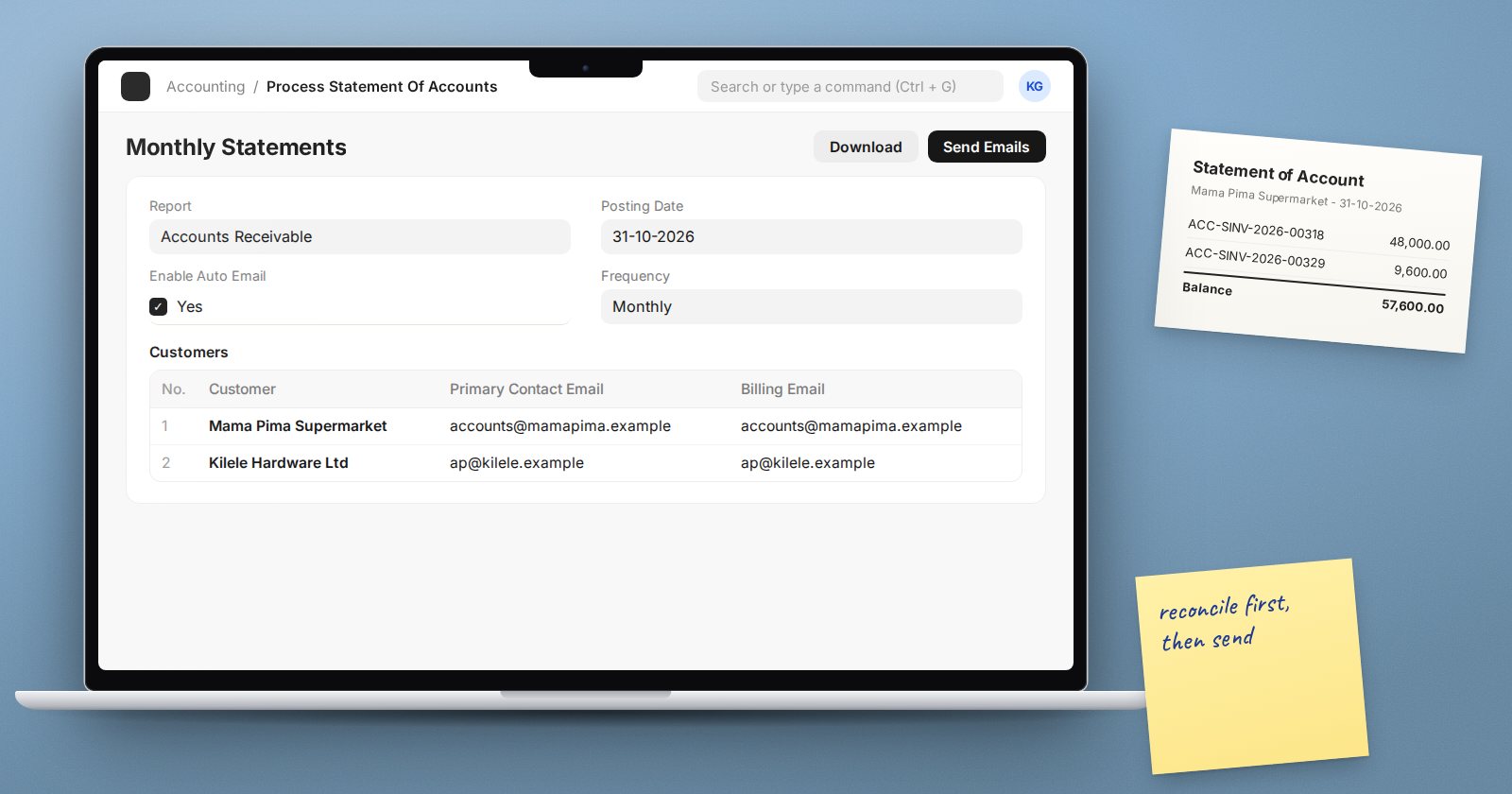
Sending statements is one of the cheapest ways to get paid faster, and one of the first jobs to slip when the finance team is busy. ERPNext can produce and email statements for many customers at once, and repeat it on a schedule, with Process Statement Of Accounts.
Choose what to send
Create a new Process Statement Of Accounts and pick the Report:
- General Ledger - a classic statement of account: every invoice, payment and credit note between two dates, with opening and closing balances. Options include Categorize By, Show Net Values in Party Account, filtering by Cost Center or Project, a Currency, and Show Remarks.
- Accounts Receivable - an open-items statement as at a Posting Date, showing only what is unpaid. You can tick Include Ageing Summary with Ageing Based On Due Date or Posting Date, use Based On Payment Terms, and Show Future Payments. Filters for Territory, Sales Partner, Sales Person and Payment Terms Template are available.
Most customers find the open-items version easier to act on. Auditors and some larger customers prefer the full ledger.
Two options help remove noise from either report: Ignore Exchange Rate Revaluation and Gain / Loss Journals and Ignore System Generated Credit / Debit Notes.
Choose who receives it
You can add customers one by one in the Customers table, or use Select Customers By (Customer Group, Territory, Sales Partner or Sales Person), choose the Recipient group, and click Fetch Customers.
The table shows each customer's Primary Contact Email and a Billing Email. Send To Primary Contact is ticked by default, and the form notes that a customer must then have a primary contact email. Customers without one are a common reason statements quietly fail to arrive, so check the table before sending. Add internal copies with CC To, and choose the Sender email account.
Make the email and PDF your own
- Subject and Body for the email. The help text explains that you can use Jinja tags to insert values such as the customer name.
- Letter Head, Orientation, Terms and Conditions and an optional Print Format.
- PDF Name for the attachment, and Page Break After Each SoA when downloading several statements as one file.
Send now or on a schedule
Save the document, then use:
- Download to get the PDFs and check them yourself first.
- Send Emails to queue the emails now.
For automatic statements, tick Enable Auto Email and set the Frequency (Daily, Weekly, Biweekly, Monthly or Quarterly), the Start Date and the Filter Duration (Months), which sets how many months each statement covers. ERPNext checks daily for statements that are due, sends them, and moves the dates forward to the next period by itself.
A sensible setup
- One document for credit customers, monthly, open-items report with ageing, sent a few days after month-end once allocations are done.
- A separate document for key accounts, using the General Ledger report for the full history.
- Download and review the first run before switching on Enable Auto Email.
Before each run
Statements are only as good as the allocations behind them. Run Payment Reconciliation for customers with unallocated receipts or credit notes first, or customers will receive statements showing invoices they have already paid.
Try it
Create a Process Statement Of Accounts for two test customers using the Accounts Receivable report with ageing, download the PDFs, then send them to an internal email address before trying a real customer.
Customer statements and collections are part of the Accounting Essentials course.
