
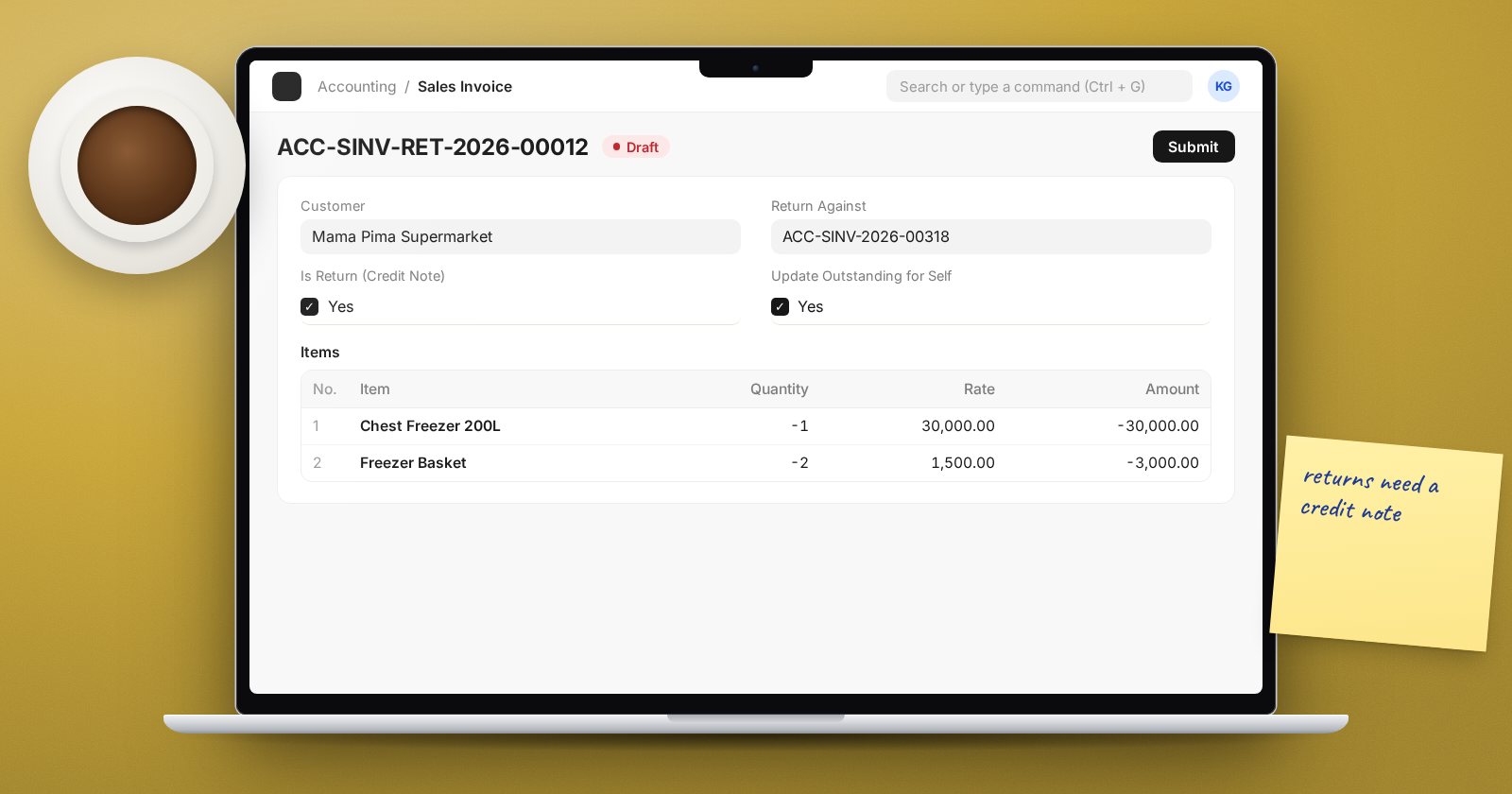
Every business issues credit notes: goods come back, a price was wrong, a service was not delivered. In ERPNext the credit note is a Sales Invoice marked as a return, and the debit note to a supplier is a Purchase Invoice marked as a return. The mechanics are simple, but one setting decides where the credit actually lands.
Raising a credit note from the invoice
Open the submitted Sales Invoice and choose Create > Return / Credit Note. ERPNext creates a new Sales Invoice with:
- Is Return (Credit Note) ticked,
- Return Against pointing to the original invoice,
- the items copied with negative quantities, and
- the same taxes, so tax is reversed in the same proportions.
Remove the lines that are not being returned and adjust quantities for partial returns. If the original invoice updated stock, the return brings the goods back into stock too.
For suppliers, the same flow is Create > Return / Debit Note on a submitted Purchase Invoice, which creates a Purchase Invoice with Is Return (Debit Note) ticked.
In the Invoicing sidebar, the Credit Note and Debit Note links open these return invoices directly.
The setting that decides where the credit goes
Return invoices made against an original have a checkbox called Update Outstanding for Self, which is ticked by default.
- Ticked: the credit note carries its own negative outstanding amount. The original invoice still shows as unpaid. You then match the two in Payment Reconciliation, or apply the credit against a different invoice.
- Unticked: the credit reduces the original invoice's outstanding amount directly.
ERPNext shows a message on the return explaining this and pointing you to Payment Reconciliation. If the credit note is larger than what is still outstanding on the original, ERPNext ticks the box itself, because the original cannot go negative.
Which is right depends on how you work. If customers usually take the credit off the same invoice, untick it so the ageing report is clean immediately. If they take credits against later invoices, leave it ticked and reconcile. Either way, decide as a team and be consistent; a mix of both is what produces confusing customer statements.
Price corrections without returns
If the goods stay with the customer and only the price was wrong:
- Undercharged? On a Sales Invoice, tick Is Rate Adjustment Entry (Debit Note) and link the original in Return Against. The form describes it as a debit note against an existing invoice to adjust the rate, keeping the quantity from the original.
- Overcharged? Make a return for the value of the correction. Agree with your tax adviser how this should be presented for tax purposes.
When a journal is better
A Journal Entry with the Entry Type Credit Note or Debit Note suits adjustments that are not about items or tax, such as a settlement discount agreed after payment. Put the party on the receivable or payable row and link the original invoice with the Reference Type and Reference Name columns. Do not use journals for returns of goods or anything that affects output or input tax, because they will not reverse stock or tax lines.
Checks before you submit
- Quantities are negative and only for the items actually returned.
- Taxes match the original invoice's treatment.
- Update Outstanding for Self is set the way your team agreed.
- On the draft, Preview > Accounting Ledger shows income and tax debited and the customer credited.
After submitting, the credit note shows the status Return. If the credit clears the original invoice, the original's status becomes Credit Note Issued, which helps sales staff see that a return exists.
Try it
Raise a test invoice for three items, then a credit note for one. Submit it once with Update Outstanding for Self ticked and once (on another invoice) unticked, and compare both in the Accounts Receivable report.
Returns and corrections are covered in Accounting Essentials, and the sales side of returns in Sales Essentials.
