
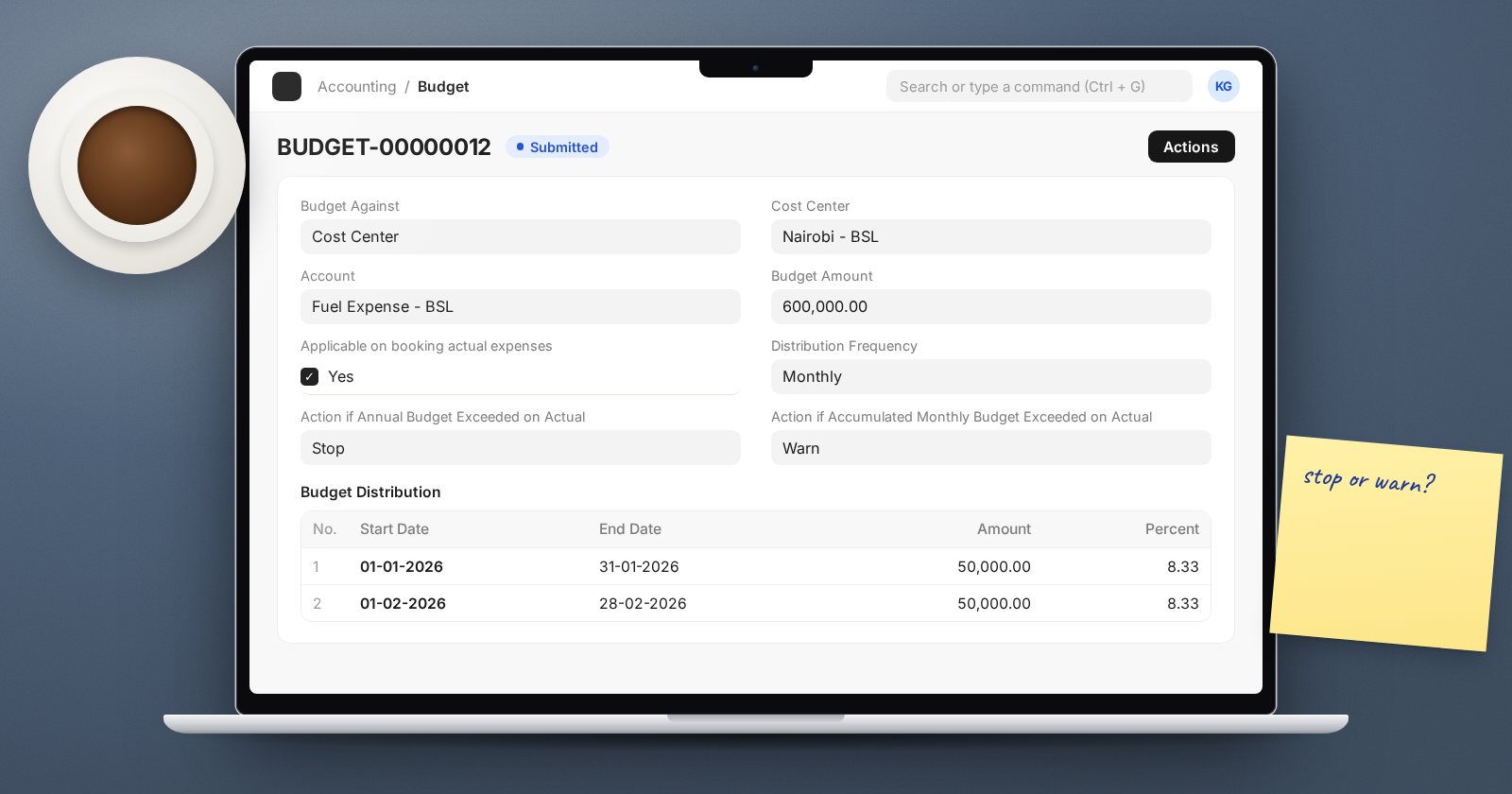
Budgets in ERPNext do two jobs: they let you compare actual spending with plan, and they can stop a transaction before it overspends. Version 16 reworked the Budget form, so if you set budgets up in an earlier version, the screen will look different. Here is how it works now.
One budget, one account
A v16 Budget covers a single account for a single cost center or project. The main fields are:
- Budget Against - Cost Center or Project, and then the cost center or project itself.
- Company and Account.
- Budget Amount.
- From Fiscal Year and To Fiscal Year, so one budget can span more than one year.
ERPNext checks that the account is a ledger, not a group, and that it is an Income or Expense account. It also blocks a second budget for the same cost center or project and account when the fiscal years overlap.
If a budget is too much to set up account by account, start with the five or ten accounts that matter most, such as fuel, travel, repairs or consultancy, rather than budgeting everything.
Spread it over the year
Distribution Frequency can be Monthly, Quarterly, Half-Yearly or Yearly. With Distribute Equally ticked (the default), ERPNext divides the amount evenly into the Budget Distribution table. Untick it to enter your own amounts or percentages per period, for example when spending is seasonal. The distributed total must equal the budget amount, and percentages must add up to 100.
Choose where it applies and what happens
Each budget can check spending at different points:
- Applicable on Material Request
- Applicable on Purchase Order
- Applicable on booking actual expenses
- Applicable on Cumulative Expense, which adds purchase orders, material requests and actual expenses together
For each, you choose an action for the annual budget and for the accumulated monthly budget: Stop, Warn or Ignore. The defaults are Stop for the annual budget and Warn for the monthly one.
There is a dependency: checking material requests requires purchase orders and actual expenses to be checked too, and checking purchase orders requires actual expenses. If you tick nothing, ERPNext applies the budget to actual expenses.
Who can override
On the Company, the Exception Budget Approver Role names a role whose users are not stopped by budget limits. Give it to the person who approves overspends, not to everyone in finance, or the Stop action stops nobody.
Revising a budget
A submitted budget has Actions > Revise Budget. This cancels the current budget and creates a new draft copy, linked through the Revision Of field, for you to change and submit. The old version stays in the system, cancelled, so you keep a history of revisions.
Watching the numbers
The Budget Variance Report compares budget and actual by period, with filters for Company, From Fiscal Year, To Fiscal Year, Period (Monthly, Quarterly, Half-Yearly or Yearly) and Budget Against. Review it monthly with budget holders, not only at year-end.
If something behaves oddly
Accounts Settings has a "Use legacy Budget Controller" option, described as being for anyone experiencing issues with the new budget controller. Treat it as a temporary fallback and test both behaviours on a copy before switching on a live site.
Common mistakes
- Forgetting that a budget on a group cost center also counts spending posted to its child cost centers. Decide whether you control at group or branch level, and avoid budgeting the same account at both without a reason.
- Stop on the monthly budget for lumpy costs, such as annual insurance, which blocks legitimate spending.
- No approver role, so the only fix for a stopped order is to change the budget.
Try it
Create a monthly budget of a small amount for one expense account and cost center, with Stop on actual expenses. Post a purchase invoice that exceeds it and read the message. Then revise the budget and post again.
Budgets and cost control are part of the Accounting Professional course.
