
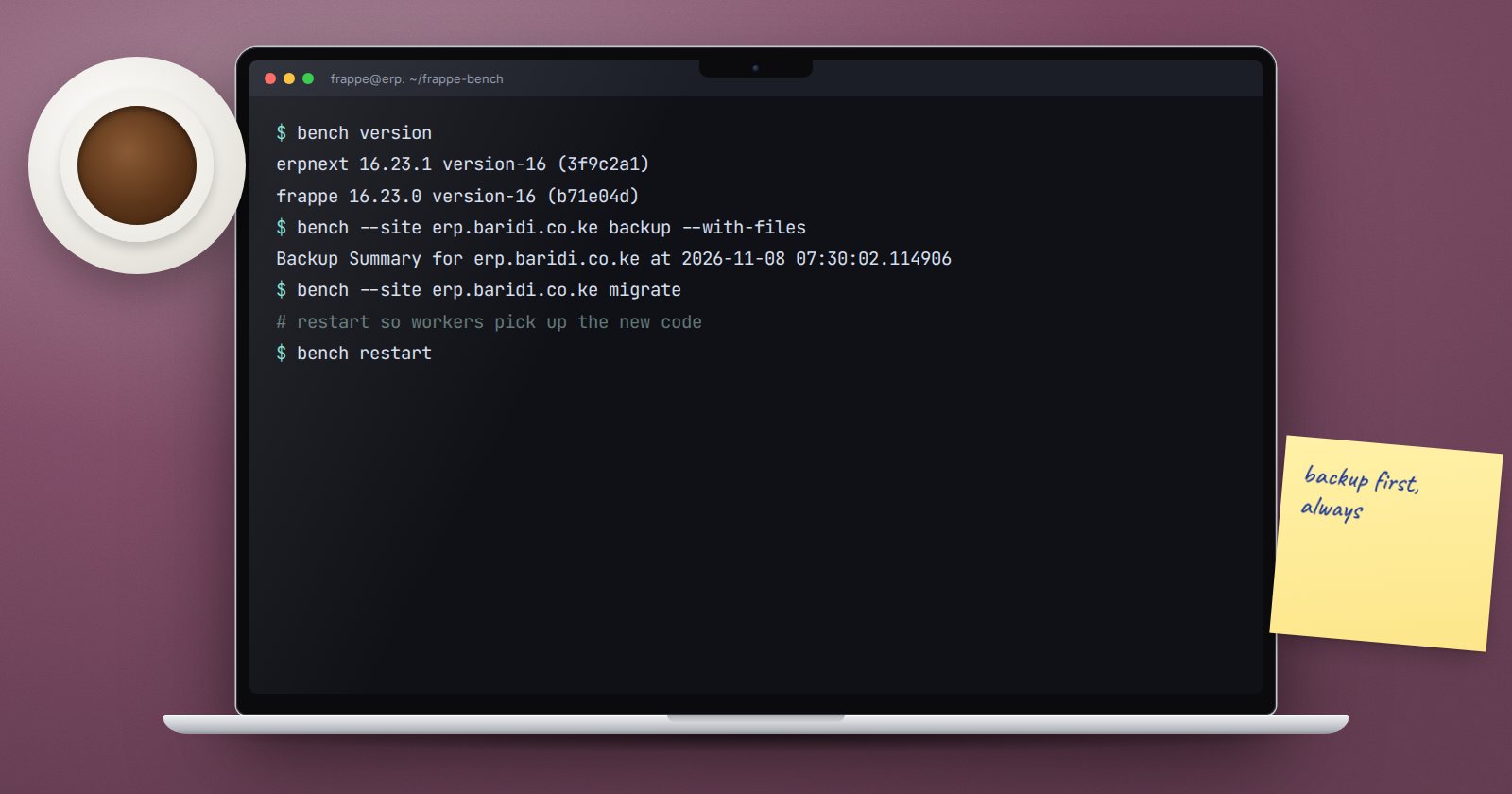
The bench command is how you operate an ERPNext installation from the server. It has dozens of subcommands, but an operator who looks after a live system uses a small core again and again. Here are those commands, what they do, and when to use them.
Run all of them as the bench user, from inside the bench folder. Most site commands need --site followed by your site name.
Find out what you have
bench version
bench --site erp.example.com list-apps
bench --site erp.example.com doctor
bench version lists every app in the bench with its version and branch. list-apps shows which apps are installed on one site. doctor reports scheduler status and whether background workers are online, which is the first check when emails or scheduled reports stop.
Back up before you touch anything
bench --site erp.example.com backup --with-files
This writes a compressed database dump plus public and private file archives into the site's private/backups folder. --compress packs file archives as .tgz. Copy the result off the server; a backup that only lives on the same machine is not a backup.
Restart cleanly
bench restart
On a production bench this restarts the supervisor (or systemd) processes, so web workers and background workers pick up new code or configuration. Use it after changing site_config.json, after installing an app, or when workers are stuck.
Migrate after code changes
bench --site erp.example.com migrate
migrate runs pending patches, syncs DocType schema changes and rebuilds caches. Run it whenever app code changes. Take a backup first.
Control the scheduler
bench --site erp.example.com scheduler status
bench --site erp.example.com scheduler pause
bench --site erp.example.com scheduler resume
Pause the scheduler during maintenance so scheduled jobs do not run against a half-updated system. enable-scheduler and disable-scheduler also exist; a disabled scheduler stays off until someone turns it on, which is a common cause of "auto-repeat stopped working".
Maintenance mode
bench --site erp.example.com set-maintenance-mode on
bench --site erp.example.com set-maintenance-mode off
Turn it on before restores or risky changes, so users are not saving data while you work. Always remember to turn it off.
Users from the command line
bench --site erp.example.com set-password user@example.com
bench --site erp.example.com disable-user user@example.com
bench --site erp.example.com destroy-all-sessions --reason "security reset"
disable-user is the fastest way to lock out a departed or compromised account. destroy-all-sessions logs every user out, which is useful after a suspected breach. If you leave the password off set-password, bench prompts for it, which keeps it out of your shell history.
Clear cache
bench --site erp.example.com clear-cache
Use this when users see stale menus or settings after a change. It is safe and fast.
Commands to treat with care
Some commands delete or overwrite data:
bench drop-siteremoves a site's database and files.bench --site ... restorereplaces the site's current data with the backup.bench --site ... reinstallwipes the site and starts fresh.
Warning: never run these on production without a fresh, tested backup and a clear reason. Read the site name twice before you press Enter.
Operator checklist
- [ ] I always run bench as the bench user, from the bench folder
- [ ] I back up with
--with-filesbefore any change - [ ] I check
doctorwhen jobs or emails stop - [ ] I use maintenance mode and pause the scheduler during maintenance
- [ ] I know how to disable a user and end all sessions quickly
- [ ] I never run destructive commands without a verified backup
Our Linux for ERPNext: Foundations course practises these commands on a real bench so they become second nature.
