
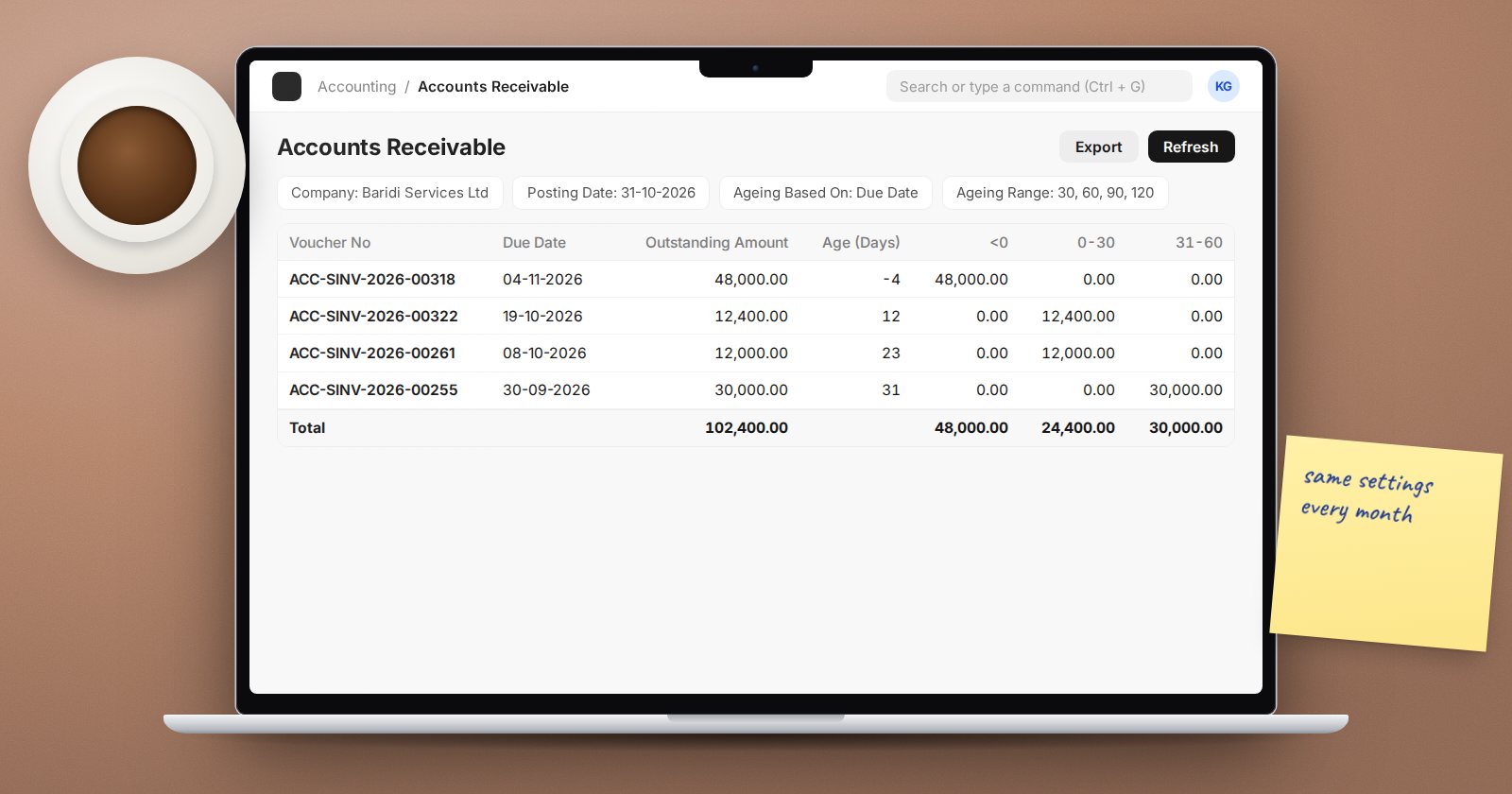
The debtors ageing is the report a finance manager looks at most, and the one most often misread. ERPNext's Accounts Receivable report is flexible, but a few of its settings change the numbers in each column. Choose them deliberately and keep them the same each month.
Posting Date is the "as at" date
The Posting Date filter sets the date the report is calculated for. Run it for the last day of the month for month-end packs, and it will show balances as they stood then, even if payments came in later.
Due Date or Posting Date
Ageing Based On has two choices:
- Due Date (the default) - an invoice is only "aged" once it is past its due date. Invoices not yet due fall in the <0 column. This is the right view for collections.
- Posting Date - ageing counts from the invoice date regardless of credit terms. Some auditors and lenders want this view.
Mixing the two between months makes trends meaningless. Pick one for your monthly pack and state it on the report.
Calculate Ageing With chooses whether age is counted to the Report Date (default) or to Today Date. Leave it on Report Date for month-end.
Ageing ranges
The Ageing Range filter defaults to "30, 60, 90, 120", which gives columns of 0-30, 31-60, 61-90, 91-120 and 121-Above, plus the <0 column for amounts not yet due. You can type your own ranges, and Accounts Settings has a Default Ageing Range if you want a different standard for everyone.
Payment terms
If invoices have instalments, tick Based On Payment Terms. Each instalment then appears separately with its own due date and age, and a Payment Term column is added. Without it, an invoice with an overdue deposit and a balance not yet due shows as one line.
Payments after the report date
Show Future Payments adds columns for payments received after the report date: Future Payment Ref, Future Payment Amount and Remaining Balance. This is very useful in a month-end review meeting, because it answers "has this been paid since?" without a second report.
Columns to read
Each line shows the voucher, due date, Invoiced Amount, Paid Amount, Credit Note, Outstanding Amount, Age (Days) and the ageing buckets. Customer LPO is shown too, which helps when customers quote their own order numbers.
Grouping and filtering
- Group By Customer adds subtotals per customer.
- Filter by Customer Group, Territory, Sales Person, Sales Partner, Cost Center, Project or Payment Terms Template to give each collector or branch their own list.
- Show Sales Person and Show Remarks add columns.
- In Party Currency shows foreign currency customers in their own currency.
For a one-line-per-customer view, use Accounts Receivable Summary instead.
Before you trust the totals
- Run Payment Reconciliation for customers with unallocated receipts or credit notes. Otherwise a customer appears with both an old invoice and a credit.
- Check that the report total equals the receivable account balance in the Trial Balance on the same date.
- Look at the <0 column: large amounts there may be invoices raised early with long credit terms, which is fine, or due dates typed wrongly, which is not.
A monthly routine
Save the report for the last day of the month with the same filters each time, export it, and discuss the 61-90 and older buckets with sales. The trend in those buckets says more than the total.
Try it
Run Accounts Receivable for last month-end three ways: Due Date, Posting Date, and Due Date with Based On Payment Terms. Note which customers move between buckets and why.
Receivables reporting and credit control are covered in the Accounting Essentials course.
