
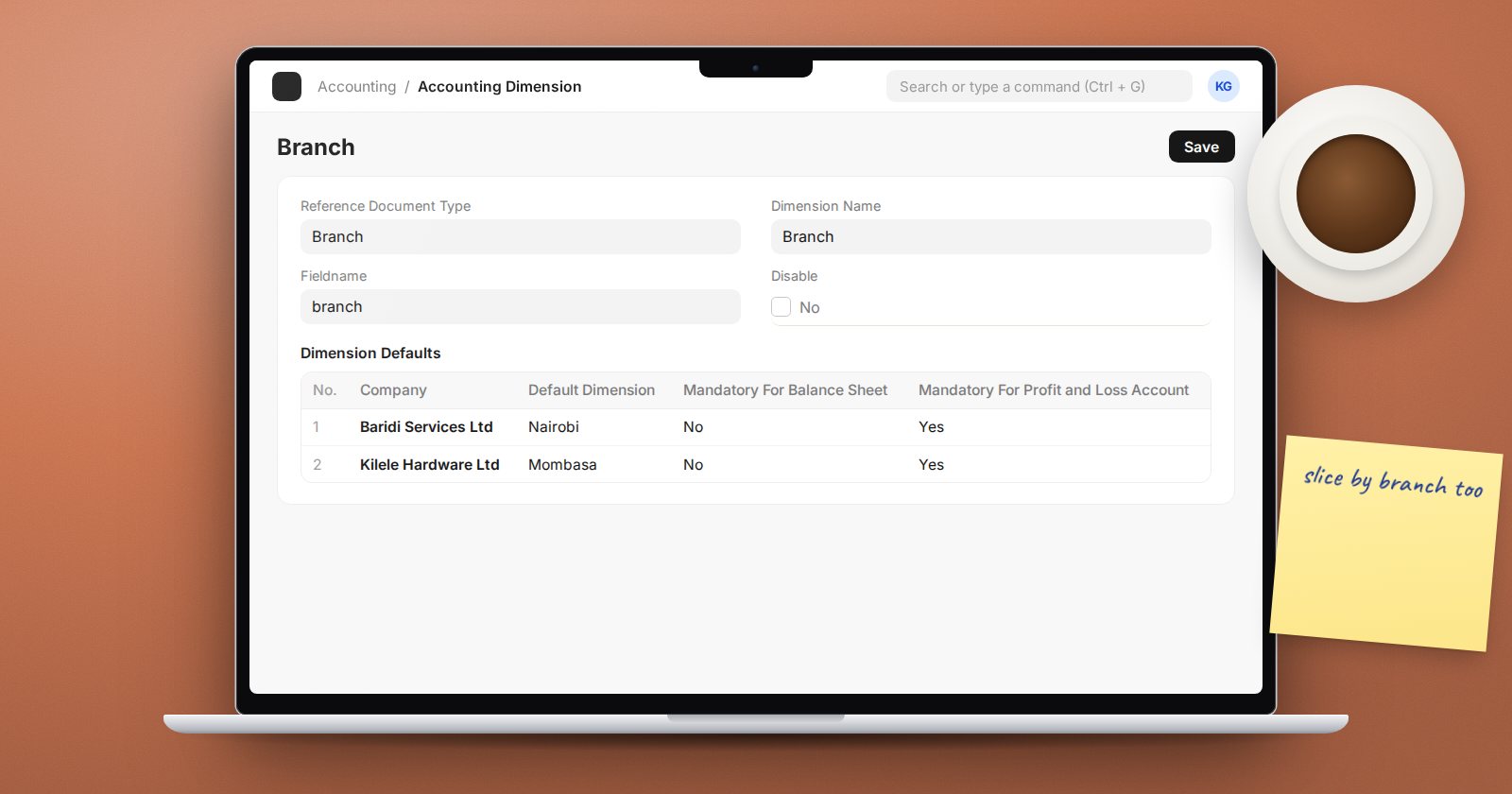
Cost centers give you one way to slice your accounts. Real businesses usually need more: by branch and by department, or by business line and by funding source. Accounting Dimensions let you add those extra slices to every transaction in ERPNext without adding accounts to your chart.
What a dimension is
An accounting dimension is a link from your transactions to another list in ERPNext. That list can be a standard DocType such as Branch or Department, or a simple custom DocType you create, such as Business Line or Donor.
When you create the dimension, ERPNext adds a field for it to the accounting documents that support dimensions, including Sales Invoice, Purchase Invoice, Payment Entry, Journal Entry rows, orders, receipts and delivery notes, and to the GL Entry itself. That last part matters: because the value is stored on every ledger line, any financial report can be filtered by it.
Creating one
- Make sure the list you want to use exists and has its values, for example every Branch.
- Open Accounting Dimension and choose the Reference Document Type, such as Branch. The Dimension Name is filled in for you.
- Save. ERPNext adds the fields in the background, so give it a moment before you open a transaction.
On a new v16 site, also tick Enable Accounting Dimensions in Accounts Settings. Without it, the Accounting Dimensions sections on transaction forms stay hidden, and users cannot see or fill the new field.
Defaults and mandatory rules
The Dimension Defaults table on the dimension is set per company:
- Default Dimension - the value filled in automatically.
- Mandatory For Balance Sheet - forces a value on asset, liability and equity lines.
- Mandatory For Profit and Loss Account - forces a value on income and expense lines.
Most companies make a dimension mandatory for Profit and Loss only. Forcing it on balance sheet lines, such as the bank account, adds work without much insight unless you report the balance sheet by that dimension.
The same table has an advanced option, Automatically post balancing accounting entry, with an Offsetting Account. It adds offsetting ledger lines for the dimension. Test it carefully on a copy before using it.
Restricting values by account
Accounting Dimension Filter controls which values may be used with which accounts. Pick the dimension and company, list the accounts in Applicable On Account, choose Allow or Restrict, and list the values. For example, allow only the Projects department on project cost accounts. ERPNext then rejects postings that break the rule.
Reporting
- General Ledger, Trial Balance, Balance Sheet and Profit and Loss Statement all offer your dimensions as filters.
- Dimension-wise Accounts Balance Report shows balances across the values of a dimension side by side.
Cost center or dimension?
Cost Center and Project are themselves treated as dimensions in many places. A sensible split is: use cost centers for the structure you budget against and allocate shared costs to, and use extra dimensions for other analysis. Budgets in v16 are set against a Cost Center or Project.
Common mistakes
- Adding dimensions after a year of transactions. Old entries have no value, so reports by dimension start from the go-live date of the dimension.
- Too many dimensions. Each one is another field to fill on every document. Two or three is plenty.
- Deleting a dimension you have used. Use the Disable checkbox instead.
Try it
Create a Department dimension in a test company, make it mandatory for Profit and Loss, and post an expense with and without it. Then filter the Profit and Loss Statement by department.
Dimensions and management reporting are covered in the Accounting Professional course.
