
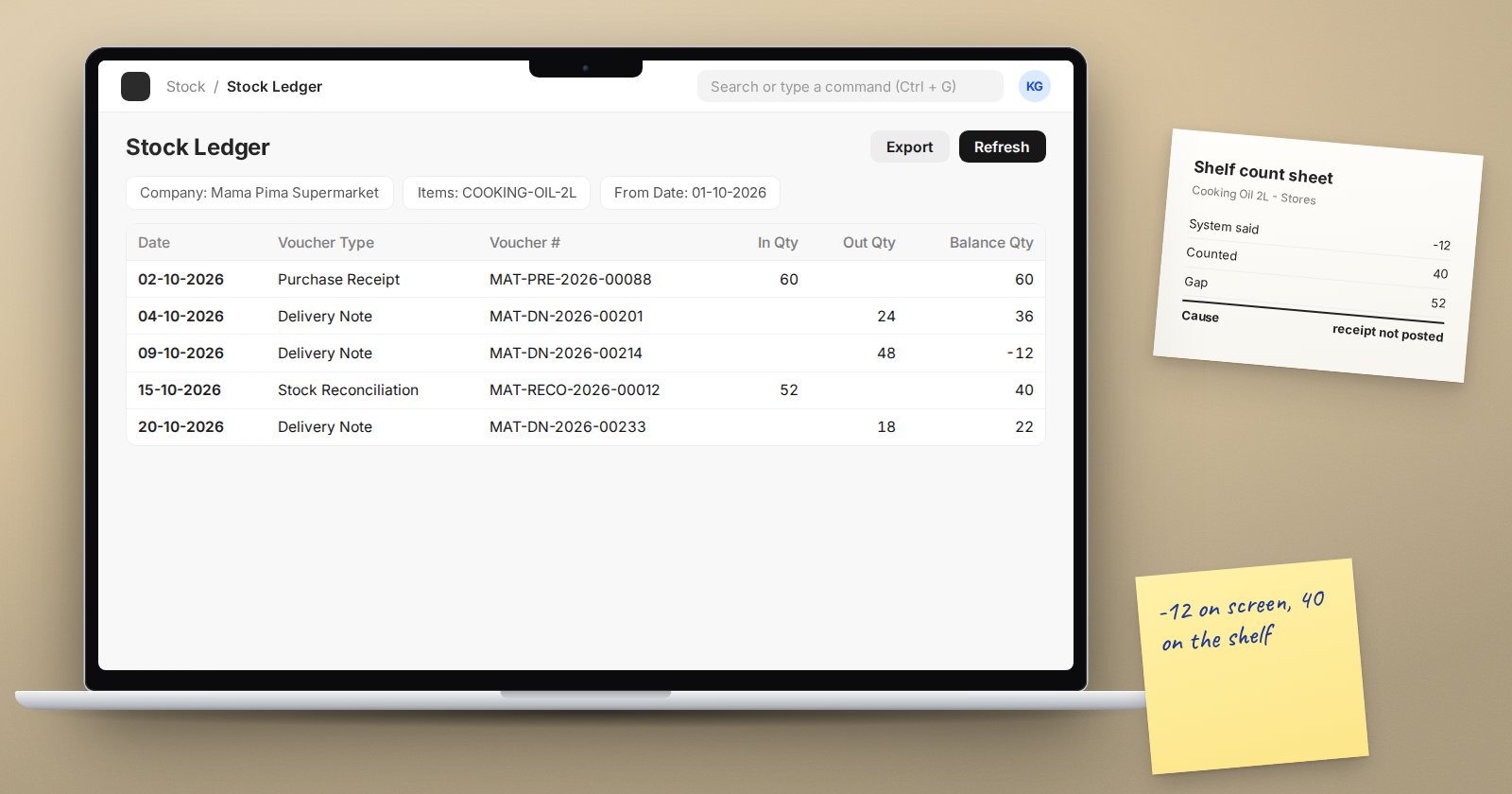
The storekeeper counts 40 cartons. ERPNext says 52. Nobody stole twelve cartons; the system and the shelf simply stopped telling the same story. Stock drift is rarely one big error. It is many small habits that each move the ledger a little away from reality.
This article walks through the usual causes and the settings and reports that stop them.
How ERPNext knows what you have
ERPNext does not store a stock figure you can type over. Every submitted Purchase Receipt, Delivery Note, Stock Entry, Stock Reconciliation and stock-updating invoice writes rows to the stock ledger, and the balance is the sum of those rows. So if the number is wrong, a document is wrong, missing or dated wrongly. That is good news: drift always has a trail.
The common causes
1. Goods move without a document
Stock arrives and goes onto the shelf, but the Purchase Receipt is made next week. Or a technician takes spares and "will sort it out later". Until the document is submitted, ERPNext is right about the past and wrong about today. The fix is a rule, not a setting: nothing moves without a document on the same day.
2. Negative stock is allowed
In Stock Settings, on the Stock Validations tab, there is Allow negative stock. The Item form has its own Allow Negative Stock box on the Inventory tab. With either switched on, ERPNext lets you deliver what it thinks you do not have. The sale goes through, the missing receipt is never chased, and the balance quietly goes below zero. With both off, ERPNext stops the transaction with a message telling you how many units are needed in that warehouse, which forces someone to find the missing receipt.
3. Back-dated entries
Posting a receipt for last month changes every balance and valuation after that date. ERPNext handles this by queuing a Repost Item Valuation job to recalculate later entries. That works, but heavy back-dating makes reports move under people's feet. Stock Settings has a Stock Closing tab where you can set Stock frozen up to a date, or Freeze stocks older than (days), and name a Role allowed to create/edit back-dated transactions. Use them so only a few people can change the past.
4. Transfers that never land
A Material Transfer sent through a transit warehouse (with Add to Transit ticked) leaves the stock in transit until someone opens the entry and uses End Transit to receive it. Forgotten transits make one branch short and nobody long.
5. Wrong units
An item stocked in pieces but bought in cartons needs a correct conversion factor. If a carton of 24 is entered as 1, stock is off by 23 on every receipt. Check UOM conversions on the Item before go-live, not after.
6. Counts posted as guesses
A Stock Reconciliation posts whatever quantity you enter as the truth. A half-done count posted on a busy day, while deliveries are still going out, bakes new errors in.
The reports that find drift
- Stock Ledger: every movement for an item and warehouse, with In Qty, Out Qty and Balance Qty. Start here for any single item that looks wrong.
- Stock Balance: opening, in, out and closing per item and warehouse for a period.
- Stock and Account Value Comparison: compares stock value with the stock accounts, which shows where the stock ledger and the books have parted.
- Stock Ledger Invariant Check: a diagnostic that checks the ledger's own running balances for an item.
Try it: a weekly drift check
- Run Stock Balance for your fastest-moving warehouse and look for negative closing quantities.
- Pick five items at random, count them, and compare with Stock Ledger.
- For any gap, read the ledger rows since the last good count and find the missing or wrong document.
- Fix the document (cancel and amend, or post the missing receipt), not the number.
- Only when the cause is found, post a Stock Reconciliation for what remains.
Drift stops when every movement has a document, nobody can quietly rewrite the past, and counts are done carefully. If you look after stock value as well as quantities, the Inventory Professional course covers valuation and fixing stock errors in depth.
