
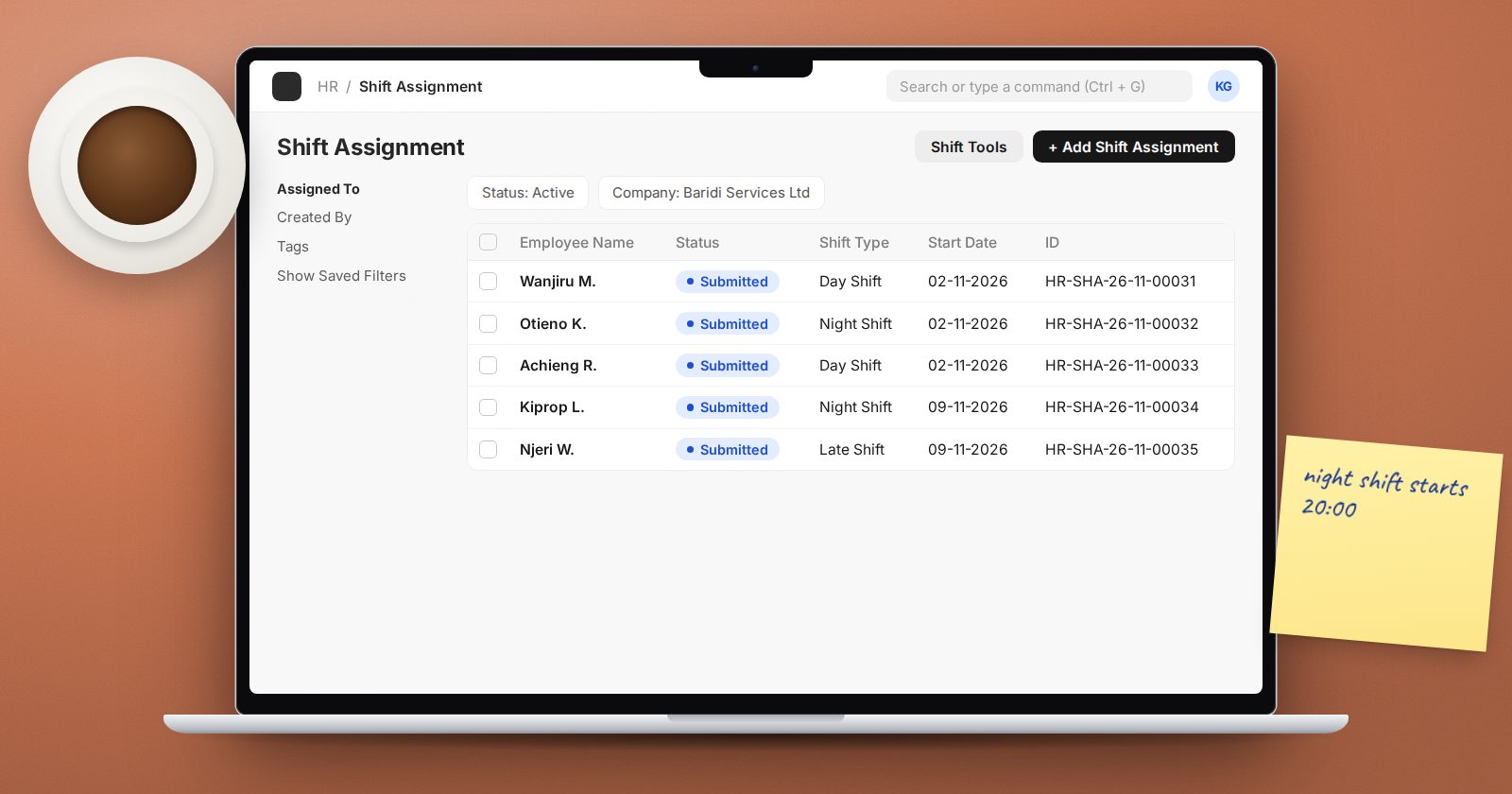
If your staff all work the same hours, you may never need shifts. But factories, hospitals, security firms, hotels and retail chains usually run more than one pattern, and attendance only makes sense when ERPNext knows which shift each person was meant to work. This article covers how shifts are defined and handed out.
Shift Type: the definition
A Shift Type describes one pattern of work. The basics are Start Time and End Time. A night shift whose end time is earlier than its start time simply crosses midnight.
A shift can carry its own Holiday List, useful when a team's rest days differ from the office. It also has a Roster Color, which helps when viewing many assignments together.
The rest of the Shift Type form controls attendance from check-ins: thresholds for half day and absent, grace periods for late entry and early exit, and auto attendance. Those settings are covered in the companion article on biometric check-ins. For now, define the times correctly.
Default shift vs Shift Assignment
There are two ways an employee gets a shift:
- Default Shift on the Employee record - the shift that applies when nothing else does.
- Shift Assignment - a submitted document giving one employee one Shift Type from a Start Date to an optional End Date.
An assignment overrides the default for its dates. Leave the End Date blank for an open-ended assignment. A daily job marks assignments whose end date has passed as Inactive, so the list of active assignments stays accurate.
By default ERPNext does not allow two assignments for the same employee on the same date. If people genuinely work two shifts in a day, enable Allow Multiple Shift Assignments for Same Date in HR Settings. The shift times must not overlap.
Assigning in bulk
The Shift Assignment Tool has three actions:
- Assign Shift - filter employees by branch, department, designation, grade or employment type and assign a shift for a date range in one go.
- Assign Shift Schedule - for rotating patterns (see below).
- Process Shift Requests - approve or reject pending shift requests in bulk.
Rotating rosters with Shift Schedule
A Shift Schedule says "this shift, on these days of the week, repeating every one, two, three or four weeks". A Shift Schedule Assignment links an employee to a schedule with a Create Shifts After date. An hourly job then creates the individual Shift Assignments ahead of time. Two schedules with alternating frequency make a simple day-night rotation.
Shift changes requested by staff
Staff can raise a Shift Request for a shift type between two dates. It goes to the Shift Request Approver set on the employee or department. When approved and submitted, ERPNext creates the matching Shift Assignment. This keeps a trail of who changed shift and who agreed.
A clean setup order
- Create Shift Types with accurate times.
- Set a Default Shift on each employee for the usual pattern.
- Use Shift Assignments or a Shift Schedule only for exceptions and rotations.
- Set Shift Request Approvers if staff will request changes.
Try it
Create a day and a night Shift Type. Give a test employee the day shift as default, then assign the night shift for one week using the Shift Assignment Tool. Open the shift assignment list filtered to that employee and check the dates. Then raise and approve a one-day shift request, and confirm a new assignment appears.
Shift, attendance and leave setup is taught step by step in the HR Essentials course.
