
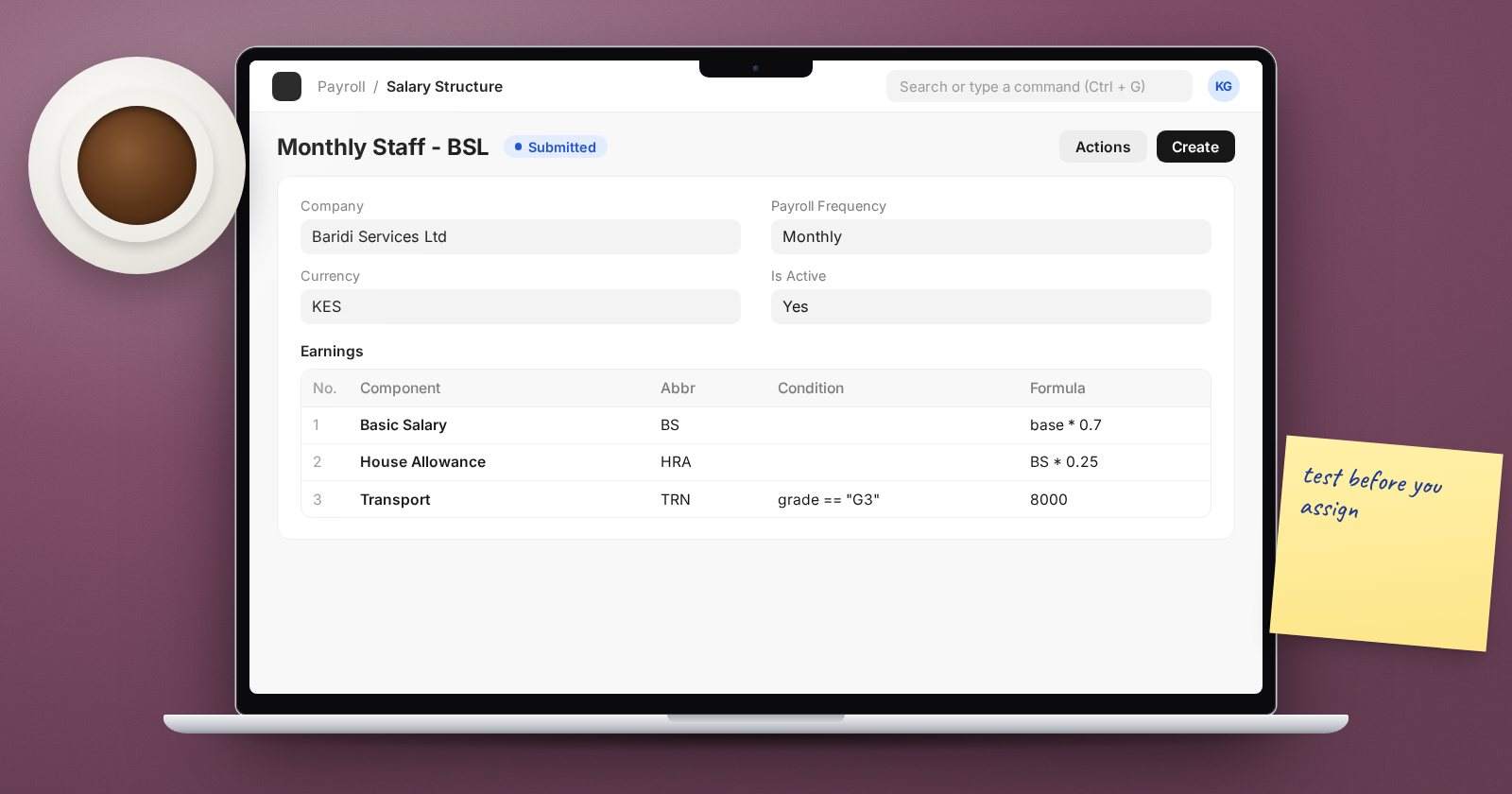
Most payroll rules can be written as a formula: basic pay is a share of the base, an allowance applies only above a certain grade, a deduction is a percentage of pensionable pay. ERPNext lets you write these as short expressions on each component row of a Salary Structure. Once you know what the formula can see, they are easy to write and easy to check.
Where formulas live
Each row in the Earnings, Deductions and Employer Contributions tables of a salary structure has:
- Condition - if filled, the row only applies when the condition is true.
- Amount based on formula and Formula - the expression that calculates the amount.
- Amount - a fixed figure, used when the formula option is off.
Components can carry a default formula that is copied into the structure; you can override it per structure.
What a formula can use
When a salary slip is calculated, ERPNext builds a set of named values that formulas can read:
- base and variable - from the employee's Salary Structure Assignment.
- Component abbreviations - for example
Bfor basic orHRAfor a housing allowance. Every abbreviation starts at zero and takes its value once that row is calculated. - Employee fields - such as
date_of_joining,grade,branchordepartment, by field name. - Salary slip fields - such as
payment_days,total_working_days,start_dateandend_date. - gross_pay - in deduction and employer contribution rows, the total of the earnings above them.
The functions available are limited and safe: int, float, round, rounded, min, max, ceil, floor, date, getdate, get_first_day and get_last_day.
Examples
Basic pay as a share of base:
base * 0.6
An allowance capped at a fixed amount:
min(base * 0.1, 15000)
A condition so a component applies only to one grade:
grade == "Senior"
A conditional expression inside one formula:
(B * 0.05) if B > 20000 else 0
The numbers here are placeholders to show syntax. Use the figures from your own pay policy.
Order matters
Rows are evaluated in order, earnings before deductions. If HRA uses B, the basic row must come first. A formula that refers to a component not yet calculated gets zero, which produces a wrong answer rather than an error. When a number looks too small, check the row order first.
Payment days
If a component has Depends on Payment Days ticked, the calculated amount is prorated by payment days over working days. Do not also divide by days in your formula, or you will prorate twice.
Reading errors
When a formula fails, the salary slip shows a titled error. Name error means a variable does not exist, usually a typo in an abbreviation or field name. Syntax error means the expression is malformed, often a missing bracket or a stray character. Double underscores and some attributes are blocked for safety.
Test before you assign
From a submitted structure, Preview Salary Slip shows the calculation for a chosen employee. Better still:
- Build the structure.
- Assign it to two or three test employees with different base amounts and grades.
- Create draft salary slips and compare each line with a spreadsheet calculation.
- Only then assign it to real staff.
Try it
Write a structure with basic as a share of base, one capped allowance, and one deduction with a condition. Preview slips for an employee just under and just over the condition threshold and confirm the deduction appears only for one of them.
Formulas, structures and statutory components are built step by step in the Payroll course.
