
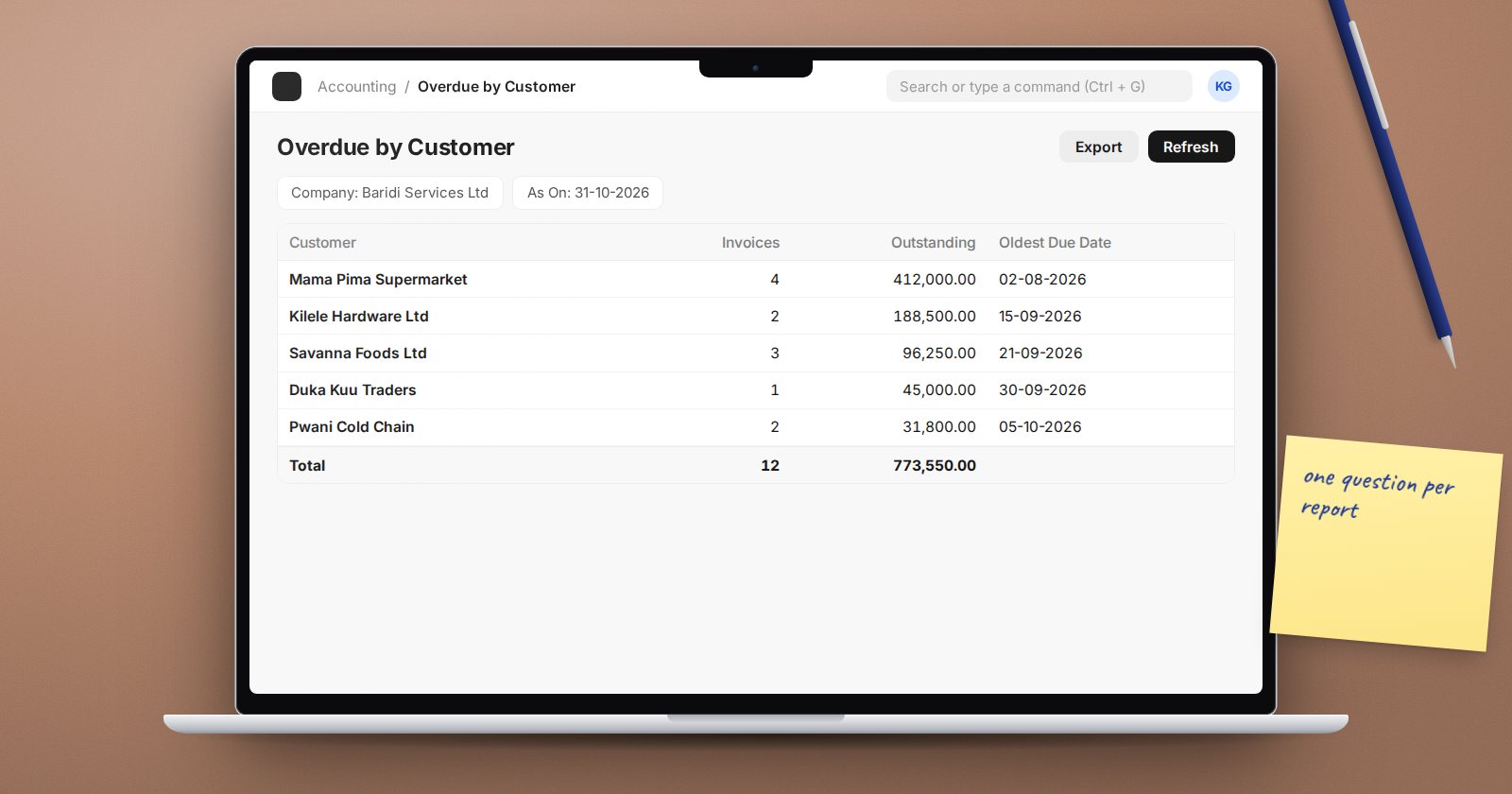
Most managers do not want a list of 400 invoices. They want one screen that answers one question, such as "who owes us money, and how late is it?" ERPNext's Query Report lets you build that screen in SQL, give it filters, and share it with the right people, without writing a custom app.
When a Query Report is the right tool
Report Builder is enough for lists from one DocType with simple grouping. Move to a Query Report when you need joins across tables, totals per customer or item, or a calculated column. If you need Python logic, loops or a chart built in code, that is a Script Report.
One rule before you start: saving a Query Report that is not standard requires the Script Manager role. Give it only to people you trust with SQL, because a query can read any table in the database.
Build one: overdue invoices by customer
- Type "New Report" in the search bar.
- Set Report Name to "Overdue by Customer", Report Type to Query Report, Ref DocType to Sales Invoice, and Is Standard to No.
- Paste this into the Query field:
SELECT
    si.customer AS "Customer:Link/Customer:220",
    COUNT(si.name) AS "Invoices:Int:90",
    SUM(si.outstanding_amount) AS "Outstanding:Currency:150",
    MIN(si.due_date) AS "Oldest Due Date:Date:130"
FROM `tabSales Invoice` si
WHERE si.docstatus = 1
    AND si.company = %(company)s
    AND si.outstanding_amount > 0
    AND si.due_date < %(as_on)s
GROUP BY si.customer
ORDER BY SUM(si.outstanding_amount) DESC
ERPNext only runs queries that start with SELECT (or WITH on MariaDB). Anything that tries to write is rejected when the report runs.
How the column labels work
Each alias follows the pattern Label:Fieldtype/Options:Width. ERPNext splits it on the colons, so Customer:Link/Customer:220 becomes a column labelled "Customer", typed as a Link to the Customer DocType, 220 pixels wide. The fieldname is the label in lower case with underscores.
Link columns matter for more than clickable names. Before the results are shown, ERPNext checks the values in Link columns against the user's User Permissions and drops rows the user should not see. A sales rep limited to one territory's customers sees only those customers here too.
Add filters
In the Filters table on the report, add two rows:
company, fieldtype Link, optionsCompany, Mandatory ticked.as_on, fieldtype Date, defaultToday, Mandatory ticked.
Their values reach the query as %(company)s and %(as_on)s. They are passed as query parameters, not pasted into the SQL text, so a filter value cannot change the query itself.
Make every filter your query uses mandatory. The report only sends filters that have a value, so an empty optional filter leaves a placeholder with nothing to fill and the report fails with an error.
Make it something managers open
- Totals. Tick Add Total Row so the bottom line shows the sum of the Outstanding column.
- Roles. When you create the report, ERPNext copies the roles from the Ref DocType's permissions into the Roles table. Trim that list to the people who should see it.
- Scheduled email. From the report's menu, choose Setup Auto Email. An Auto Email Report can go out Daily, on Weekdays, Weekly or Monthly, as HTML, XLSX, CSV or PDF. The "Based on Permissions For User" field decides whose permissions shape the data, so pick that user deliberately.
- Keep it narrow. One question per report. A second question deserves a second report, not five more columns.
Try it
- Create the report above on a test site and run it for your main company.
- Pick one customer from the result and open their invoices in the Sales Invoice list with the same filters. The totals should match.
- Log in as a user with User Permissions on Customer and confirm they only see their own customers.
- Set up a weekly Auto Email Report to yourself in XLSX and check the attachment arrives.
Reports like this are part of what we cover in ERPNext Administration Without Code, alongside the permissions that decide who sees them.
