
A project in ERPNext is a container for tasks, time, costs and billing. Whether you run client implementations, construction jobs or internal initiatives, the structure you choose at the start decides how useful the progress and cost figures will be later. Here is a practical way to set projects up.
Creating a project
The essentials on a Project are the Project Name, Status (Open, Completed or Cancelled), Expected Start Date, Expected End Date, Priority and Company. For client work, set the Customer and, if the work was sold on an order, the Sales Order. Add people to the Users table if they should see the project on the website portal.
If you run similar projects repeatedly, set From Template to a Project Template. The template holds a project type and a list of template tasks, which are copied into the new project with their structure.
Tasks
Each Task has a Subject, Project, Status (Open, Working, Pending Review, Overdue, Completed, Cancelled), Priority, Expected Start Date, Expected End Date and Expected Time (in hours).
Three features give structure:
- Parent Task - group tasks under a parent marked Is Group. A child task's expected end date cannot be after its parent's.
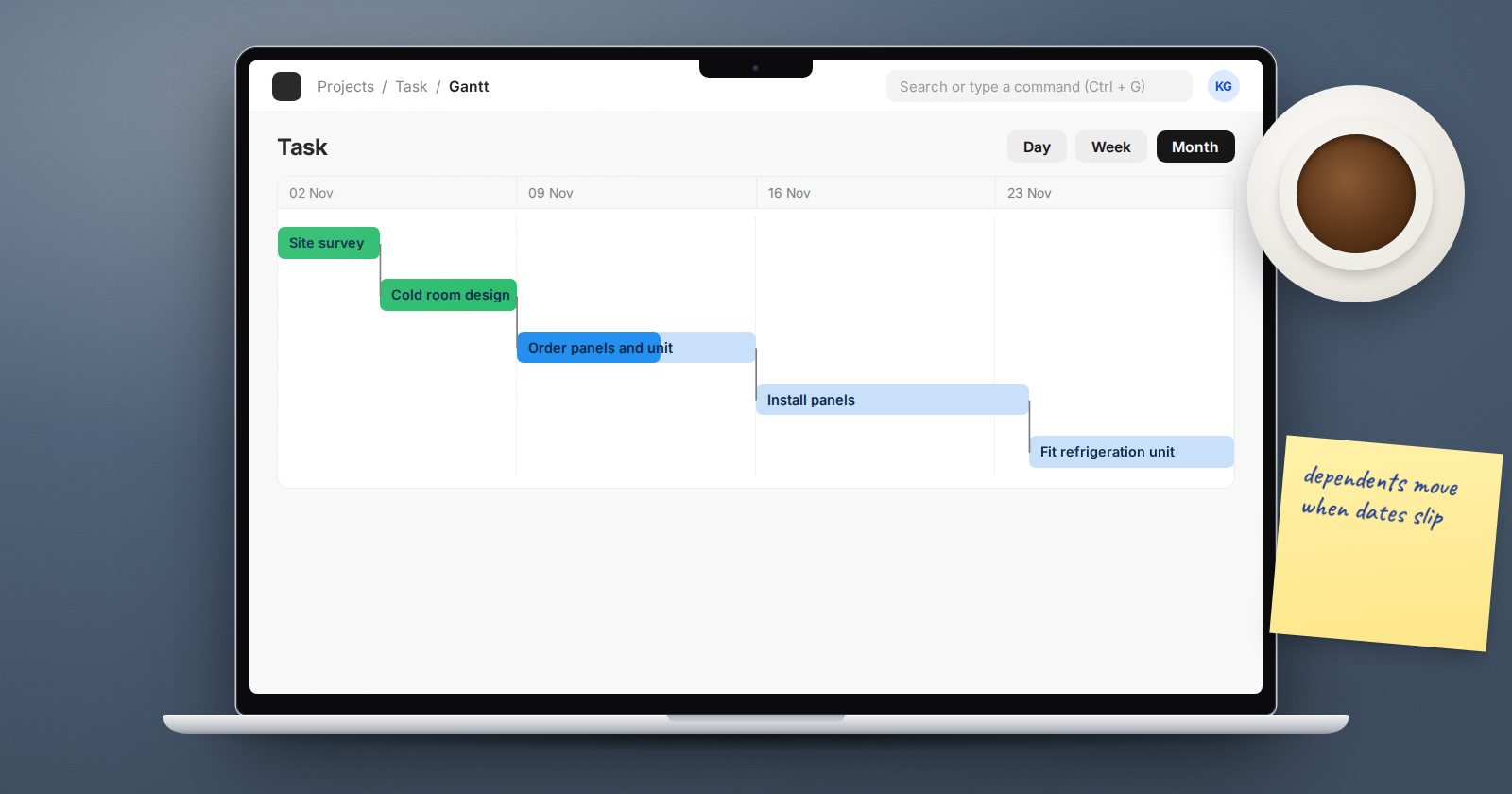
- Dependent Tasks - list the tasks this one depends on. ERPNext refuses to mark a task Completed while any task it depends on is still open, and it blocks circular dependencies. When a task's end date moves, open tasks that depend on it are pushed back to start after it.
- Is Milestone - flags key points such as a go-live date.
Task dates cannot fall after the project's expected end date, which keeps plans honest.
How percent complete is calculated
The % Complete Method on the project has four options:
- Manual - you type the percentage yourself.
- Task Completion (the default) - completed or cancelled tasks divided by total tasks.
- Task Progress - the average of each task's % Progress.
- Task Weight - each task's progress weighted by its Weight.
Task Completion is simple but treats a five-minute task like a five-week one. Task Weight gives a truer picture when tasks differ a lot in size, as long as someone maintains weights and progress. Choose one per project and tell the team how it works.
Views that help
From the project, View offers a Gantt Chart and a Kanban Board of its tasks. The Actions menu has Duplicate Project with Tasks and Set Project Status, which marks the project and all its tasks Completed or Cancelled in one step. The Delayed Tasks Summary report lists tasks running late, and Project Summary gives an overview across projects.
A structure that works
- One project per piece of work you want to measure separately, such as one per client engagement.
- Five to ten parent tasks for phases, with working tasks beneath.
- Dependencies only where one task truly cannot start before another finishes.
- Expected hours on every task, so actual time can be compared later.
Try it
Create a project with three phases as parent tasks and two tasks under each. Make the second phase depend on the first. Try to complete a task in phase two early and read the message. Then switch the % Complete Method between Task Completion and Task Progress and watch the figure change.
Planning, time recording and billing projects are covered in the Projects, Timesheets & Billing course.
