
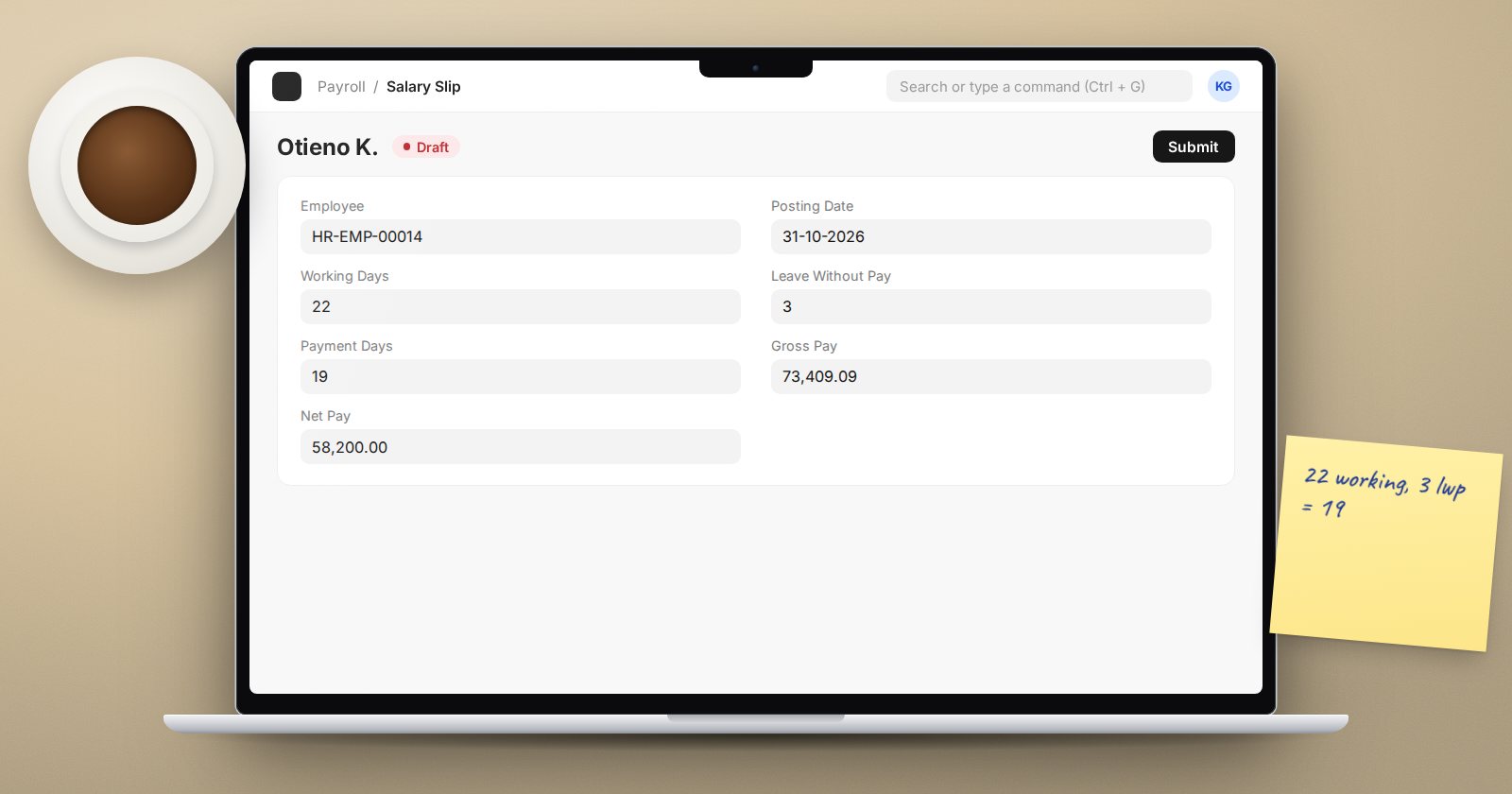
The most common payroll question is some form of "why is this salary lower?" Usually the answer is on the salary slip itself, in three fields: Working Days, Leave Without Pay and Payment Days. Once you know how ERPNext fills them, most of these questions take a minute to answer.
The basic idea
ERPNext prorates pay. For each component with Depends on Payment Days ticked, the amount on the slip is the full amount multiplied by payment days and divided by working days. If payment days equal working days, nothing changes. If they are lower, pay falls in proportion.
So the question is always: how were working days and payment days worked out?
Working days
Working days start as the number of calendar days in the period. Then Payroll Settings decides what happens to holidays:
- If Include holidays in Total no. of Working Days is unticked, holidays from the employee's holiday list are removed. A half-day holiday is removed by half.
- If it is ticked, holidays stay in.
Neither is right or wrong. It is a policy choice about whether pay is calculated over calendar days or working days, and it should match your employment contracts.
Payment days
Payment days begin from the working days the employee was actually employed in the period, so a new joiner or a leaver gets fewer. Then deductions follow, depending on Calculate Payroll Working Days Based On:
Based on Leave
Days of approved leave whose leave type has Is Leave Without Pay ticked are subtracted. Leave types marked Is Partially Paid Leave subtract a fraction of a day, based on Fraction of Daily Salary per Leave.
Based on Attendance
Attendance records drive the count. Absent days and unpaid leave reduce payment days. Half Day attendance reduces by the Fraction of Daily Salary for Half Day (0.5 by default). Then Consider Unmarked Attendance As decides days with no attendance record: Present or Absent. If it is Absent, every unmarked day costs pay.
There is also Consider Marked Attendance on Holidays, which only applies when holidays are included in working days.
The slip shows the results in Leave Without Pay, Absent Days and Unmarked days.
Answering "why is this lower?"
- Open the salary slip and note Working Days and Payment Days.
- If Leave Without Pay is above zero, open the employee's leave applications for the period and check which type was used.
- If payroll is attendance based, check Absent Days and Unmarked days, then the Monthly Attendance Sheet for gaps.
- Check the date of joining or relieving date if the period is partial.
- Check the component itself: is Depends on Payment Days set as policy intends?
Setup mistakes to avoid
- Switching to attendance-based payroll before attendance is reliably marked. Combined with "unmarked as absent", this cuts pay wrongly.
- Marking a paid leave type as leave without pay.
- Prorating fixed allowances that contracts say are paid in full.
Try it
For a test employee, apply for one day of a leave-without-pay type and create the month's salary slip. Confirm Leave Without Pay shows one day and payment days dropped by one. Then compare basic pay with the full amount: the difference should be exactly one working day's share.
Payroll settings and proration are covered in the Payroll course, and leave setup in HR Essentials.
