
Opening balances are the bridge between the old system and ERPNext. If they are wrong, every report after go-live starts from the wrong place, and the error is hard to find months later. The work is not complicated, but it needs a clear date, a fixed order and careful checking.
Choose the cutover date
Pick a date at the end of an accounting period, ideally a month end, so the old books close cleanly and comparisons are simple. All balances you load are "as at" this date. Transactions after it are entered in ERPNext.
In practice, final figures for the cutover date are rarely ready on the day. It is normal to start live work in ERPNext while the old system is being closed, and then load or adjust opening balances once the old books are final. Agree this with the finance lead in advance.
Understand the Temporary Opening account
ERPNext's standard chart of accounts includes a Temporary Opening account, with the account type Temporary. It acts as the other side of every opening entry. Receivables, payables, stock and ledger balances are each posted against it.
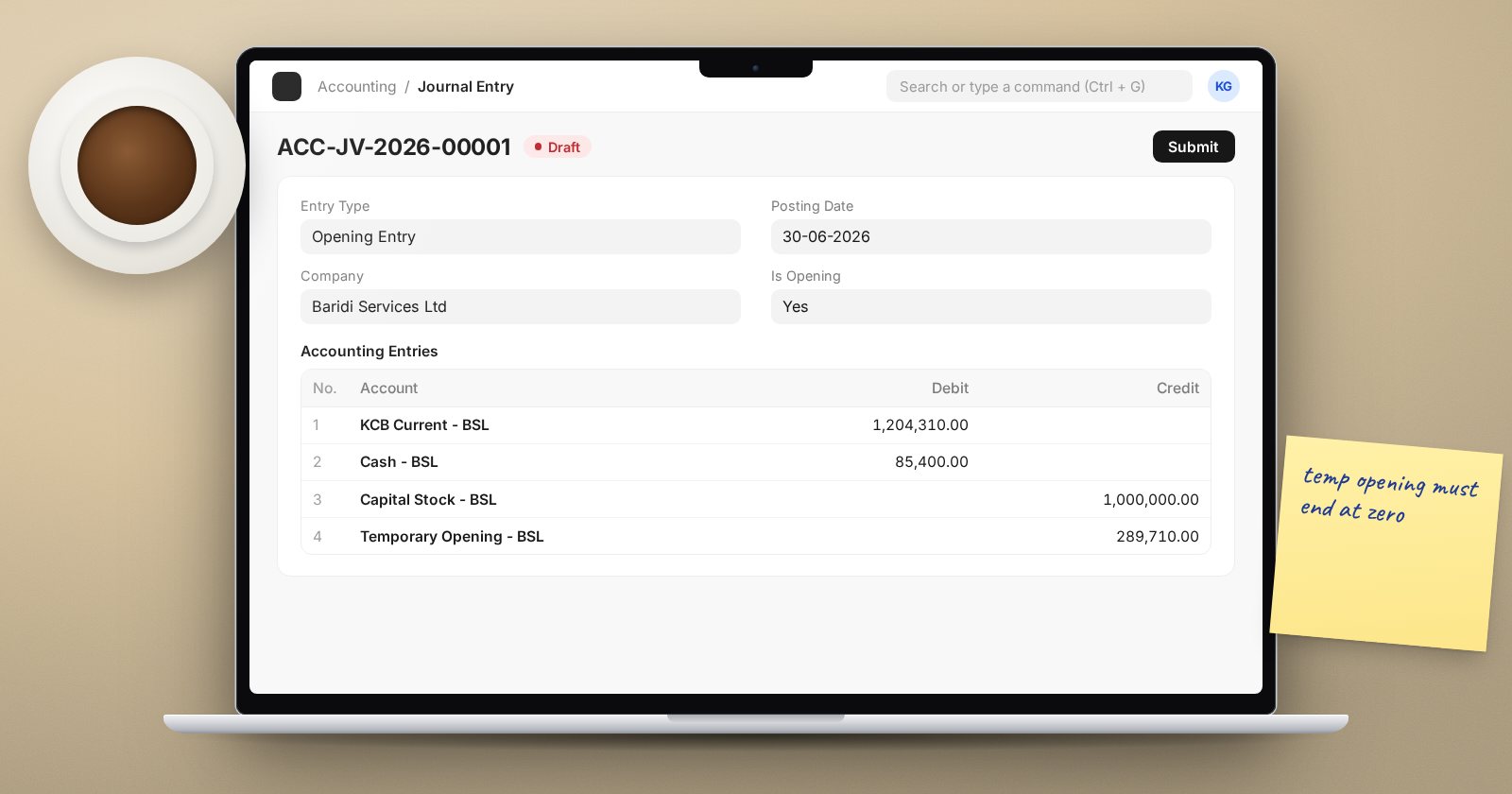
Because the old trial balance balanced, the Temporary Opening account should end at zero once every balance is loaded. If it does not, something is missing or doubled. This makes it the single most useful check in the whole exercise. If you use a custom chart, make sure an account of type Temporary exists; the Opening Invoice Creation Tool asks for one and will stop if none is found.
Load in this order
1. Customer and supplier invoices
Use the Opening Invoice Creation Tool. Choose Sales or Purchase, then list each unpaid invoice with the party, posting date, due date, outstanding amount and, if you want, the original invoice number. The Create Missing Party option can create customers or suppliers that do not exist yet, but it is cleaner to import parties first.
Loading open invoices one by one, rather than a single balance per customer, means ageing reports and payment allocation work properly from day one.
2. Opening stock
Use a Stock Reconciliation with the purpose set to Opening Stock. Enter quantity and valuation rate for each item in each warehouse. ERPNext requires the difference account on an opening stock entry to be an asset or liability account, so use Temporary Opening rather than an expense account.
3. Fixed assets
Existing assets can be created as assets with the asset type Existing Asset, along with their opening accumulated depreciation, so depreciation continues correctly.
4. Remaining ledger balances
Post the rest of the trial balance, such as bank, cash, loans, capital, accruals and retained earnings, with a Journal Entry using the Opening Entry voucher type and Is Opening set to Yes, against Temporary Opening. Leave out balances already loaded through invoices, stock and assets, or they will be counted twice.
The checks that matter
- Temporary Opening balance is zero.
- ERPNext's trial balance at the cutover date matches the old trial balance, account by account.
- Accounts Receivable and Accounts Payable totals match the old ageing reports, customer by customer.
- Stock value in the Stock Balance report matches the stock account in the ledger.
- Bank balances match the bank statements at the cutover date.
Get the finance lead to sign off each check, not just the totals.
Common mistakes
- Loading control account balances by journal and invoices as well
- Posting opening stock against an expense account
- Using different cutover dates for different balances
- Forgetting that the old system kept posting after the cutover date
Checklist
- Cutover date agreed and written down
- Temporary account present in the chart
- Parties imported before open invoices
- Open invoices, stock, assets and ledger balances loaded in order
- Temporary Opening at zero
- Trial balance, ageing and stock values reconciled and signed
The accounting side of this is covered in Accounting Essentials, and planning the full cutover is part of the ERPNext Implementation Consultant course.
