
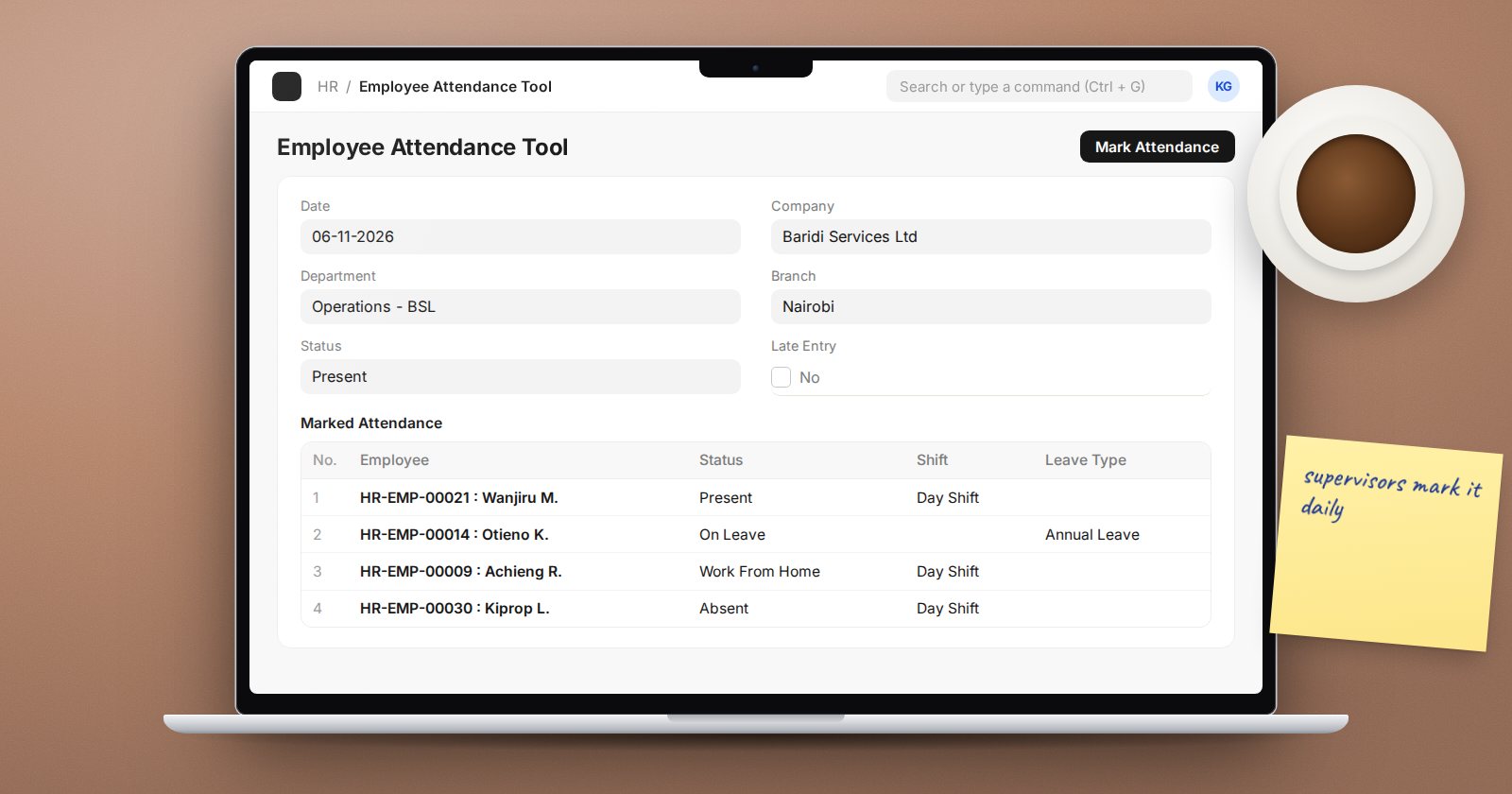
Not every business has a clocking device. Many small and mid-sized companies mark attendance from a register, a supervisor's list or a weekly sheet. ERPNext handles this well with a bulk tool, a request flow for people working away from the office, and a monthly report to check the result.
What an Attendance record holds
An Attendance record is one employee on one Attendance Date with a Status: Present, Absent, On Leave, Half Day or Work From Home. It can also record the Shift, Late Entry, Early Exit, in and out times and working hours. For a half day, Status for Other Half says whether the other half was present or absent.
Attendance is submitted to count. ERPNext refuses a second record for the same employee and date, and refuses records for inactive employees or dates before joining.
Daily marking with the Employee Attendance Tool
The Employee Attendance Tool is the fastest way to mark a team:
- Choose the Date and Company.
- Filter by Department, Branch, Designation, Employment Type or Employee Grade, or tick Filter by Shift to pick a shift.
- Click Get Employees. The tool shows who is already marked and who is still unmarked.
- Select employees, choose a Status (Present, Absent, Half Day or Work From Home), tick Late Entry or Early Exit if relevant, and mark.
Employees on approved leave are handled by the leave application itself, which marks them On Leave when it is submitted.
Remote work and field duty: Attendance Request
When someone works from home or is out on duty, they raise an Attendance Request with From Date, To Date, a Reason (Work From Home or On Duty) and an Explanation. After approval and submission, ERPNext creates attendance for each day:
- Work From Home requests create Work From Home attendance.
- On Duty requests create Present attendance.
- A Half Day request marks the chosen day as Half Day.
By default, holidays inside the range are skipped; tick Include Holidays to mark them too. Days on which the employee is already on leave are skipped.
Checking the month: Monthly Attendance Sheet
The Monthly Attendance Sheet report shows a grid of employees by day. Filter by month and year (or a date range), company, department or employee. Use it before payroll to spot gaps, such as a whole team unmarked for a day because someone was off sick.
Why it matters for payroll
In Payroll Settings, Calculate Payroll Working Days Based On can be Leave or Attendance. If it is Attendance, absent days reduce payment days on the salary slip. Consider Unmarked Attendance As then decides how a day with no record is treated: Present or Absent. Choosing Absent is strict: one missed marking costs the employee a day's pay, so only use it when attendance marking is disciplined.
A weekly routine that works
- Supervisors mark attendance daily with the tool.
- Staff raise Attendance Requests for remote days and approvers clear them weekly.
- HR reviews the Monthly Attendance Sheet every Friday and chases gaps.
- Before payroll, HR confirms no unmarked days remain.
Try it
Mark yesterday's attendance for one department with the Employee Attendance Tool. Raise a two-day Work From Home request for one person, approve it, and then open the Monthly Attendance Sheet to see both results side by side.
Attendance and its effect on pay are covered across the HR Essentials and Payroll courses.
