
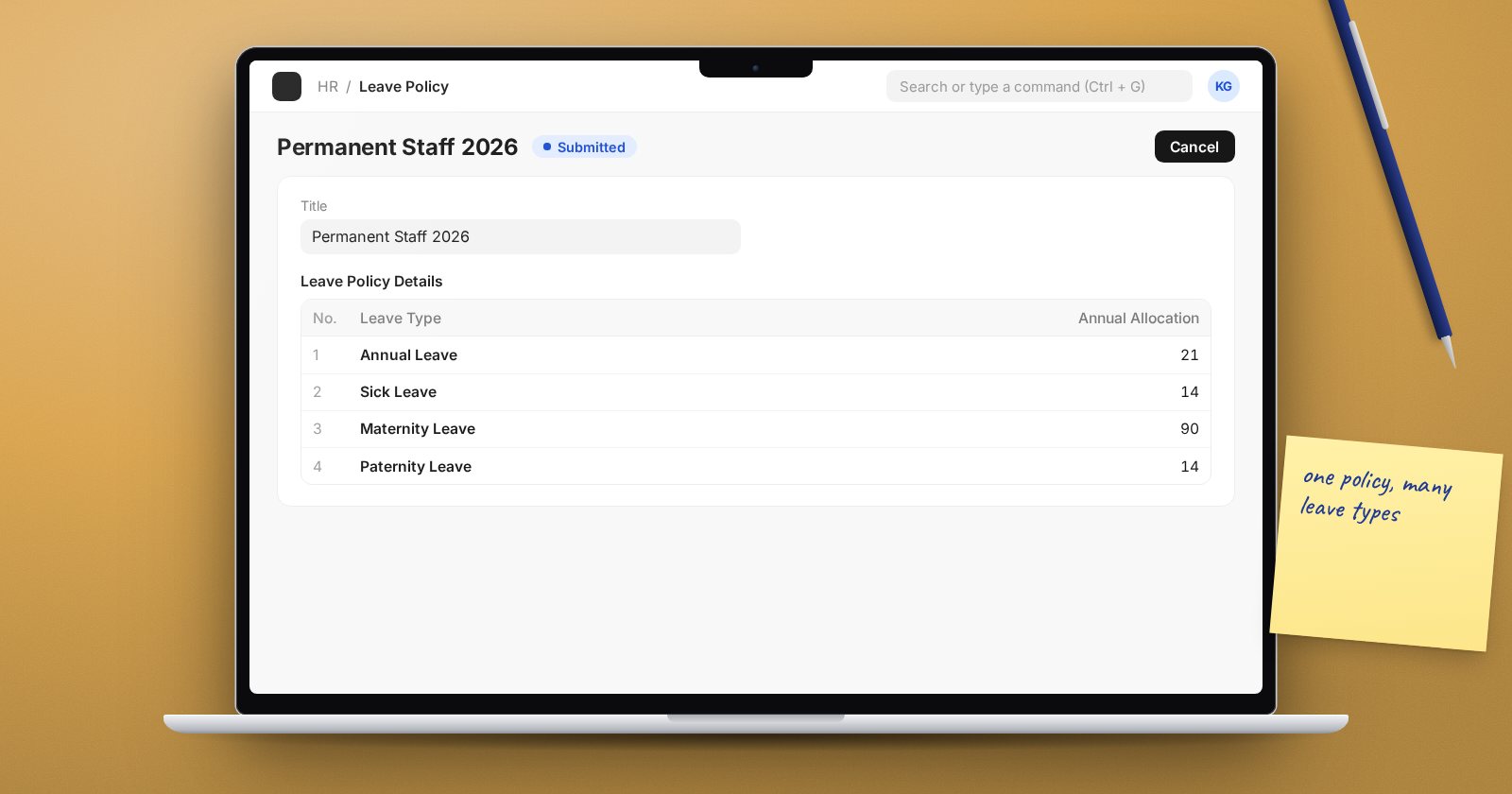
Leave in ERPNext is built in three layers. Leave Types define the rules for each kind of leave. A Leave Policy bundles several types with an annual entitlement. A Leave Policy Assignment gives that policy to an employee for a period, which creates the actual leave allocations. Once you see the layers, setup becomes straightforward.
Layer 1: Leave Types
Create one Leave Type per kind of leave your HR policy recognises, such as annual, sick, maternity, paternity, compassionate and unpaid. The settings that matter most:
- Maximum Leave Allocation Allowed per Leave Period - a ceiling on how much can be allocated.
- Allow Leave Application After (Calendar Days) - stops new joiners applying in their first days or weeks.
- Maximum Consecutive Leaves Allowed - blocks very long single applications.
- Is Leave Without Pay - the days reduce payment days on the salary slip.
- Is Partially Paid Leave with Fraction of Daily Salary per Leave - for leave paid at a fraction of the daily rate. A type cannot be both unpaid and partially paid.
- Allow Negative Balance - lets staff go below zero. Use sparingly.
- Include holidays within leaves as leaves - counts weekends and holidays inside the date range.
- Carry Forward, Is Earned Leave and Allow Encashment - covered in separate articles, as each has its own settings.
Write down your company's leave policy first, then translate each rule into these fields. Do not invent rules the policy does not contain.
Layer 2: Leave Policy
A Leave Policy has a name and a table of leave types with an Annual Allocation for each. You might have one policy for permanent staff and another for contract staff. Submit the policy when it is final.
Layer 3: Leave Policy Assignment
A Leave Policy Assignment links one employee to one policy. Set Assignment based on to either:
- Leave Period - uses a Leave Period document (a from date, to date and company), suited to a fixed leave year; or
- Joining Date - starts from the employee's date of joining.
The Effective From and Effective To dates define the window. Tick Add unused leaves from previous allocations if carried-forward balances should come across. Submitting the assignment creates a Leave Allocation for each leave type in the policy.
Doing it in bulk
For many employees, use the Leave Control Panel. Filter by company, branch, department, designation, grade or employment type, choose Dates Based On (Leave Period, Joining Date or Custom Range), and either allocate based on a leave policy or allocate a fixed number of days of one leave type.
Checks before go-live
- Every employee has a holiday list, otherwise leave days cannot be calculated.
- Every employee has a Leave Approver.
- Allocations exist for the current period. Run the Employee Leave Balance report.
- Opening balances from the old system are loaded as allocations, with a description saying where the figure came from.
Try it
Create a test leave policy with two types, assign it to a test employee through a Leave Period, then open the Leave Allocation records it created. Apply for leave and watch the balance fall in the Employee Leave Balance report. That single exercise tests the whole chain.
The HR Essentials course builds a complete leave setup like this one from scratch.
