
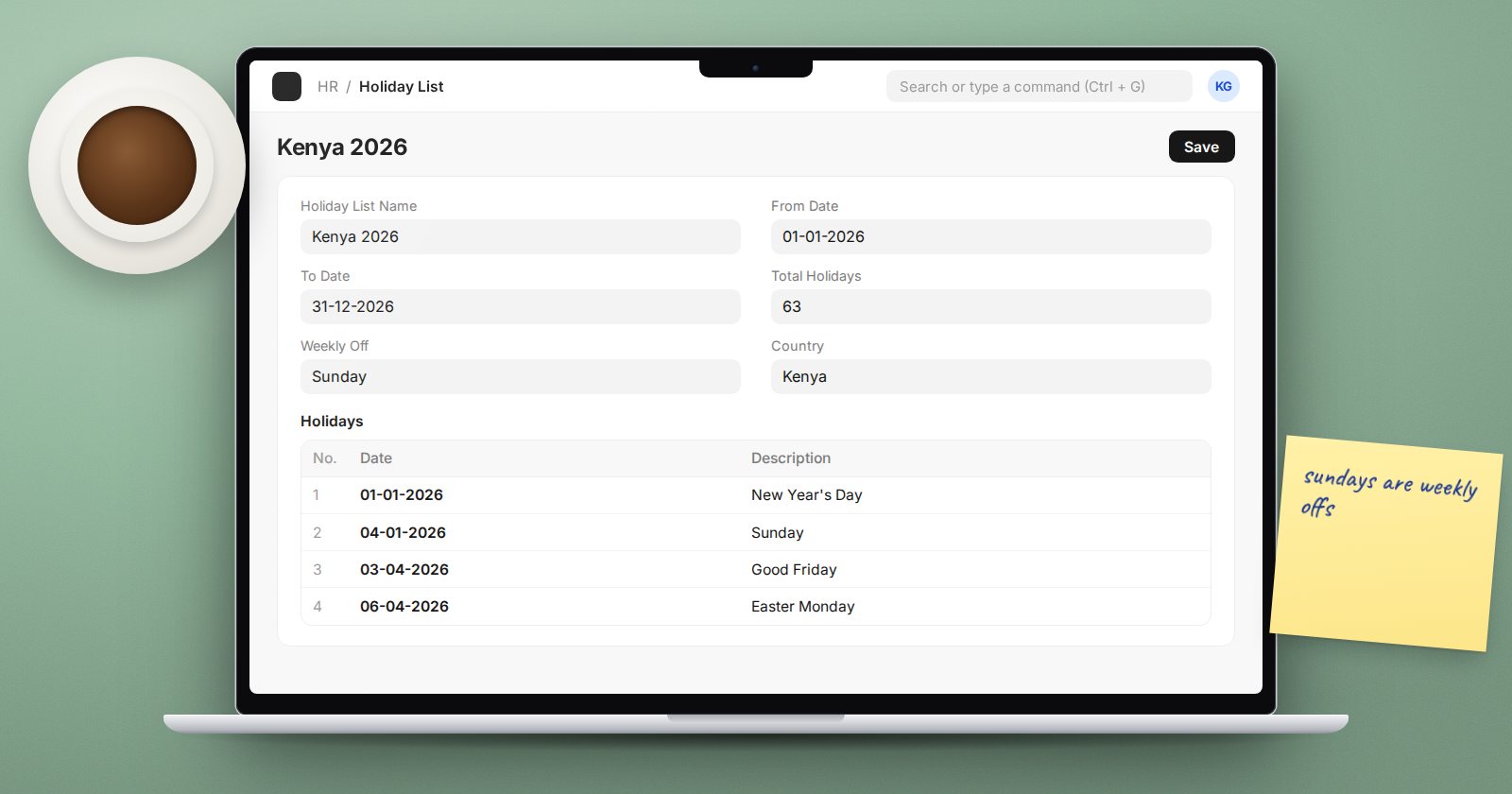
A holiday list tells ERPNext which days are not working days. It sounds minor, but three things depend on it: how many days a leave application consumes, whether auto attendance marks someone absent, and how many working days payroll counts in a month. Get the list wrong and all three are wrong together.
What a holiday list contains
A Holiday List has a name, a From Date and To Date (usually your calendar or leave year), and a table of holidays. Each row is a date with a description. Rows can be flagged Is Half Day for days such as an early close before a public holiday.
You build the table in two ways.
Weekly offs
Pick a day in Weekly Off and click Add to Holidays. ERPNext adds every occurrence of that day between the from and to dates. Repeat for a second day if you work a five-day week.
Public holidays
Set Country (and Subdivision if relevant) and use the second Add to Holidays button to pull in local public holidays. Always review what comes in. Some public holidays are declared at short notice, and some fall on a weekend with a substitute day announced later. Add or adjust those rows by hand.
Assigning the list in version 16
In earlier versions you set a holiday list on the Company and optionally on each Employee. Current version-16 HRMS uses a separate document, Holiday List Assignment. Each assignment has:
- Applicable For - Employee or Company.
- Assigned To - the employee or company it applies to.
- Holiday List and Assignment Starts From - the list and the date it takes effect.
When ERPNext needs the holiday list for an employee on a date, it looks for a submitted assignment for that employee first and falls back to the company assignment. A new assignment stays in effect until the next one starts, which makes year changes clean: create next year's list, assign it from 1 January, and history stays correct.
If you upgraded from an older version, a migration patch creates assignments from the old employee and company settings, so check the list rather than starting over.
How other modules use it
- Leave: by default a leave application does not count holidays inside the date range. If a leave type has Include holidays within leaves as leaves ticked, holidays are counted.
- Shift Type: a shift can carry its own holiday list, useful for teams that work a different pattern.
- Payroll: Payroll Settings has Include holidays in Total no. of Working Days. When unticked, holidays are removed from the working days on the salary slip; when ticked, they are counted.
A practical setup
- Create one list per working pattern, for example "Office 5-day 2026" and "Warehouse 6-day 2026", not one per person.
- Add weekly offs, then public holidays, then review.
- Assign the main list to the company.
- Assign the exception lists to the employees who work that pattern.
- Before the year ends, build next year's lists and assign them from the first day of the new year.
Try it
Pick one employee and check three things for next month: apply for leave across a weekend and confirm the day count, look at the working days on a draft salary slip, and confirm a public holiday shows on the leave calendar. If all three agree with your expectations, the holiday setup is sound.
Holiday lists, leave and attendance are covered step by step in the HR Essentials course.
