
You added custom fields, adjusted forms and wrote client scripts on a development site. Now the same changes must reach the test site and production, exactly, without anyone clicking through Customize Form again. Fixtures are Frappe's answer: records exported as JSON into your app and imported on every bench migrate.
Declare what to export
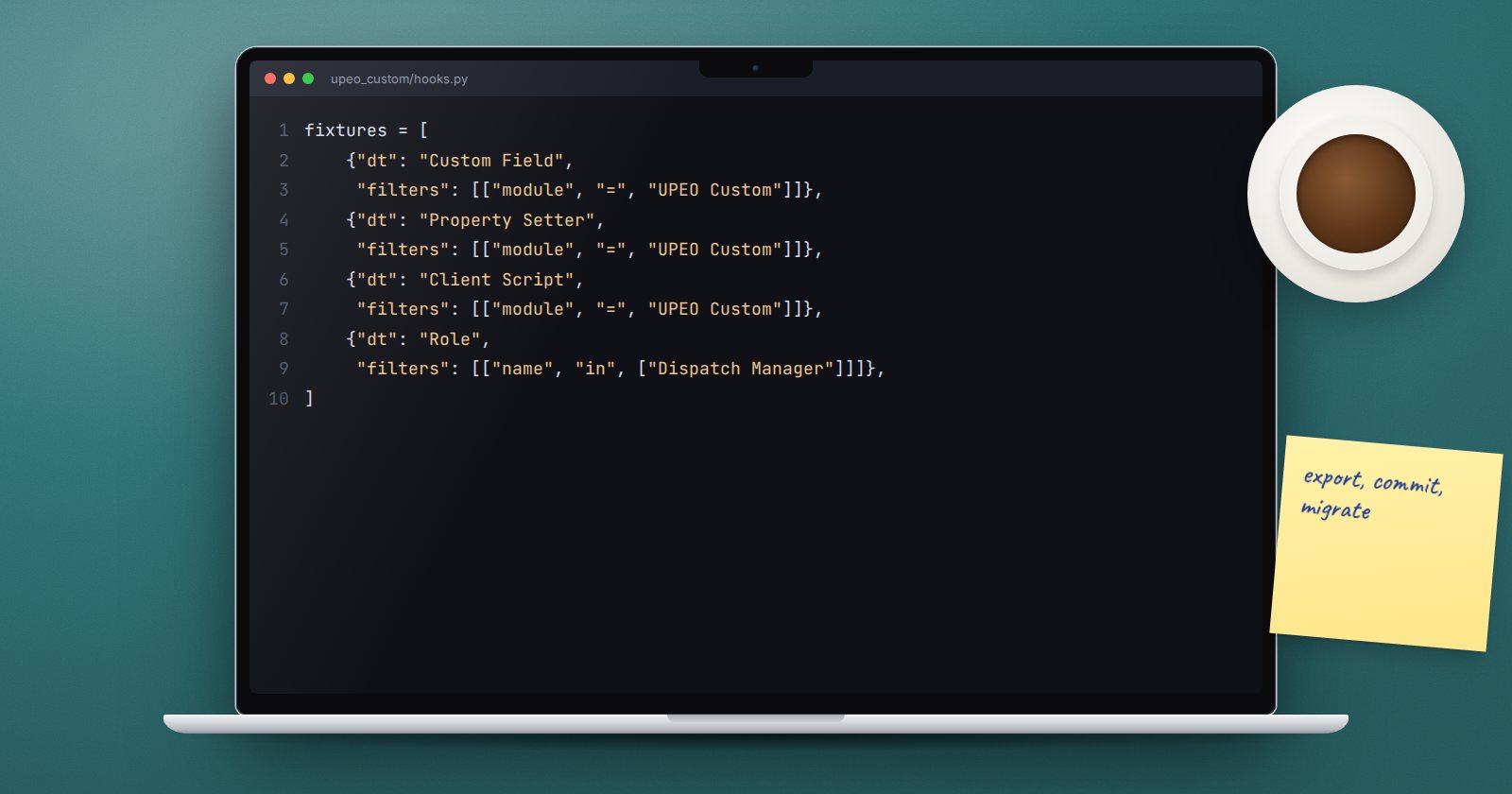
In your app's hooks.py, list the DocTypes and filters:
fixtures = [
    {"dt": "Custom Field", "filters": [["module", "=", "UPEO Custom"]]},
    {"dt": "Property Setter", "filters": [["module", "=", "UPEO Custom"]]},
    {"dt": "Client Script", "filters": [["module", "=", "UPEO Custom"]]},
    {"dt": "Role", "filters": [["name", "in", ["Dispatch Manager"]]]},
]
Custom Field, Property Setter and Client Script each have a Module (for export) field. Set it to your app's module when you create them, and the filter above picks up only your changes, not every customisation anyone ever made on the site.
A plain string such as "Workflow" exports every record of that DocType. Avoid that unless you truly own all of them.
Export
On the development site:
bench --site dev.localhost export-fixtures --app upeo_custom
Frappe writes one JSON file per entry into upeo_custom/fixtures/, such as custom_field.json. Commit those files with the rest of your code.
Import happens on migrate
On every site with your app installed, bench migrate imports the fixture files. Each record is inserted or overwritten to match the file.
That last word matters. If someone edits a fixture-managed record directly on production, for example changing a custom field's label in Customize Form, the next migrate puts it back the way the file says. Agree as a team that fixture-managed records are changed on development and shipped, never edited on production.
If you need a migrate that skips fixtures, for example while investigating a problem, bench migrate has a --skip-fixtures option.
The other route: Export Customizations
Customize Form has its own Export Customizations action, available in developer mode. You choose a module, and it writes the DocType's custom fields and property setters, and optionally its custom permissions, into that module's custom folder. Ticking Sync on Migrate makes bench migrate apply the file on every site.
Use whichever one your team prefers, but use one. Two mechanisms managing the same custom field are a recipe for confusion.
What belongs in fixtures
Good candidates:
- Custom Fields and Property Setters,
- Client Scripts and Server Scripts you own,
- Roles your app introduces,
- Workflows, Print Formats and Notifications you designed,
- small setup records your code depends on.
Bad candidates:
- transactions such as invoices or stock entries,
- master data that users maintain, such as customers or items,
- anything containing passwords or API keys,
- User Permissions and user records, which differ per site.
Order and dependencies
Fixture files are imported in filename order. If one fixture depends on another, such as a Workflow that needs a Role, make sure the dependency's file sorts first. Setting fixture_auto_order = True in hooks.py prefixes exported files with numbers in the order you listed them, which keeps the import order predictable.
Try it
- On a development site, add a custom field to Customer with Module set to your app's module.
- Add the
fixtureslist tohooks.pyand runexport-fixtures. - Open the JSON file and read what was exported.
- Install your app on a second site and run
bench migrate. The field should appear. - Change the label on the second site, migrate again, and watch it revert.
Fixtures and the rest of the release process are part of ERPNext as a Platform.
