
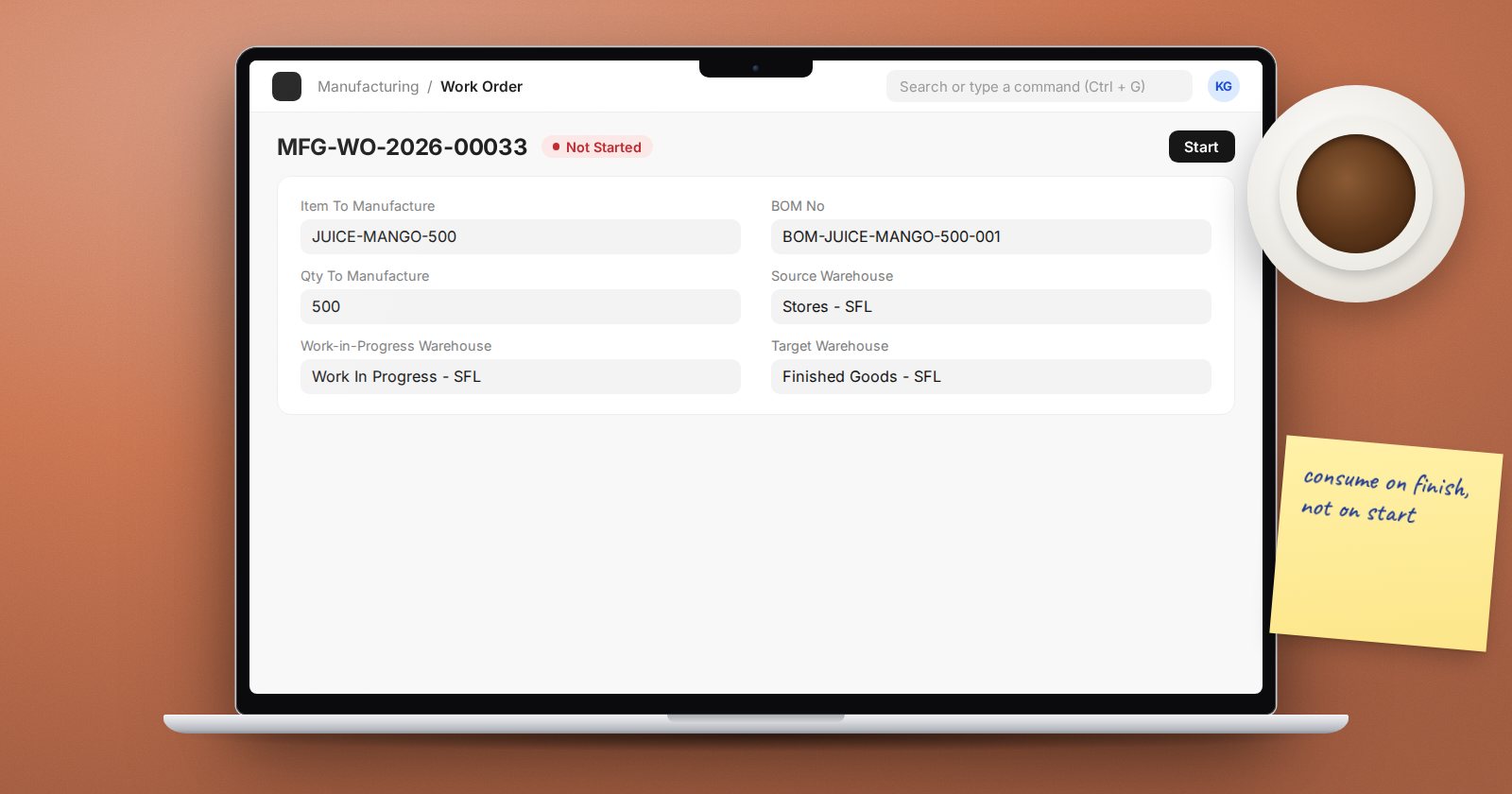
A Work Order tells the factory to make a quantity of one item using one BOM. It also drives the stock movements: raw materials out to the floor, finished goods back into stock. The way ERPNext decides how much raw material was used is called backflushing, and getting it right is what makes production costs believable.
The standard flow
- Create and submit the Work Order. Choose Item To Manufacture, the BOM No and Qty To Manufacture. Set the Source Warehouse for materials, the Work-in-Progress Warehouse and the Target Warehouse for finished goods.
- Start. Click Start to create a Material Transfer for Manufacture stock entry. It moves the required materials from the store to the work-in-progress (WIP) warehouse. You can adjust quantities before submitting it to match what was actually issued.
- Produce. The floor makes the goods.
- Finish. Click Finish and enter the quantity produced. ERPNext creates a Manufacture stock entry that consumes raw materials from WIP and adds finished goods to the target warehouse. The cost of what was consumed, plus any operating cost, becomes the value of what was made.
The Work Order status moves from Not Started to In Process to Completed, and Material Transferred for Manufacturing and Manufactured Qty show progress.
Backflushing: how consumption is decided
At Finish, ERPNext has to decide how much raw material to consume. There are two rules:
- BOM: consumption is the BOM quantity for the quantity produced. If the BOM says 2 kg of flour per loaf and you made 100 loaves, 200 kg is consumed, whatever was transferred.
- Material Transferred for Manufacture: consumption is based on what was actually transferred to WIP for this Work Order.
The company-wide choice is Backflush Raw Materials Based On in Manufacturing Settings. A BOM can override it with its own Based On field in the Consume Components section, which is useful when most products follow the BOM but a few are best costed on actual issues.
Which should you use?
- Choose BOM when your recipes are accurate and usage is stable. It is simple and keeps costs consistent.
- Choose Material Transferred for Manufacture when actual usage varies and you issue materials carefully. It reflects reality better, but only if transfers are accurate and leftovers are returned.
Whichever you choose, leftover material in WIP must be dealt with. Use Return Components on the Work Order to send unused material back to the store, otherwise it sits in WIP and stock looks short elsewhere.
Skipping the WIP step
For simple, quick production, tick Skip Material Transfer to WIP Warehouse on the Work Order. There is no Start transfer; at Finish, materials are consumed directly from the source warehouse. This saves a step but gives you less visibility of what is on the floor.
Useful settings
In Manufacturing Settings:
- Overproduction Percentage For Work Order: how much more than ordered may be produced.
- Transfer Extra Raw Materials to WIP (%): allows transferring a little more than required, for expected waste.
- Allow Continuous Material Consumption: record consumption during long runs with Material Consumption for Manufacture entries instead of only at the end.
Mistakes that distort costs
- Wrong BOM quantities with BOM-based backflush: every run consumes the wrong amount.
- Material-transferred backflush with sloppy transfers: costs follow the sloppiness.
- Never returning leftovers: WIP grows, stores look short.
- Finishing a different quantity from what was really made.
Reports
Work Order Summary, Work Orders in Progress and Work Order Consumed Materials show progress and what was used against each order.
Try it
- Create a Work Order for 10 units of a simple item and submit.
- Click Start, review the transfer, submit.
- Click Finish for 10, review the Manufacture entry, submit.
- Open Work Order Consumed Materials and compare with the BOM.
Running production from Work Order to finished goods is the core of the Manufacturing Essentials course.
