
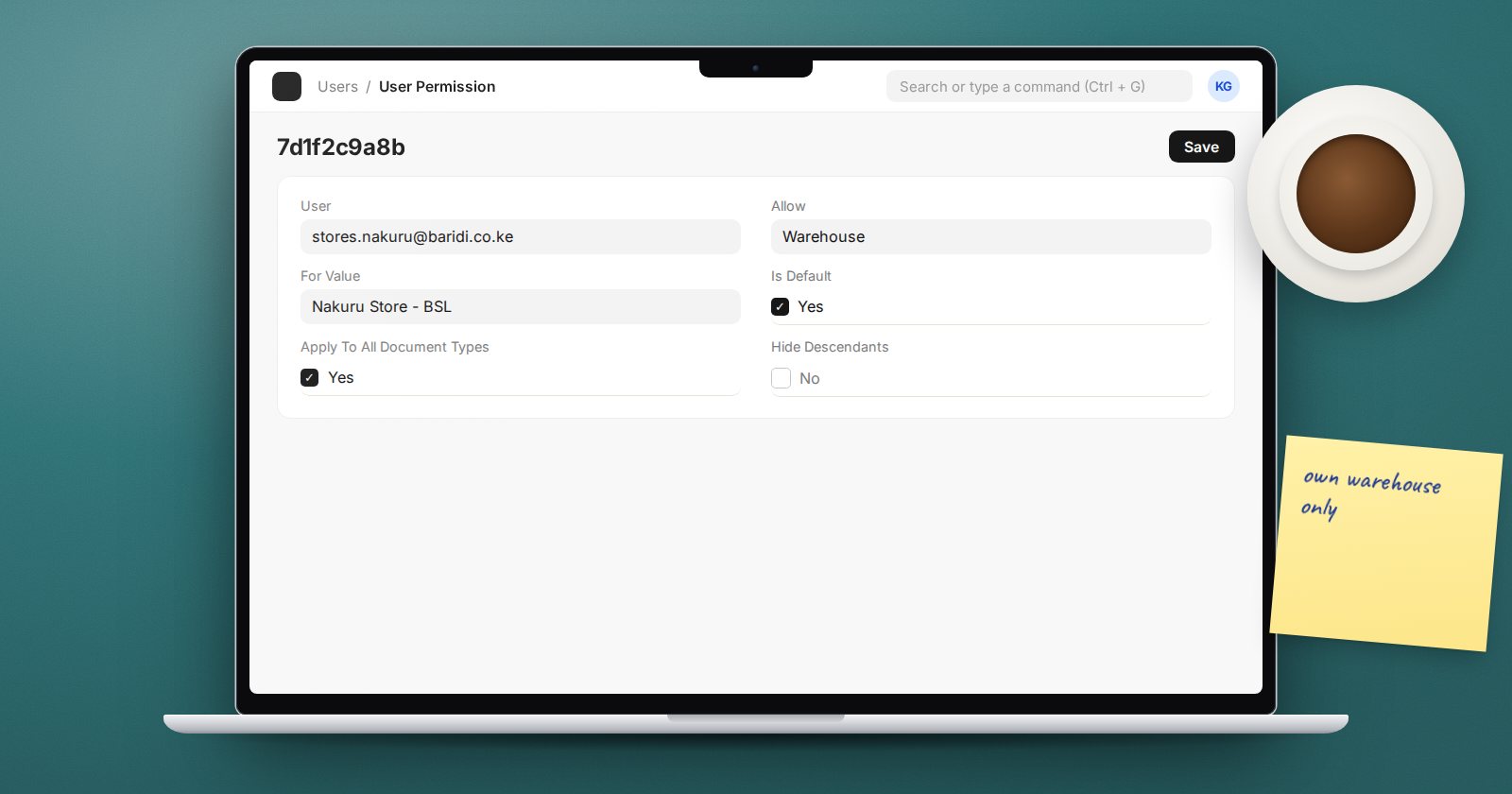
Role permissions answer "can this user work with Sales Invoices at all?" User Permissions answer a different question: "which Sales Invoices?" If a branch manager should only see their own branch, or a storekeeper only their own warehouse, User Permissions are the tool.
How a User Permission works
A User Permission record has three key fields:
- User - who is being restricted.
- Allow - the DocType you are restricting on, such as Company, Warehouse, Territory or Customer.
- For Value - the specific record they may see, such as "Nairobi Branch".
Once a user has a User Permission for a DocType, ERPNext applies it everywhere that DocType appears as a Link field. Give a user permission for Warehouse "Mombasa Stores" and they will only see stock entries, delivery notes and reports whose warehouse fields point to Mombasa Stores. Add a second record for another warehouse and they see both.
Narrowing where it applies
By default Apply To All Document Types is ticked, so the restriction follows the value into every DocType that links to it. Sometimes that is too wide. A salesperson limited to one Territory may still need to pick any territory on a Lead.
Untick Apply To All Document Types and set Applicable For to a single DocType. Create one User Permission per DocType where the rule should hold.
Two more fields help:
- Is Default - the value fills in automatically on new documents. A user restricted to one company gets that company on every new invoice.
- Hide Descendants - for tree DocTypes like Territory or Item Group, stops the user seeing child records under the permitted node.
The empty field trap
Out of the box, a record whose link field is empty is visible to everyone, because there is nothing to compare against. An invoice with no cost center slips past a cost center restriction.
If that is not acceptable, tick Apply Strict User Permissions in System Settings. Then records with an empty value in the restricted field are hidden too. Test this on a copy first: it often reveals old records with blank fields that suddenly vanish for some users.
Fields that should ignore the rule
Some link fields should not be filtered. A user restricted to their own Customer records may still need to choose any Customer in a "Referred By" field. In Customize Form, tick Ignore User Permissions on that field and the restriction no longer applies to it.
Reports respect them, mostly
Standard lists, Report Builder and Query Reports apply User Permissions. In Query Reports the check is made on Link columns in the result, so a report that returns customer names as plain text instead of a Link column cannot filter them. When you build reports for restricted users, keep the restricted field as a Link column.
Setting them up quickly
You can create User Permissions one by one from the User Permission list, but for a branch roll-out it is faster to prepare them in a spreadsheet and load them with Data Import, which accepts the same fields: User, Allow, For Value, Apply To All Document Types and Applicable For.
Try it
- On a test site, create two warehouses and a user with the Stock User role.
- Add a User Permission: Allow = Warehouse, For Value = the first warehouse, Is Default ticked.
- Log in as that user and open the Stock Entry list and the Stock Balance report. Only the first warehouse should appear.
- Create a stock entry as that user and check the warehouse fills in by itself.
- Turn on Apply Strict User Permissions and see whether any older records disappear.
User Permissions, role design and the traps above are covered step by step in ERPNext Administration Without Code.
