
A password alone is a weak lock. Passwords get reused, guessed and phished. Two-factor authentication (2FA) adds a second step, so a stolen password is not enough to get into your ERPNext system. Frappe has 2FA built in; here is how it works in the current version.
Where the settings are
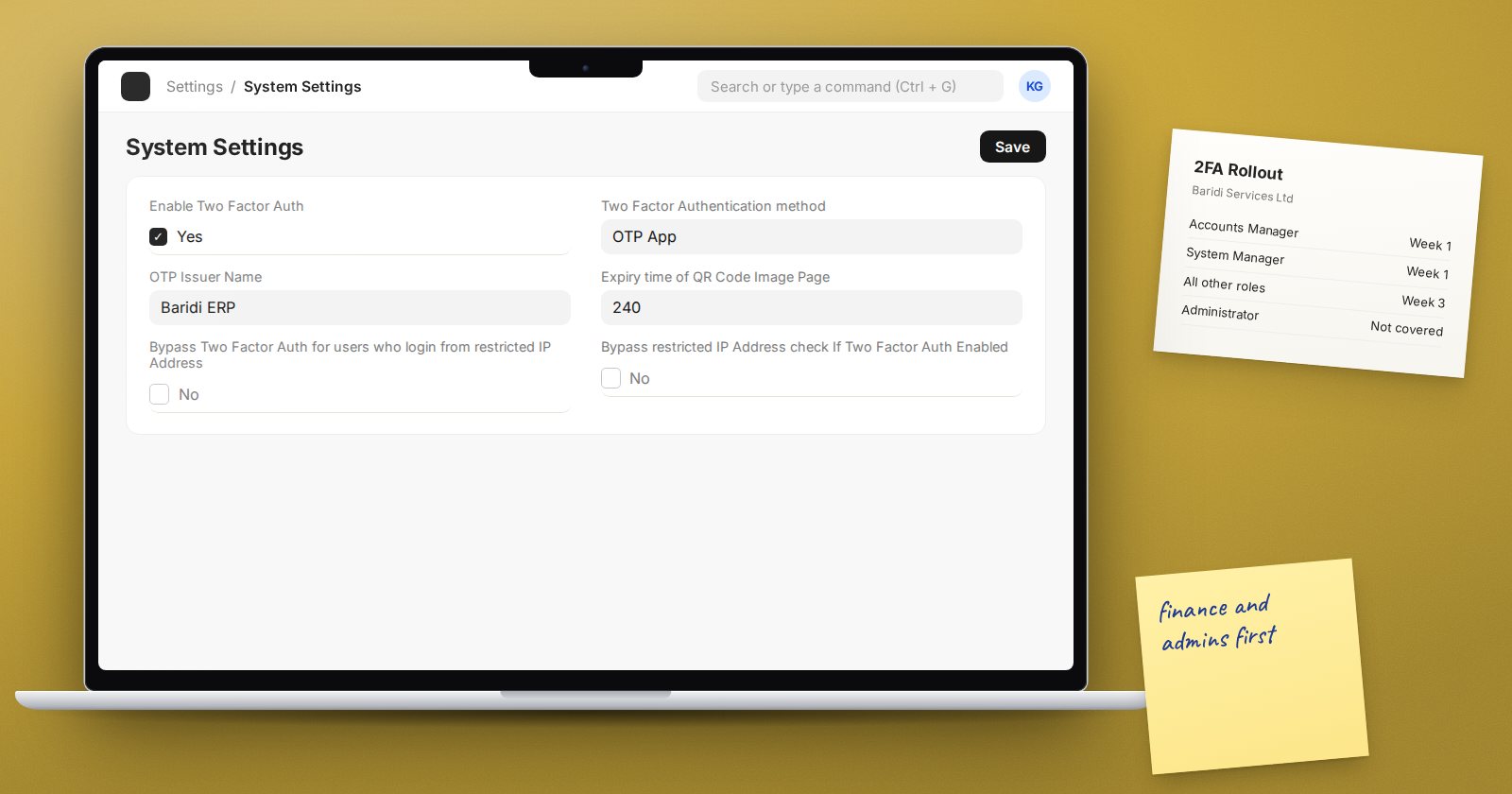
Open System Settings and find the Two Factor Authentication section. The fields are:
- Enable Two Factor Auth - the master switch.
- Two Factor Authentication method - OTP App, SMS or Email.
- Expiry time of QR Code Image Page - for the OTP App method, how long the setup page with the QR code stays available.
- OTP Issuer Name - the name users see in their authenticator app. Set it to your company or system name so users recognise it.
- Bypass Two Factor Auth for users who login from restricted IP Address and Bypass restricted IP Address check If Two Factor Auth Enabled - two exceptions that interact with each user's Restrict IP setting.
Choosing a method
- OTP App: users scan a QR code once with an authenticator app on their phone, then type the six-digit code it shows at each login. This is the strongest of the three and works without network costs.
- SMS: ERPNext texts a code. It needs a working SMS gateway in SMS Settings; System Settings will not let you save SMS as the method without one.
- Email: ERPNext emails a code. It is only as strong as the user's email account, so it protects less than an app.
Who gets 2FA: roles decide
Each Role has a Two Factor Authentication checkbox. A user must use 2FA if any of their roles has it ticked. When you switch on 2FA in System Settings, Frappe ticks it on the All role, which every user has, so 2FA applies to everyone at once.
If you want to roll it out in stages, you can untick it on the All role and tick it on specific roles, such as Accounts Manager and System Manager, first. Start with the people who can move money or change permissions.
The Administrator gap
The built-in Administrator account is excluded from 2FA in the code. That makes it the most valuable account to protect:
- give it a long, unique password stored in a password manager
- do not use it for daily work; give administrators their own named users
- consider setting
notify_admin_access_to_system_managerin the site configuration, so System Managers get an email whenever Administrator logs in
bench --site erp.example.com set-config notify_admin_access_to_system_manager 1
Rolling it out without chaos
- Tell users a week ahead what will change and which app to install.
- Enable it first for a pilot group, such as the finance team.
- Have someone available on the first morning to help.
- Then extend it to everyone.
When a user loses their phone, a System Manager can open the user record and use Reset OTP Secret from the Password menu. The user then sets up the authenticator again at next login. Confirm who is asking before you reset, by phone or in person, not just by email.
The restricted IP exceptions
The bypass options let users on your office network skip 2FA, or let 2FA users log in from outside restricted IP ranges. They are convenient, but each one weakens the protection. Use them only with a clear reason, and write that reason down.
2FA checklist
- [ ] OTP App chosen as the method where possible
- [ ] OTP Issuer Name set to something users recognise
- [ ] Finance and System Manager roles covered first
- [ ] All users covered after the pilot
- [ ] Administrator has a strong password and is not used daily
- [ ] Admin login notification considered
- [ ] Reset OTP Secret procedure includes identity check
- [ ] Any IP bypass is documented and justified
Security settings sit alongside user and role management in our ERPNext Administration Without Code course.
