
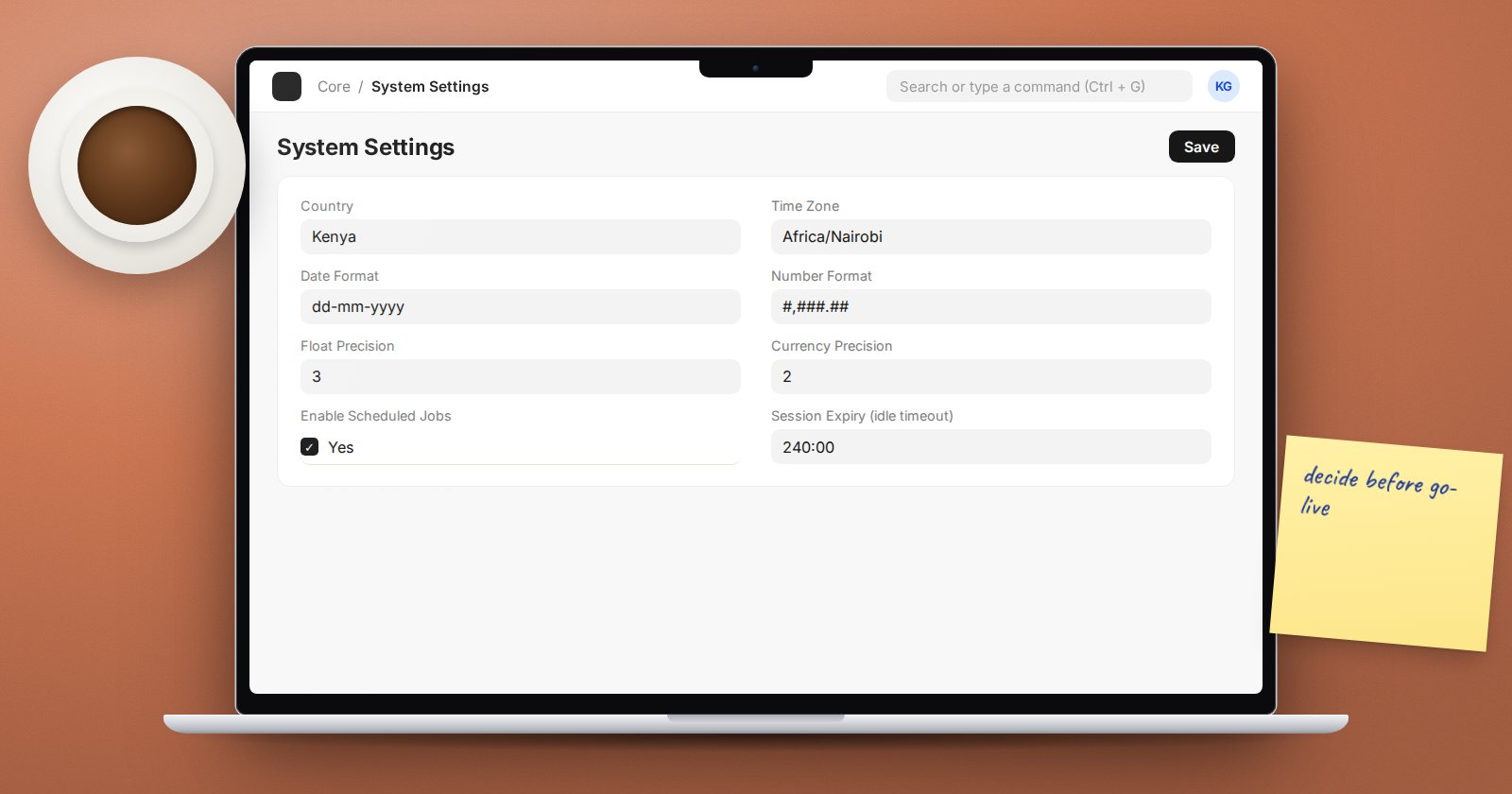
System Settings is a single page that quietly shapes every screen in ERPNext. Most sites accept what the setup wizard chose and never return. That is fine until a report cuts off, a number rounds the wrong way, or nightly jobs stop. Here are the settings worth a deliberate decision, ideally before go-live.
Open it by searching "System Settings" in the awesome bar. You need the System Manager role.
Regional formats
- Country, Time Zone and Language - set by the setup wizard, but check the time zone. Scheduled jobs, posting times and timestamps all follow it. For Kenya that is Africa/Nairobi.
- Date Format and Time Format - how dates and times appear on screen and in prints.
- Number Format - thousands and decimal separators, such as
#,###.##. Use Number Format from Currency lets each currency carry its own. - First Day of the Week - affects calendars and weekly reports.
Precision and rounding
- Float Precision - decimal places for quantities and rates.
- Currency Precision - decimal places for amounts. If left empty, it follows the number format.
- Rounding Method - Banker's Rounding (halves go to the nearest even digit), Commercial Rounding (halves go away from zero), or Banker's Rounding (legacy), which keeps older behaviour.
Decide these before transactions exist. Changing precision or rounding after months of invoices can produce small differences between old and new documents, and every one of them becomes a question from accounts.
Scheduled jobs
Enable Scheduled Jobs must be ticked for email sending, notifications, auto email reports, auto repeat and many ERPNext background tasks. A site restored from a backup sometimes has it off. If emails sit in the queue and reminders never arrive, look here first.
Sessions and login
- Session Expiry (idle timeout) - how long an idle session lasts, in hh:mm. The default is 170:00, about a week. Shared counter computers deserve something shorter.
- Allow only one session per user - stops one login being shared across several machines.
- Allow Login using User Name and Allow Login using Mobile Number - convenient for staff without company email.
Password policy, two-factor authentication and IP restrictions also live on this page. Treat them as a security decision with your server and security owner, not a convenience setting.
Data and reports
- Max Report Rows - the most rows a report returns, 100,000 by default. Raising it lets large reports run but makes them heavier.
- Link Field Results Limit - how many suggestions a link field shows while typing. ERPNext caps it at 50.
- Apply Strict User Permissions - hides records with empty values in a restricted field. Read up on User Permissions before ticking it.
- Allow Clearing Link Fields - lets users empty a link field. Leave it off if blank links would break your reports.
Files
- Max File Size (MB) and Allowed File Extensions - limit what users can upload.
- Only allow System Managers to upload public files - most business documents should stay private.
- Strip EXIF tags from uploaded images - on by default, removes location data from phone photos.
Email appearance
- Email Footer Address and Disable Standard Email Footer - control the footer on outgoing email.
Write it down
Whatever you choose, record it in your implementation notes with the reason. The next administrator will wonder why currency precision is 0 or why sessions end after eight hours, and a one-line reason saves a risky "fix".
Try it
- On a test site, open System Settings and note the current value of each setting above.
- Change Number Format and open an invoice to see the effect.
- Untick Enable Scheduled Jobs, send an email, and watch it wait in the Email Queue. Tick it again.
- Write a one-page settings record for your own site.
These choices, and the reasons behind them, are part of ERPNext Administration Without Code.
