
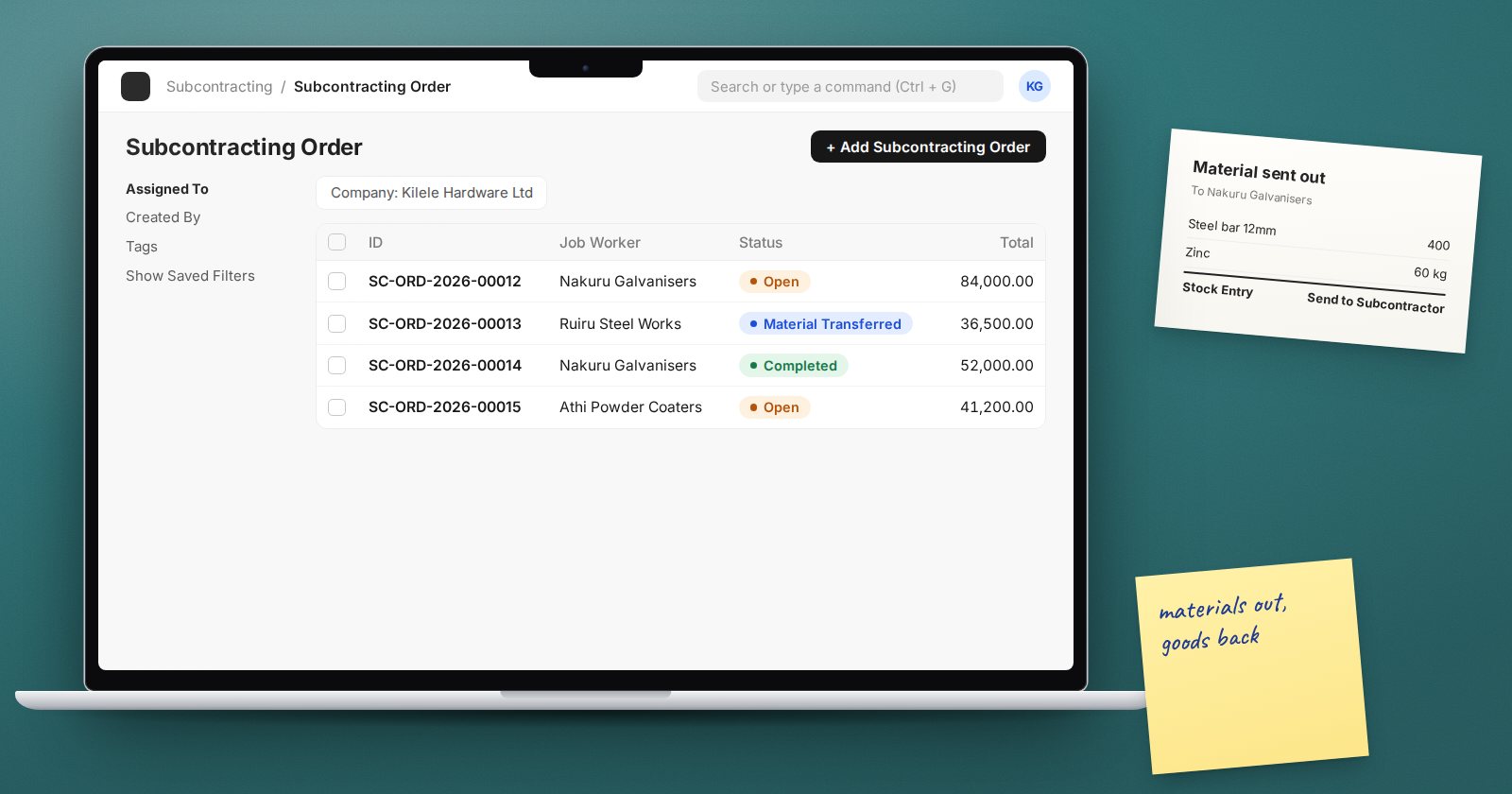
Many manufacturers send part of the work outside: printing, galvanising, sewing, machining. You supply the materials, the job worker does the work, and you get back a finished or semi-finished item and an invoice for the service. Tracking this on paper loses materials. ERPNext v16 handles it with a clear chain of documents.
The documents in v16
- Purchase Order (subcontracted): what you buy from the job worker, which is a service.
- Subcontracting Order: the operational order that tracks materials sent and goods received.
- Stock Entry (Send to Subcontractor): materials moved to the job worker.
- Subcontracting Receipt: finished goods received, materials consumed.
- Purchase Invoice: the job worker's bill for the service.
Step 1: Set up items and BOM
- The finished good must have Is Subcontracted Item ticked on the Item's Manufacturing tab and a default BOM listing the materials you supply.
- Create a service item, a non-stock item such as "Galvanising Service", that the job worker invoices you for.
- Create a Subcontracting BOM linking the Finished Good, its Finished Good BOM and the Service Item, with quantities. This lets ERPNext fill the finished good in for you on the purchase order.
- Create a warehouse that represents stock held at the job worker's premises.
Step 2: The subcontracted Purchase Order
Create a Purchase Order to the job worker and tick Is Subcontracted. Set Supplier Warehouse to the job worker's warehouse. Each row is the service item, with the Finished Good and Finished Good Qty it relates to.
ERPNext checks that each row has a finished good, that it is a subcontracted item, and that it has a BOM. Submit.
Step 3: The Subcontracting Order
From the submitted Purchase Order use Create > Subcontracting Order, or tick Auto create Subcontracting Order in Buying Settings to have it made on submit. The Supplied Items table lists the raw materials the job worker needs, from the BOM.
Step 4: Send the materials
On the Subcontracting Order, use Material to Supplier. ERPNext creates a Send to Subcontractor stock entry moving the materials to the job worker's warehouse. They are still your stock, just held elsewhere, and still counted in your stock value.
Step 5: Receive the finished goods
When goods come back, use Subcontracting Receipt on the Subcontracting Order. Enter the quantity received; ERPNext consumes the supplied materials from the job worker's warehouse and adds the finished goods to your warehouse. The finished goods are valued at the materials consumed plus the service cost.
How much material is consumed follows Backflush raw materials of subcontract based on in Buying Settings: BOM or Material Transferred for Subcontract, the same idea as in-house work orders.
Step 6: Leftovers and the bill
If the job worker returns unused materials, use Return of Components on the Subcontracting Order. Then post the job worker's invoice against the Purchase Order as a normal Purchase Invoice.
Keeping control
- Subcontracted Raw Materials To Be Transferred: what is still to be sent.
- Subcontracted Item To Be Received: what the job worker still owes you.
- Subcontract Order Summary: the whole picture per order.
Count the job worker's warehouse periodically with them. Material held outside is the easiest stock to lose track of.
Try it
- Set up a finished good, its BOM, a service item and a Subcontracting BOM.
- Raise a subcontracted Purchase Order and create the Subcontracting Order.
- Send materials, then receive half the goods.
- Check Subcontracted Item To Be Received.
Planning and costing work done in-house and outside are covered in the Production Planning & Costing course, and the buying documents in Procurement Essentials.
