
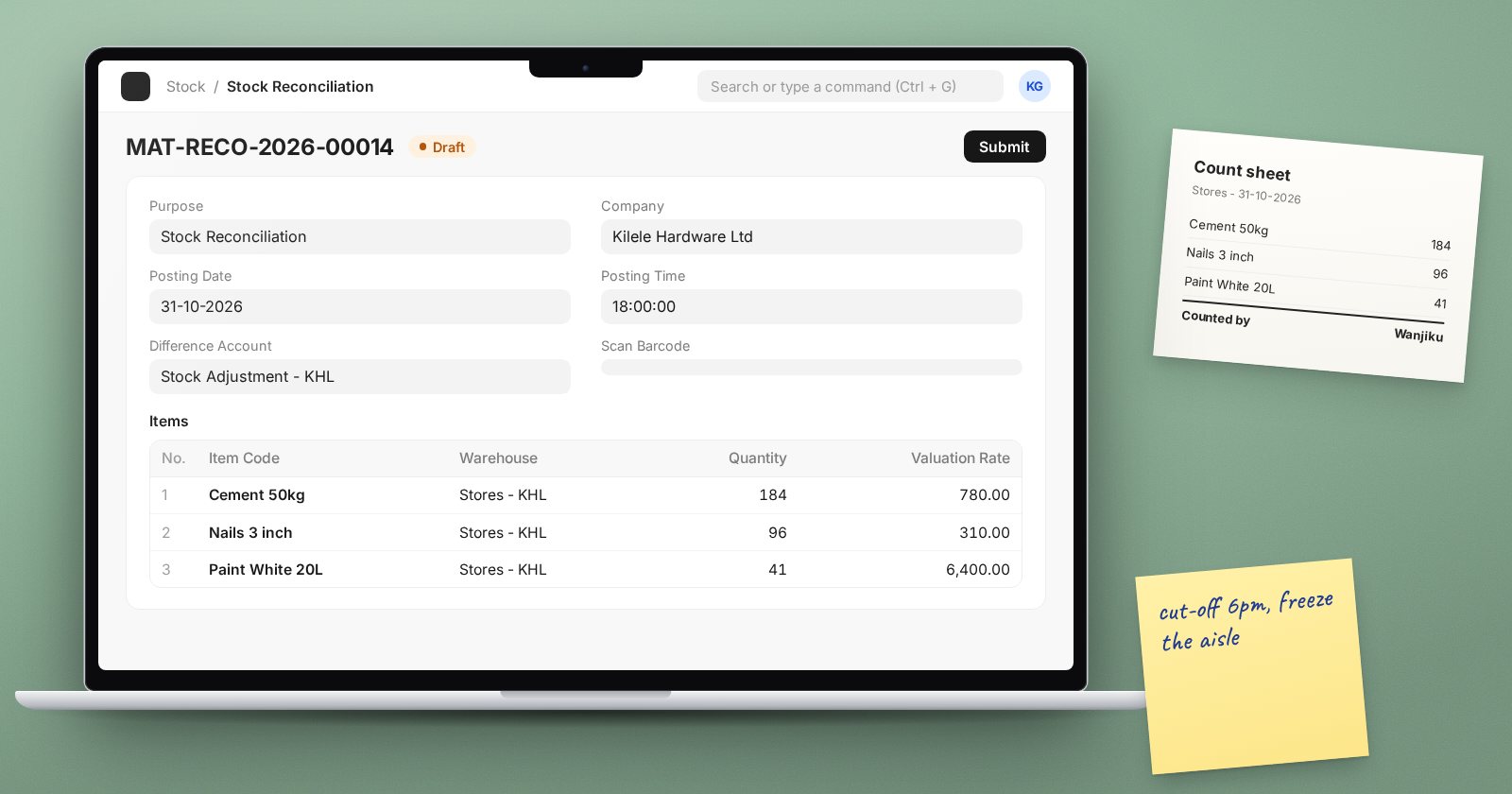
A stock count is where ERPNext and the shelf are made to agree. Done well, it fixes small errors and shows you where they came from. Done badly, it replaces old errors with new ones. ERPNext records the result with one document: the Stock Reconciliation.
What a Stock Reconciliation does
A Stock Reconciliation says "on this date and time, in this warehouse, this item had this quantity at this valuation rate". ERPNext compares that with what the stock ledger says and posts the difference, up or down. The value of the difference goes to the Difference Account on the document. In the standard chart of accounts this is usually Stock Adjustment.
The Purpose field has two options:
- Stock Reconciliation for regular counts.
- Opening Stock for loading balances when you first go live. For an opening entry, ERPNext requires the Difference Account to be an asset or liability account, not an expense.
Before the count
- Pick a cut-off time. Agree the exact date and time the count represents. Every receipt and delivery before it must be posted; anything after it waits.
- Post everything outstanding. Chase unposted Purchase Receipts, Delivery Notes and transfers. A missing receipt will look like a count gain and hide the real problem.
- Freeze movement in the counted area. If you cannot stop the whole warehouse, count one zone at a time and keep goods in that zone still.
- Print or export the item list by location, without system quantities, so counters record what they see rather than what they expect.
Running the count in ERPNext
- Create a new Stock Reconciliation, choose the company, and tick Edit Posting Date and Time if the count represents a time other than now. Set it to your cut-off.
- Use Fetch Items from Warehouse, choose the warehouse, and tick Ignore Empty Stock if you want to skip items with no stock. ERPNext loads the items with their current quantity and valuation rate, so you only change what differs.
- Alternatively, use Scan Barcode with Scan Mode on to scan items as you count. In scan mode ERPNext does not fetch the existing quantity, so each scan adds to the counted figure.
- Enter the counted quantity in each row. Leave the valuation rate as it is unless you have a reason to change value as well as quantity.
- Check the Difference Amount at the bottom. A large figure deserves a second look before you submit.
- Save, review, then submit.
Investigate before you submit
A count difference is a symptom. Before you post it, look at the biggest gaps in the Stock Ledger report for that item and warehouse since the last count. Common findings:
- A receipt posted to the wrong warehouse (one location over, one under by the same amount).
- A unit of measure mix-up, such as cartons received as pieces.
- A transfer still sitting in a transit warehouse.
If you find the cause, correct the original document and recount that item. Post adjustments only for what you cannot explain.
Cycle counts instead of one big count
You do not have to count everything at once. Many teams count a few item groups each week, with fast movers and high-value items more often. Each cycle count is simply a smaller Stock Reconciliation. Small, frequent counts find problems while the paperwork is still fresh.
Checklist
- Cut-off date and time agreed and used as the posting time
- All receipts, deliveries and transfers before the cut-off posted
- Counted area held still during the count
- Counters record what they see, not what the system says
- Large differences traced in the Stock Ledger before submitting
- Difference Account checked (Opening Stock needs an asset or liability account)
Counting, receiving and issuing correctly every day is the heart of the Inventory Essentials course, which follows these steps in a live system.
