
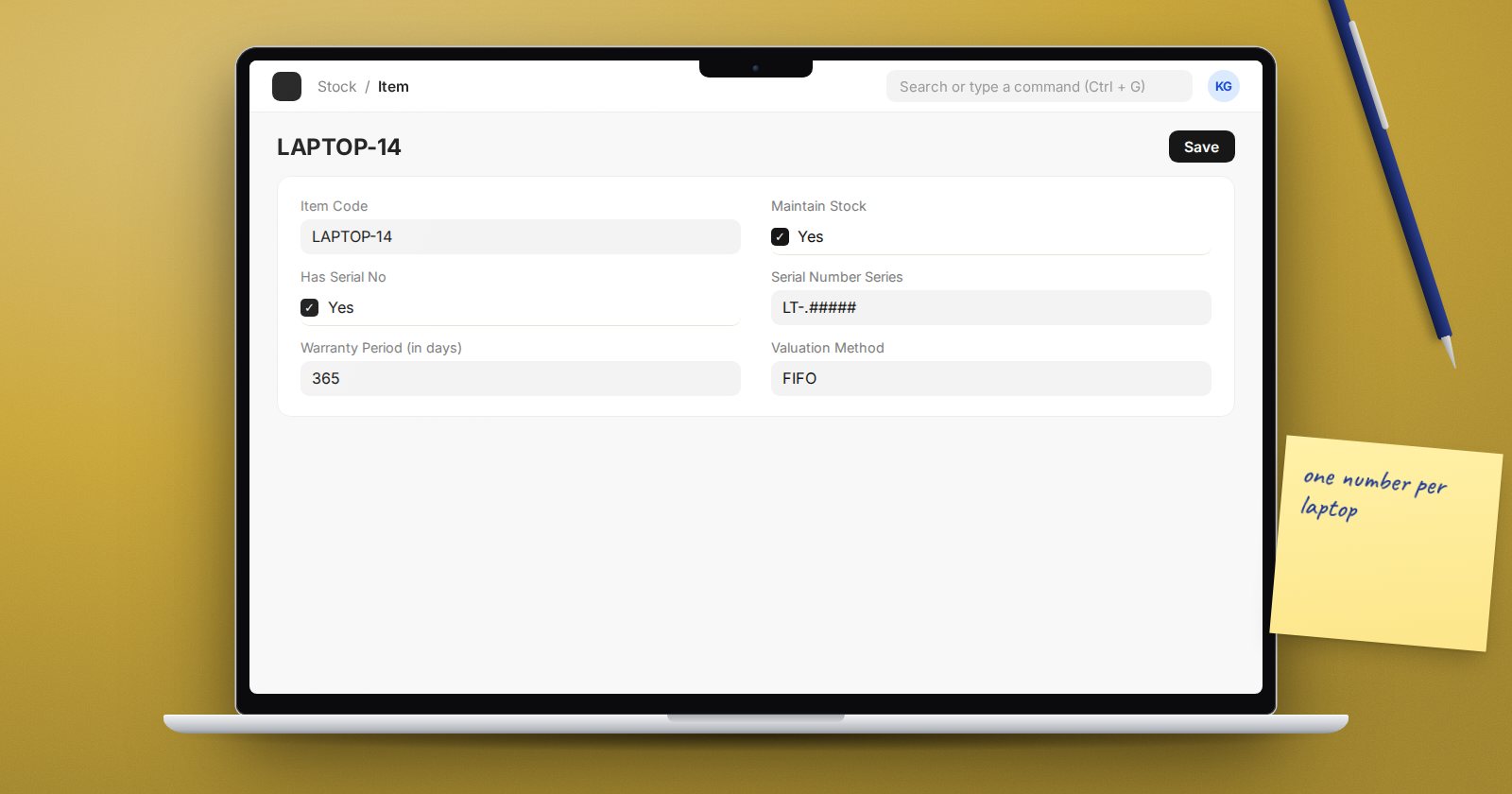
Batch tracking groups units together. Serial tracking follows every single unit: this laptop, this pump, this phone. It is what you need when customers come back with warranty claims, when you service equipment you sold, or when each unit is valuable enough to account for individually.
Turn it on
- In Stock Settings, Serial & Batch Item tab, tick Activate Serial / Batch No for Item. On a new v16 site it is off, and serial numbers cannot be recorded until it is on.
- On the Item, Inventory tab, Serial Nos / Batches section, tick Has Serial No.
- Set a Serial Number Series, for example
PMP-.#####. With a series, ERPNext can create serial numbers for you when goods come in. Without one, someone has to type or scan every number. - If you give warranties, fill Warranty Period (in days) on the Item.
As with batches, set this before the first transaction. ERPNext will not let you change Has Serial No once submitted transactions exist.
How serial numbers are recorded in v16
Each stock row that moves serialised items links to a Serial and Batch Bundle: a small record listing exactly which serial numbers moved, in or out, on that row. You rarely open it directly. On a receipt or delivery row, use the serial and batch selector to scan or pick the numbers, and ERPNext builds the bundle when you save.
Stock Settings has Use Serial / Batch fields, on by default, which shows simple Serial No and Batch No fields on transaction rows for quick entry. ERPNext still creates the bundle behind them.
Receiving
On a Purchase Receipt, enter the quantity and either scan the numbers printed on the units or let ERPNext generate them from the series. Each number becomes a Serial No record showing the item, warehouse, incoming rate and status.
Scan the real numbers where they exist. Generated numbers are fine for items with no maker's serial, but then you must label the units with them.
Issuing and selling
On a Delivery Note, pick the serial numbers you are actually shipping. If Auto create Serial and Batch Bundle for outward is on in Stock Settings, ERPNext will pick numbers for you when none are chosen, following Pick Serial / Batch Based On. For serialised goods that is risky: the system may choose a different unit than the one in the box. For valuable items, scan at despatch.
After delivery, the Serial No record shows the status Delivered and the customer.
Warranty and service
The Serial No record has Warranty Expiry Date, AMC Expiry Date and Maintenance Status (Under Warranty, Out of Warranty, Under AMC, Out of AMC). When a customer calls, search the serial number and you see what it is, who bought it and whether it is covered.
Reports to use
- Serial No Ledger: every movement of one serial number.
- Serial No and Batch Traceability: where a unit came from and where it went.
- Serial No Warranty Expiry and Serial No Service Contract Expiry: units whose cover is ending.
- Stock Qty vs Serial No Count: flags items where the stock quantity and the number of serials in stock do not agree.
Habits that work
- Scan, do not type. A barcode scanner removes almost all serial errors.
- Label generated serials on the unit the moment it is received.
- Count serialised items by serial number, not just by quantity.
- Run Stock Qty vs Serial No Count monthly.
Checklist
- Activate Serial / Batch No for Item ticked in Stock Settings
- Has Serial No and Serial Number Series set before the first receipt
- Warranty Period set where you give warranties
- Serials scanned at receipt and at despatch
Serial and batch control, valuation and stock corrections are part of the Inventory Professional course.
