
When a user says "I can't see the invoice", the answer is almost always in the role permissions. ERPNext's access model is simple once you see its parts, and confusing when you change things by trial and error. Here is how it fits together.
Users get roles, roles get rights
A user never receives rights directly. You give the user one or more roles (Accounts User, Stock Manager, Sales User and so on), and each DocType has a table of rules that says what each role may do with it.
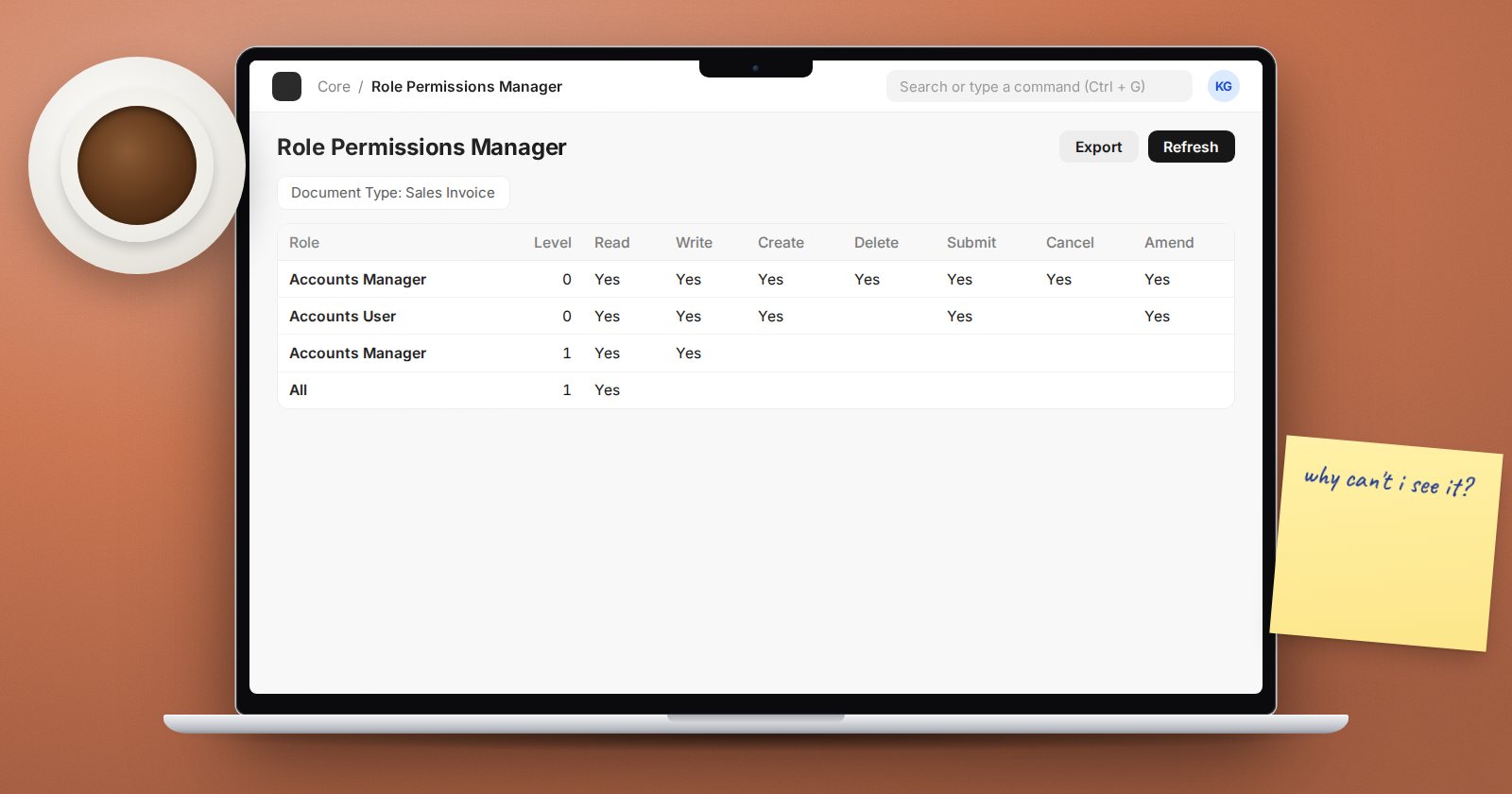
Each rule is a row with the role, a level, and a set of checkboxes:
- Select, Read, Write, Create, Delete - the everyday rights. Read implies Select.
- Submit, Cancel, Amend - only meaningful for submittable documents like invoices and stock entries.
- Report, Export, Import, Print, Email, Share - what the user can do with the data beyond the form.
- Mask - works with fields marked for masking: roles with this right see the real value, everyone else sees it masked.
You manage these rows in the Role Permissions Manager (search for it in the awesome bar). Pick a DocType, and you see every role that has access and what it can do.
Your changes are stored separately
Edits made in the Role Permissions Manager are saved as Custom DocPerm records. The standard rules that ship with ERPNext stay untouched underneath. That is why the manager has a "Restore Original Permissions" button: it throws away your custom rows and returns the DocType to the shipped rules. Use it when a DocType's permissions have become a mess and you want a clean start, but know that every custom rule for that DocType goes with it.
Permission levels protect individual fields
Every field has a permission level, 0 by default. Level 0 rules govern the document as a whole. Higher levels govern only the fields set to that level.
Say you want everyone in sales to see the Sales Order, but only managers to edit a discount field:
- In Customize Form for Sales Order, set the discount field's Perm Level to 1.
- In the Role Permissions Manager, add a level 1 rule for Sales Manager with Read and Write.
- Add a level 1 rule for Sales User with Read only.
Two rules keep you out of trouble. A role must have a level 0 rule before it can have a higher level rule, and higher levels cannot grant Create, Submit, Cancel or Amend. ERPNext refuses to save rules that break either.
Only If Creator
The If user is the owner checkbox (shown as "Only If Creator") limits the rule to documents the user created. It suits expense claims or leave applications where staff should see their own records. Ticking it switches off the Report right for that rule, because a report would show other people's rows.
Role Profiles save repetition
If ten cashiers need the same five roles, create a Role Profile with those roles and assign it to each user. In v16 a user can hold several role profiles at once, and the roles they grant follow the profile when you change it later.
Reports and pages have their own roles
Query and Script Reports, and desk pages, are not controlled by DocType rules alone. Use Role Permission for Page and Report to set which roles can open a given report or page.
Find out why, don't guess
When access behaves strangely, open the Permission Inspector. Choose the DocType, the document, the user and the permission type (read, write, submit and so on), and it explains which rules allowed or blocked it. This beats adding roles until the error goes away, which is how many systems end up with everyone as System Manager.
Try it
- On a test site, create a user with only the Sales User role.
- Set a field on Sales Order to Perm Level 1 and give Sales User level 1 Read only.
- Log in as that user and confirm the field is visible but locked.
- Run the Permission Inspector for that user on a Sales Order with permission type "write" and read the explanation.
Permissions are a full module in ERPNext Administration Without Code, including how to design roles for a real organisation.
