
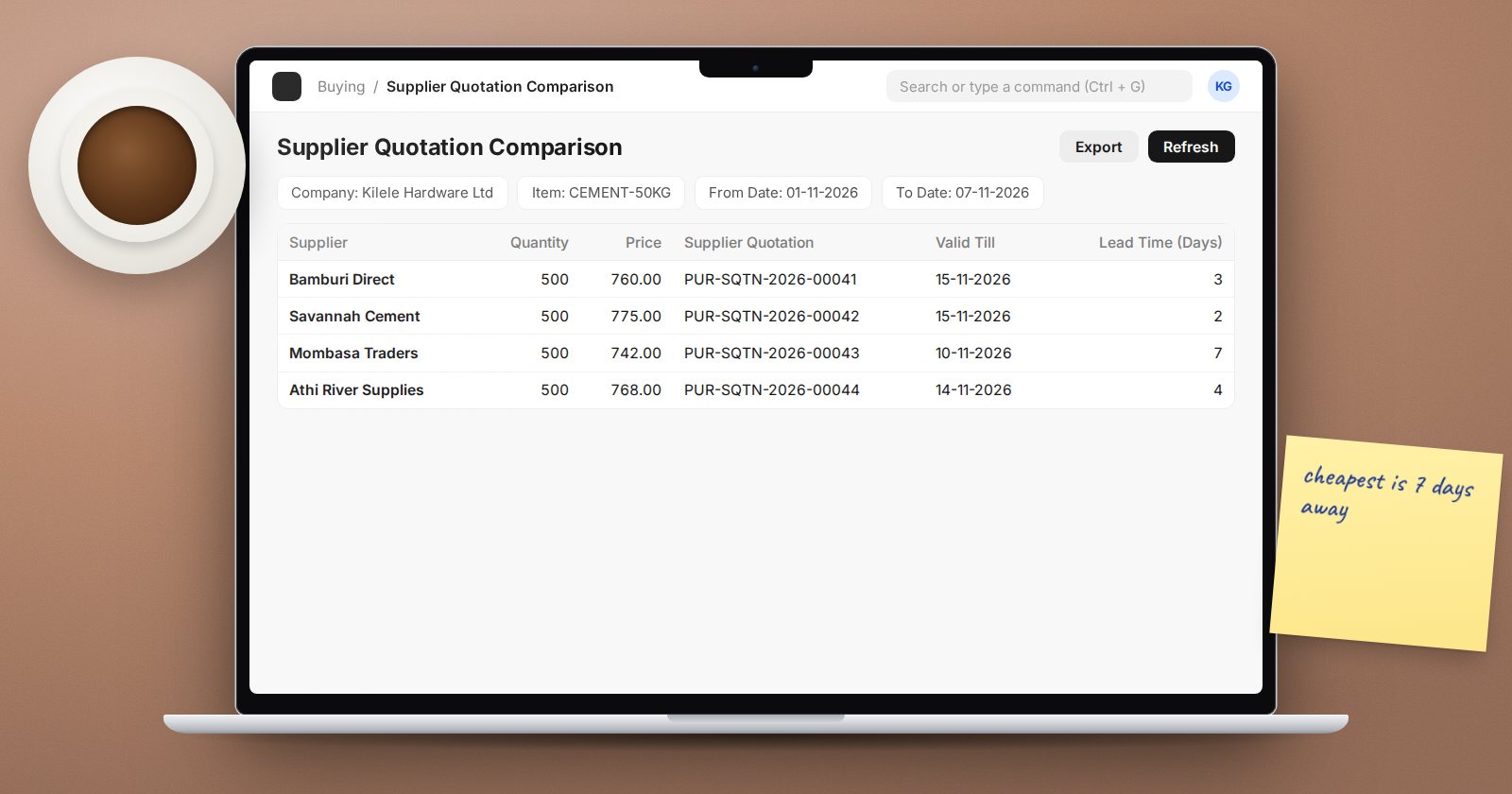
Getting three quotes before a significant purchase is good practice, and many organisations require it. Doing it by email and spreadsheet works, but the evidence lives in someone's inbox. ERPNext keeps the whole trail in the system: the request, every supplier's answer, the comparison and the order that followed.
The documents involved
- Request for Quotation (RFQ): what you want, how many, and by when, sent to several suppliers.
- Supplier Quotation: one supplier's prices for the items in the RFQ.
- Purchase Order: created from the winning Supplier Quotation.
Step 1: Create the RFQ
You can start an RFQ from a Material Request (Create > Request for Quotation) or create one directly.
- Add the Items, quantities and Required Date.
- In the Suppliers table, add each supplier you want to invite. Get Suppliers can add every supplier in a Supplier Group or with a given Tag.
- Check each supplier row has a Contact and Email ID, and that Send Email is ticked for those who should receive it.
- Write the Message for Supplier, or choose an Email Template. Add Terms if needed.
- Submit.
Step 2: Send it
Use Send Emails to Suppliers. Each supplier receives the RFQ with a link to submit their quotation online through the supplier portal; ERPNext can create a portal user for the contact if one does not exist. Download PDF gives you a copy for suppliers who prefer paper or WhatsApp.
The Quote Status on each supplier row shows Pending until their quotation is received.
Step 3: Capture the quotations
Suppliers who use the portal create their own Supplier Quotation. For everyone else, open the RFQ and use Create > Supplier Quotation, choose the supplier, and enter their prices. Attach their original quote document to the Supplier Quotation so the evidence sits with the figures.
Fill Valid Till with the date the supplier's prices expire. ERPNext marks Supplier Quotations as Expired once that date passes, so nobody orders at stale prices.
Step 4: Compare
From the submitted RFQ, use View > Supplier Quotation Comparison to open the report. It lists each supplier's price for each item side by side. Useful filters:
- Request for Quotation: limit to this RFQ.
- Categorize by: group the results by supplier or by item.
- Include Expired: leave off to hide quotations past their Valid Till date.
Price is not the only factor. Note lead time, payment terms and past delivery performance before choosing. If your policy requires it, write the reason for the choice on the winning quotation.
Step 5: Order from the winner
Open the chosen Supplier Quotation and use Create > Purchase Order. Items, quantities and rates are copied across, and the order links back to the quotation and the RFQ. Auditors can follow the chain from the original request to the payment.
Tips that save time
- Keep supplier contacts and emails clean; RFQ sending depends on them.
- Use an Email Template so every RFQ looks the same and includes your delivery terms.
- For repeat purchases at agreed prices, you may not need an RFQ every time: consider supplier price lists instead.
Checklist
- RFQ submitted with items, quantities and required date
- Each supplier has a contact with an email and Send Email ticked
- A Supplier Quotation recorded for every response, with Valid Till filled
- Comparison reviewed and decision noted
- Purchase Order created from the winning quotation
The full buying cycle, from request to supplier payment, is the subject of the Procurement Essentials course.
