
Running out of a fast-moving item costs sales; overstocking ties up cash. ERPNext can watch stock levels for you and raise a Material Request when an item drops to the level you set. Here is how it works and how to set it up so it actually helps.
Step 1: Switch the feature on
In Stock Settings, open the Stock Planning tab and tick Raise Material Request when stock reaches re-order level. Tick Notify by email on creation of automatic Material Request if you want users with the Purchase Manager or Stock Manager role emailed when requests are created.
ERPNext checks reorder levels once a day through its scheduler, so make sure scheduled jobs are running on your site. If they are not, nothing happens and nobody gets an error.
Step 2: Set levels on the item
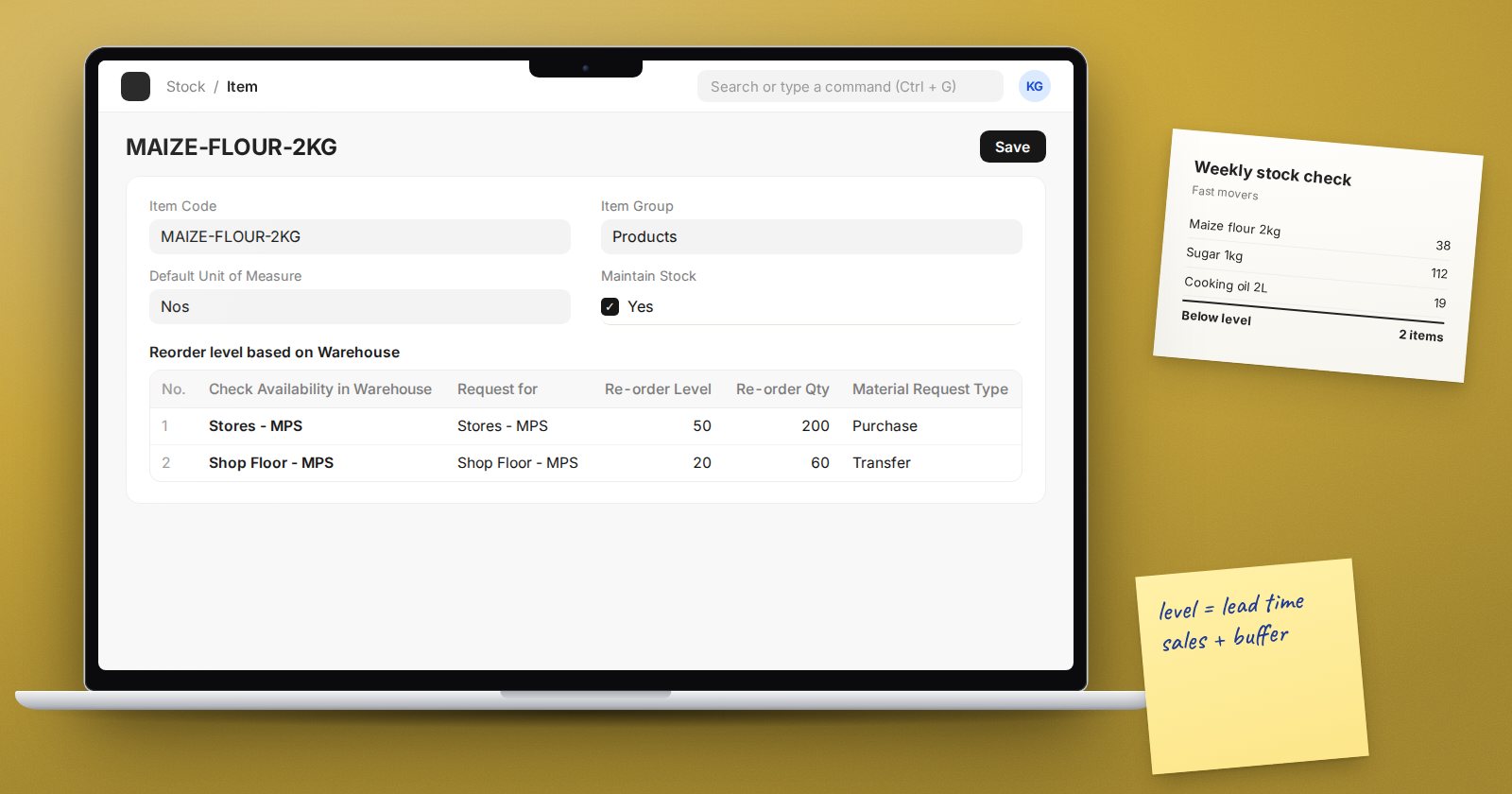
On the Item, Inventory tab, find the Auto re-order section and the table Reorder level based on Warehouse. Add one row per warehouse you want to protect:
- Request for: the warehouse that needs the stock.
- Re-order Level: when projected stock falls to or below this, raise a request.
- Re-order Qty: how much to request.
- Material Request Type: usually Purchase for bought items, Transfer to refill a branch from a main store, or Manufacture for items you make.
- Check Availability in Warehouse: optional. Choose a group warehouse to make ERPNext look at the combined stock of all warehouses under it.
Step 3: Understand what ERPNext compares
ERPNext does not compare against stock on the shelf. It uses projected quantity: actual stock plus quantities already ordered from suppliers, already requested and planned for production, minus quantities reserved for sales orders, production and subcontracting.
This is what you want. If you already have a purchase order on the way, ERPNext will not ask for the same stock twice.
When projected quantity is at or below the reorder level, ERPNext requests the larger of two figures: your Re-order Qty, or the shortfall needed to bring stock back up to the reorder level. The automatic Material Requests are created and submitted, ready for a buyer to turn into purchase orders.
Choosing sensible levels
A useful starting point for the reorder level is:
average daily usage x supplier lead time in days, plus a safety buffer.
If you sell 20 a day, the supplier takes 7 days, and you want three days of cover for delays, the reorder level is 20 x 7 + 60 = 200. The Item's Purchasing tab has Lead Time in days and Safety Stock fields where you can record these figures for reference.
For the reorder quantity, think about the supplier's minimum order, pack size and how often you want to order.
The Itemwise Recommended Reorder Level report can help by looking at past consumption.
Review it regularly
Levels set once and never revisited go stale. Seasonal items, new suppliers and changing sales all move the right number. Review your fast movers each quarter.
Common mistakes
- Feature on, scheduler off: no requests are ever created.
- Levels on the wrong warehouse: the branch runs out while the main store is protected.
- Type set to Purchase for items you make: buyers receive requests they cannot act on.
- Ignoring the requests: automatic Material Requests only help if someone turns them into orders.
Try it
- Pick five fast-moving items.
- Work out usage, lead time and a safety buffer for each.
- Enter reorder rows for the warehouses that sell them.
- Next morning, check Material Request for new automatic requests.
Turning requests into purchase orders and receipts is covered in the Procurement Essentials course, and daily stock control in Inventory Essentials.
