
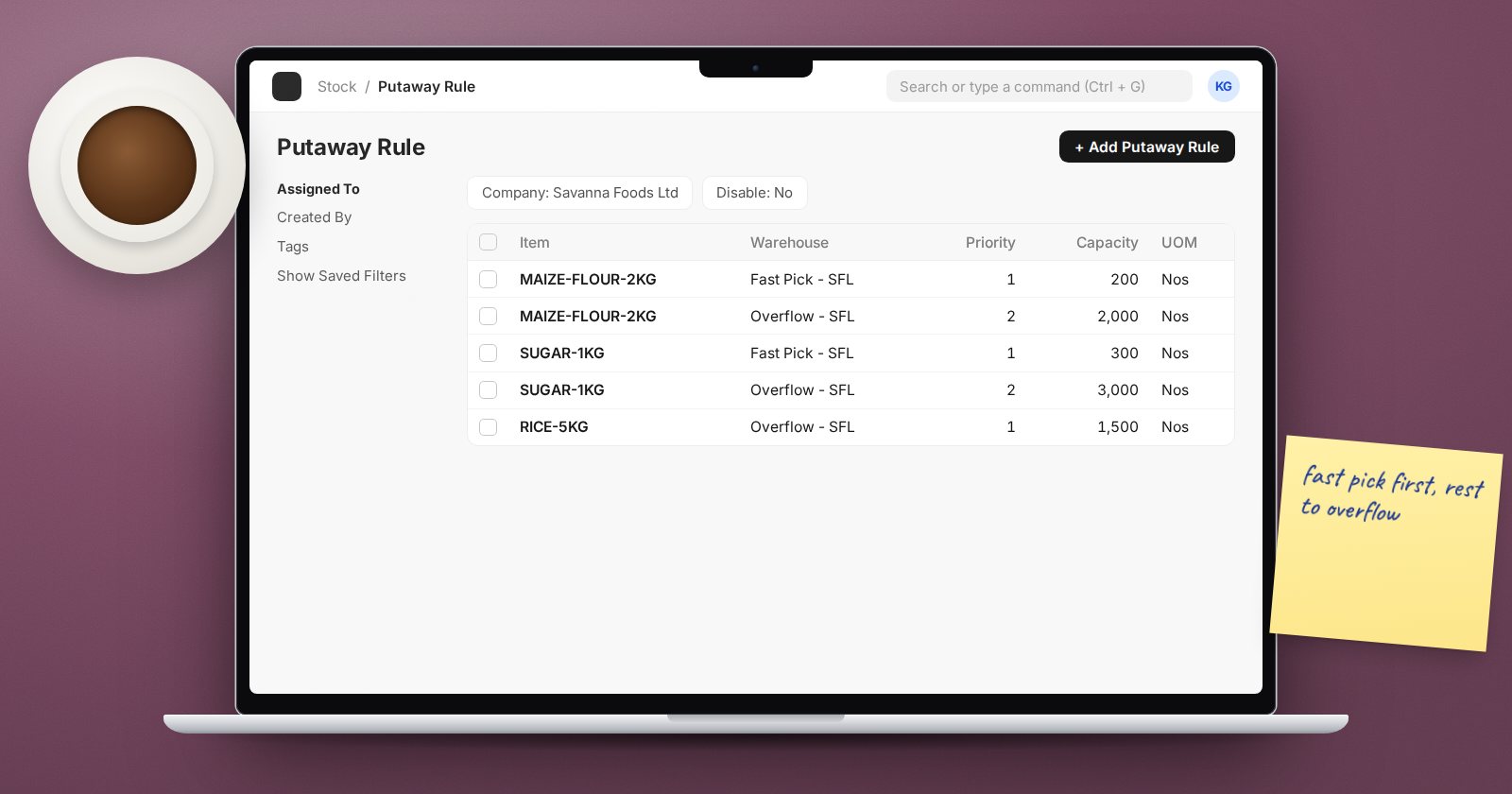
When a big delivery arrives, the receiving clerk has to decide where it goes. The fast-pick shelf near despatch holds only so much; the rest goes to overflow. If that decision lives in one person's head, stock ends up in the wrong place and pickers go looking for it. ERPNext's Putaway Rule writes the decision down and applies it on the receipt.
What a Putaway Rule is
A Putaway Rule says: for this Item, this Warehouse can hold this much (Capacity), and it should be filled in this order (Priority). You create one rule per item per warehouse.
When a receipt is made with putaway rules applied, ERPNext splits each incoming line across the warehouses with rules for that item:
- Rules are taken in priority order. Priority 1 is filled first, then 2, and so on. Where priorities are equal, the warehouse with more capacity comes first.
- Each warehouse gets only its free space: capacity minus the stock already there.
- If all the rules are full and quantity remains, ERPNext shows a message listing the items and quantities it could not place, so someone can decide what to do with them.
The result is one line per destination warehouse on the receipt, with the quantities filled in.
Step 1: Model warehouses at the right level
Putaway works between warehouses, so your warehouses need to reflect places a picker can find: a fast-pick zone, a bulk store, an overflow area. If your whole building is one warehouse, putaway rules have nothing to choose between. Do not go too fine either. A warehouse per bin location creates a lot of stock movement paperwork.
Step 2: Create the rules
Search for Putaway Rule and create a rule for each item and warehouse:
- Item: the item code.
- Warehouse: the destination.
- Capacity and UOM: how much fits, in a unit people think in, such as cartons. ERPNext converts this to Capacity in Stock UOM using the conversion factor.
- Priority: 1 for the place you want filled first.
- Company.
A typical pair: fast-pick shelf with capacity 50 cartons and priority 1; bulk store with capacity 500 and priority 2.
If you need to stop a rule temporarily, for example during a shelf repair, tick Disable rather than deleting it.
Step 3: Apply rules on receipts
On a Purchase Receipt, tick Apply Putaway Rule before adding items, or tick it and then save. ERPNext rewrites the item lines into one line per warehouse and shows "Applied putaway rules." Check the split before submitting.
Stock Entry has the same Apply Putaway Rule check, which is useful for Material Transfers from a receiving bay into storage.
Things to know
- Putaway uses actual stock already in the warehouse to work out free space, so balances must be right for it to work well.
- If the unit of measure must be a whole number, ERPNext rounds quantities down to whole units when splitting.
- Rules suggest; people still decide. If the fast-pick shelf is blocked today, the clerk can edit the lines before submitting.
Try it
- Choose one fast-moving item with a small pick-face and a bulk store.
- Create two Putaway Rules: pick-face priority 1 with a small capacity, bulk store priority 2.
- Make a draft Purchase Receipt for more than the pick-face can hold, tick Apply Putaway Rule, and save.
- Check the lines: the pick-face is topped up, the rest goes to bulk.
Warehouse design, receiving and stock control at a professional level are covered in the Inventory Professional course.
