
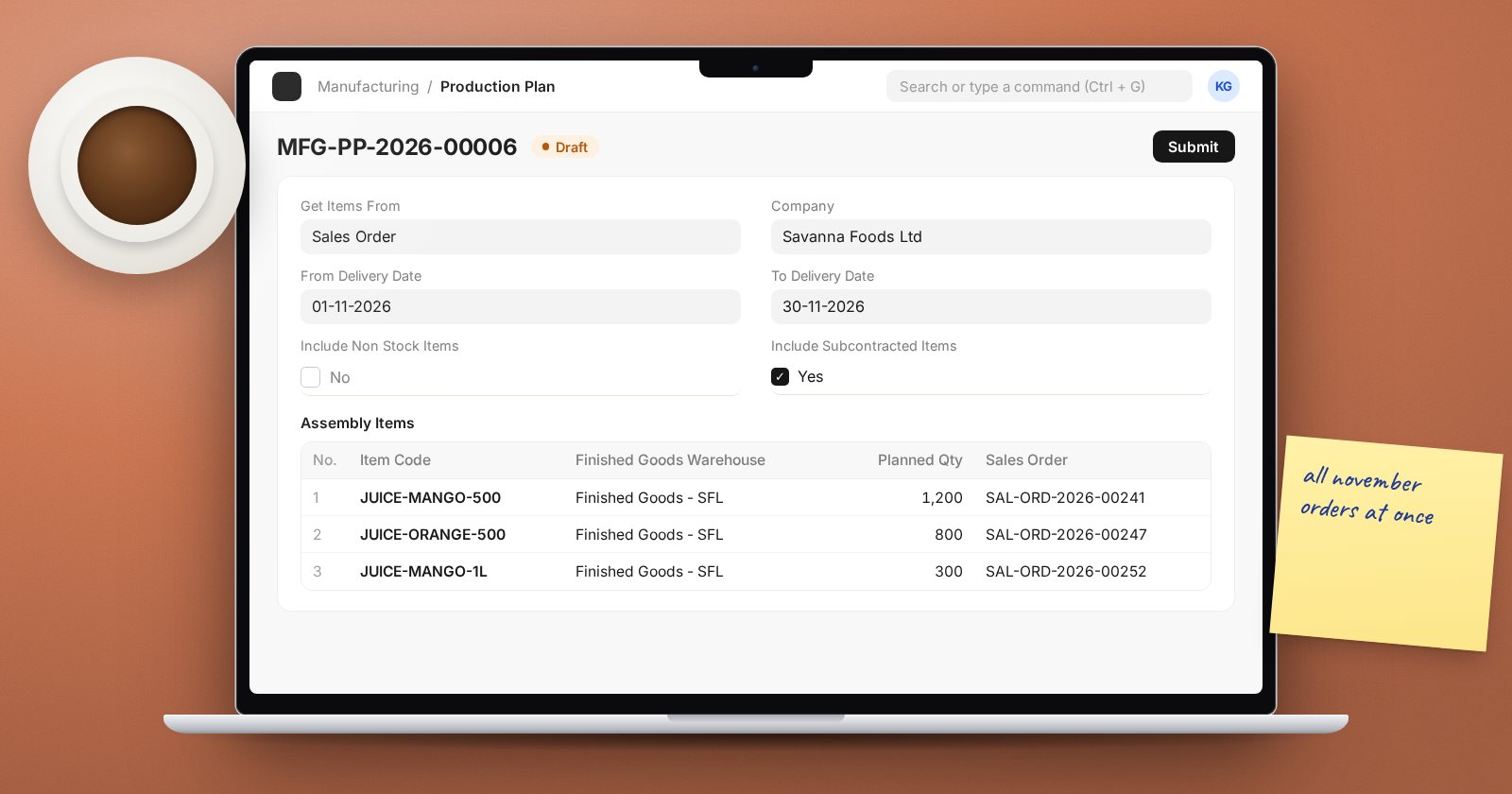
When orders arrive one at a time, you can create a Work Order for each. Once you have dozens of open sales orders, shared sub-assemblies and raw materials that several products need, that stops working. The Production Plan looks at a whole set of demand at once and tells you what to make and what to buy.
What a Production Plan does
- Collects demand from Sales Orders or Material Requests.
- Lists the finished goods to make, with quantities.
- Works out sub-assemblies from the BOMs.
- Works out the raw materials needed, taking stock you already have or expect into account.
- Creates the Work Orders, subcontract purchase orders and Material Requests in one go.
Step 1: Pull in the demand
Create a new Production Plan and set Get Items From to Sales Order (or Material Request).
Use the filters to choose which orders: date range, From Delivery Date and To Delivery Date, Customer, Item Code, Warehouse, or Sales Order Status. Then click Get Sales Orders to fill the Sales Orders table. Remove any you do not want to plan now.
Step 2: Get the finished goods
Click Get Finished Goods. The Assembly Items table lists each item to manufacture with the planned quantity, BOM and warehouse. Tick Consolidate Sales Order Items if you want one line per item rather than one per order.
Review the quantities. This is where you decide what you are really going to produce in this plan.
Step 3: Sub-assemblies
If your BOMs have sub-assemblies, click Get Sub Assembly Items. ERPNext explodes the BOMs and lists components you make in-house, with quantities. With Consider Projected Qty in Calculation ticked, it reduces those quantities by stock you already have or expect.
Step 4: Raw materials
In the For Raw Materials section, choose the For Warehouse to plan against and click Get Items for Purchase / Transfer (or Get Items for Purchase Only). The Raw Materials table lists what is required and what needs to be requested.
Two options change the result:
- Consider Projected Qty in Calculation (RM): on by default. ERPNext nets requirements against projected quantity: stock on hand plus incoming orders, less reservations. Leave it on unless you deliberately want to plan from zero.
- Include Safety Stock in Required Qty Calculation: adds each item's safety stock to the requirement.
Download Required Materials gives you the list as a file to share with buyers before you commit.
Step 5: Submit and create
Submit the plan. Then use the Create menu:
- Work Order / Subcontract PO: creates Work Orders for items you make and subcontract purchase orders for items made by job workers.
- Material Request: creates requests for the raw materials to buy or transfer.
Every document links back to the plan. The Production Plan Summary button and report show progress across all of them.
Good habits
- Plan in regular cycles, such as weekly, rather than whenever an order arrives.
- Make sure BOMs are correct and default before planning; the plan is only as good as the BOMs.
- Keep reorder levels and the plan from fighting each other: if planning drives raw material purchases, avoid automatic reorder requests for the same items.
- Close plans that are finished, so they stop affecting projected quantities.
Try it
- Create a Production Plan, get items from Sales Order and fetch a week's orders.
- Get finished goods, then sub-assemblies, then raw materials.
- Compare the raw material list with your own estimate.
- Submit and create the Work Orders.
Planning materials and capacity, and knowing what each product really costs, are covered in the Production Planning & Costing course.
