
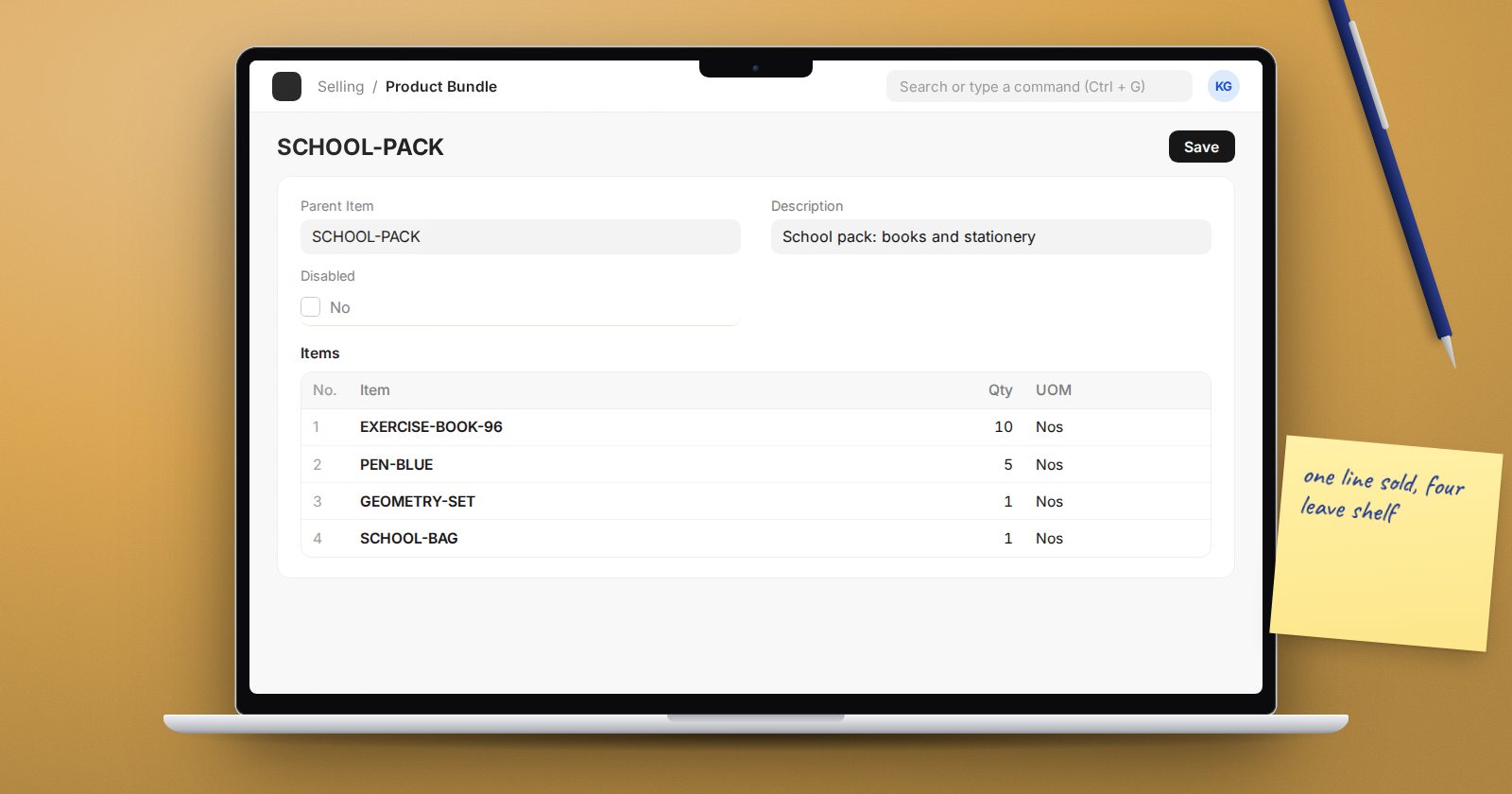
A gift hamper, a starter kit, a "school pack" of books and stationery, a laptop sold with a bag and mouse. You sell one thing to the customer, but several things leave the shelf. ERPNext's Product Bundle handles exactly this, without building a factory process around it.
How a Product Bundle works
You create a non-stock item for the bundle, such as "Back to School Pack", and list its components with quantities. When you sell the bundle:
- The customer sees one line on the quotation, order, delivery note and invoice.
- On the Delivery Note (or a stock-updating invoice), ERPNext adds a Packed Items table in the Packing List section, listing each component and quantity.
- When the document is submitted, stock is taken from each component, not from the bundle.
Nothing is assembled in advance and the bundle itself never has stock.
Step 1: Create the bundle item
Create a new Item for the bundle. On the Details tab, untick Maintain Stock. ERPNext insists on this: the parent of a Product Bundle must not be a stock item, and it cannot be a fixed asset either. Keep Allow Sales ticked.
Step 2: Create the Product Bundle
Search for Product Bundle and create a new one:
- Parent Item: the bundle item you just made.
- In Items, add each component with its Qty per bundle. For example: Exercise Book x 10, Pen x 5, Ruler x 1, Bag x 1.
- Save.
Step 3: Price it
You have two choices:
- Price the bundle: give the bundle item an Item Price like any other item. This is the usual choice: you sell the pack at a pack price.
- Price from components: tick Calculate Product Bundle price based on child Item's rates in Selling Settings. The bundle's rate is built from the component rates.
Pick one approach for the whole business; mixing them confuses sales staff.
Step 4: Sell and deliver
Add the bundle to a Quotation or Sales Order like any item. When you create the Delivery Note, check the Packed Items table. Set the warehouse for each component if they come from different stores, and pick batches or serial numbers for components that need them. Submit, and stock moves for each component.
Checking availability
Because the bundle has no stock of its own, ask "do I have enough of every component?" The Available Stock for Packing Items report answers that, and Product Bundle Balance shows bundle quantities alongside the stock of their components.
Product Bundle or Bill of Materials?
Use a Product Bundle when items are simply sold together and could be separated again, with no work done to combine them.
Use a Bill of Materials and a Work Order when something is actually made: mixing, cutting, assembling, or anything with labour cost and a finished product you hold in stock. If you assemble hampers in advance and store them, that is manufacturing, not a bundle, and a simple Repack or Work Order fits better.
Common mistakes
- Leaving Maintain Stock ticked on the bundle item, which ERPNext will refuse.
- Forgetting that a component running out blocks the whole bundle.
- Changing a component list without telling sales, so customers receive a different pack from the one quoted.
Try it
- Create a non-stock item "Starter Kit".
- Create a Product Bundle with three stocked components.
- Make a Sales Order for 2 kits, then a Delivery Note, and inspect the Packed Items table.
- Submit and check the Stock Ledger for each component.
Selling and delivering correctly is covered in the Sales Essentials course.
