
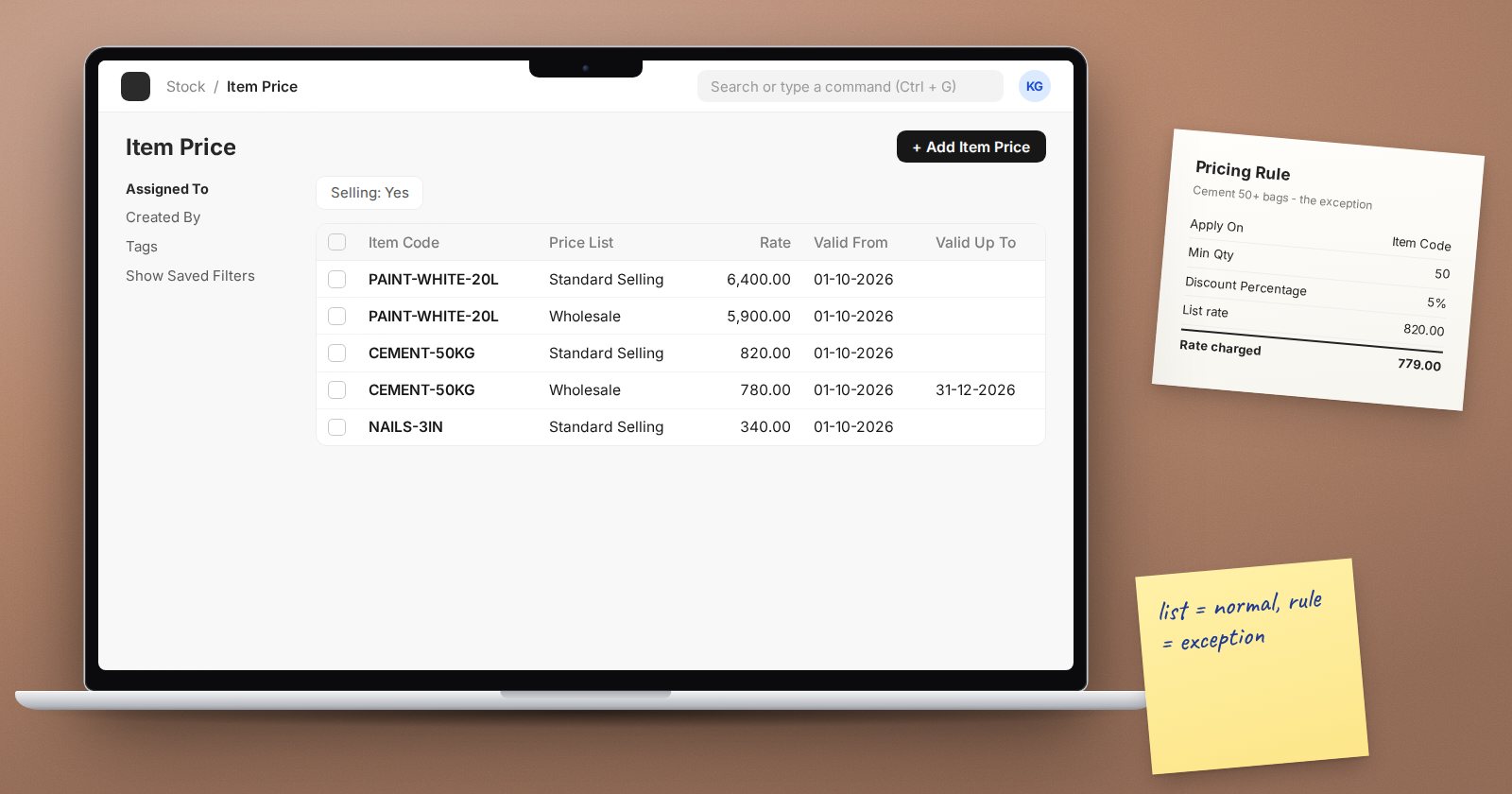
ERPNext has two separate tools for prices, and teams often mix them up. A Price List answers "what does this item normally cost?". A Pricing Rule answers "under these conditions, change that price". Keeping the two jobs apart makes prices predictable.
Price Lists and Item Prices
A Price List is a named list, such as "Standard Selling", "Wholesale" or "Export USD". It has a Currency and is marked for Selling, Buying or both.
The prices themselves are Item Price records: one item, one price list, one Rate. An Item Price can also be limited to a UOM, a specific Customer or Supplier, a Batch No, and a Valid From and Valid Up To date. That is how you schedule a price increase: add a new Item Price valid from the first of next month.
How ERPNext chooses the price list on a sale
- If the customer has a Default Price List, that is used.
- If not, the Default Price List on the customer's Customer Group is used.
- Otherwise, the Default Price List in Selling Settings applies.
So a wholesale customer group pointed at the "Wholesale" list gives every wholesale customer the right prices without per-customer setup.
Pricing Rules
A Pricing Rule adjusts the price under conditions. Its main fields:
- Apply On: Item Code, Item Group, Brand or the whole Transaction.
- Selling and/or Buying.
- Applicable For: Customer, Customer Group, Territory, Sales Partner, Campaign, Supplier or Supplier Group, with the specific value.
- Min Qty and Max Qty, or Min Amt and Max Amt, for volume breaks.
- Valid From and Valid Up To.
- Price or Product Discount: Price changes the rate; Product gives free items.
- Rate or Discount: a fixed Rate, a Discount Percentage or a Discount Amount.
Example: 5% off for orders of 100 or more of any item in the "Paint" group for the "Contractors" customer group, valid this quarter.
When to use which
- Normal prices that change a few times a year: Price List and Item Prices.
- Different price levels for different kinds of customer: separate Price Lists, attached to customer groups.
- Conditional changes: volume breaks, promotions, a customer-specific discount, buy-ten-get-one-free: Pricing Rules.
A common mistake is creating a Pricing Rule with a fixed Rate for every item instead of maintaining a Price List. It works, but it is hard to read and easy to break.
When rules collide
If several rules match the same line, ERPNext uses the one with the highest Priority number. If more than one rule is left at the same priority, ERPNext stops with a message that multiple price rules exist with the same criteria, and lists them. The fix is to give each overlapping rule a clear priority, or to tighten its conditions so they no longer overlap.
Apply Multiple Pricing Rules lets a rule combine with others, and Apply Discount on Discounted Rate controls whether discounts stack on each other. Use these deliberately and test them.
Overriding on a document
Sales documents have an Ignore Pricing Rule check for one-off cases. Use it sparingly and keep Allow editing Price List rate in transactions in Selling Settings off unless sales staff truly need it; otherwise prices drift away from the lists.
Try it
- Create a "Wholesale" selling Price List and add Item Prices for three items.
- Set it as the Default Price List on a "Wholesale" Customer Group.
- Add a Pricing Rule: 5% off for quantities of 50 or more on one of those items.
- Make a Quotation for a wholesale customer for 10, then 60 units, and watch the rate change.
Pricing strategy and running a sales team are covered in the CRM & Sales Management course.
